


Git integration
Keep your Creatio applications under version control in GitHub and develop them as a team without leaving Creatio.
Overview
Product overview
Product description
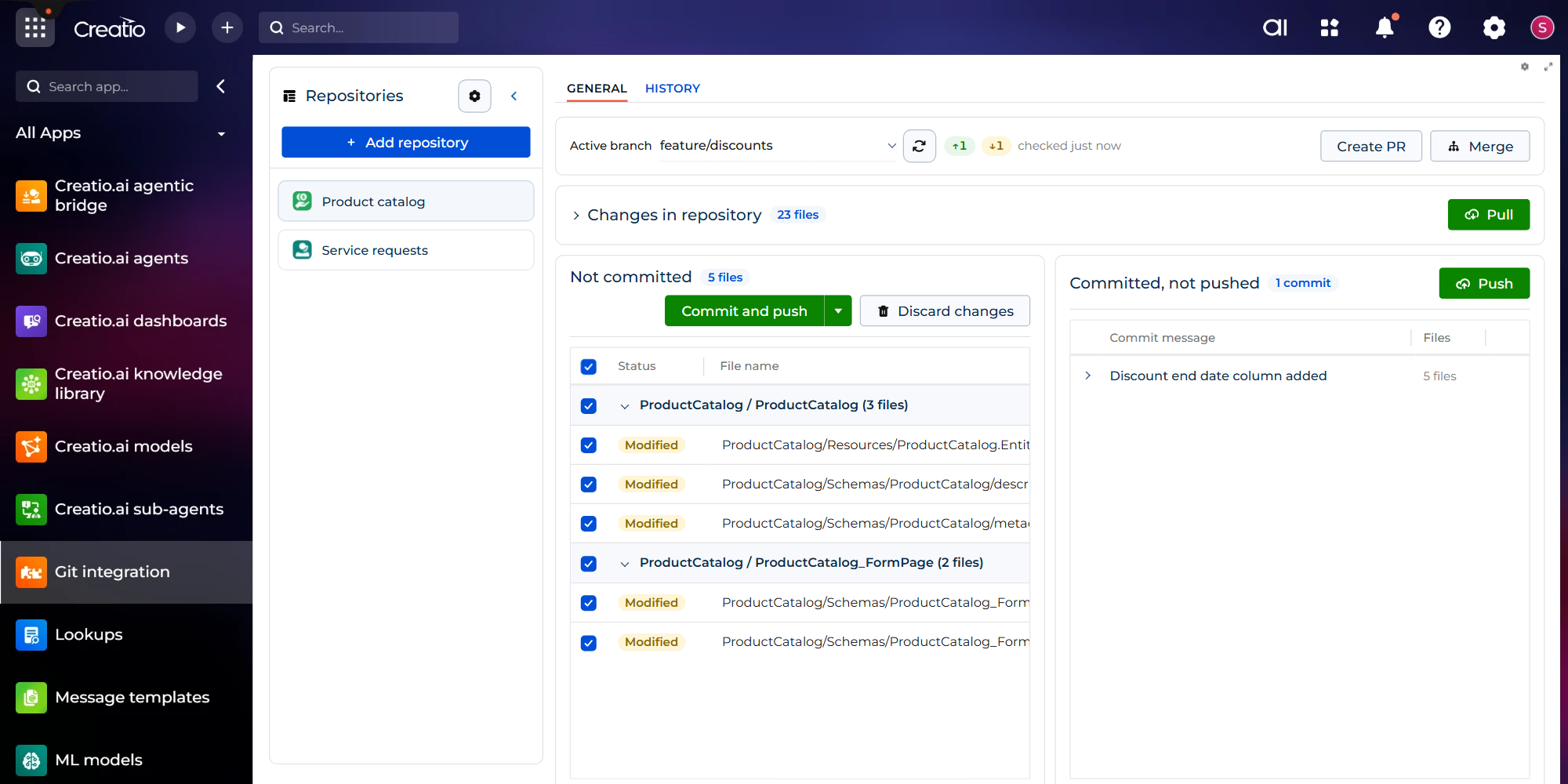
Git Integration brings the everyday Git workflow to a page inside Creatio. The changes developers save in Creatio designers appear there, grouped by package and schema, and can be compared with their last committed version, committed and pushed. Changes that others pushed are pulled into Creatio, and the packages they touch are installed automatically.
Start by exporting an application that already exists in Creatio as the first commit of an empty repository. Other developers then import the repository, and Creatio installs the application from its packages. Each developer can work in a separate branch and merge it when the work is ready. When a pull or a merge runs into conflicting edits, Creatio package files are merged automatically where possible, and the rest are listed on a separate page for manual editing. Pull requests are created and tracked on the same page, and changes meant for a protected branch go to a new branch, ready for review.
No Git client or command-line tools are needed: all operations run on the Creatio server, which connects to GitHub over HTTPS with a personal access token stored encrypted.
Start by exporting an application that already exists in Creatio as the first commit of an empty repository. Other developers then import the repository, and Creatio installs the application from its packages. Each developer can work in a separate branch and merge it when the work is ready. When a pull or a merge runs into conflicting edits, Creatio package files are merged automatically where possible, and the rest are listed on a separate page for manual editing. Pull requests are created and tracked on the same page, and changes meant for a protected branch go to a new branch, ready for review.
No Git client or command-line tools are needed: all operations run on the Creatio server, which connects to GitHub over HTTPS with a personal access token stored encrypted.
Key Features
Connect repositories
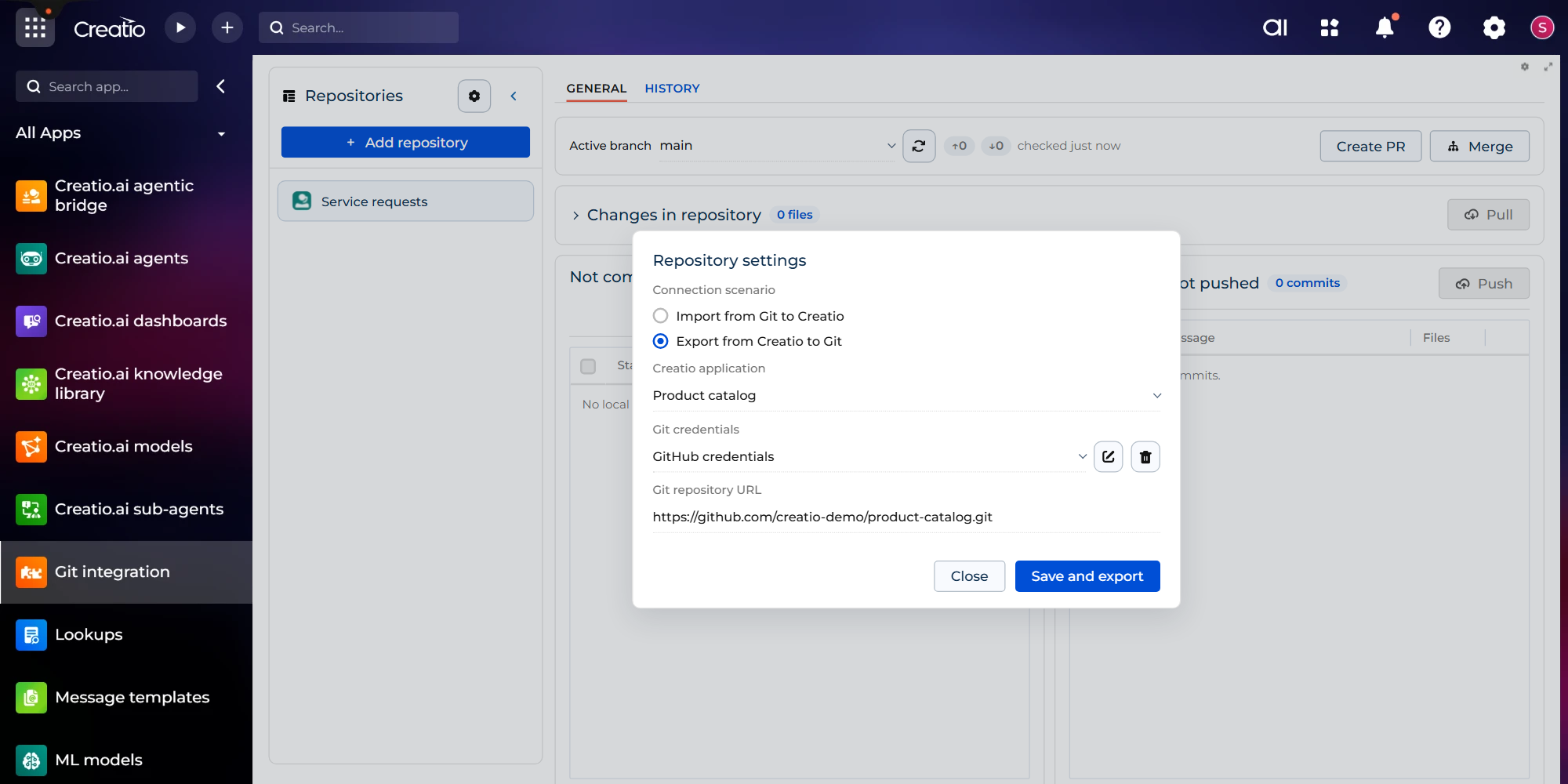
Export an installed Creatio application as the first commit of an empty GitHub repository, and import that repository on other environments to install the application there. Connect several repositories, switch between them in the sidebar and reuse saved credentials.
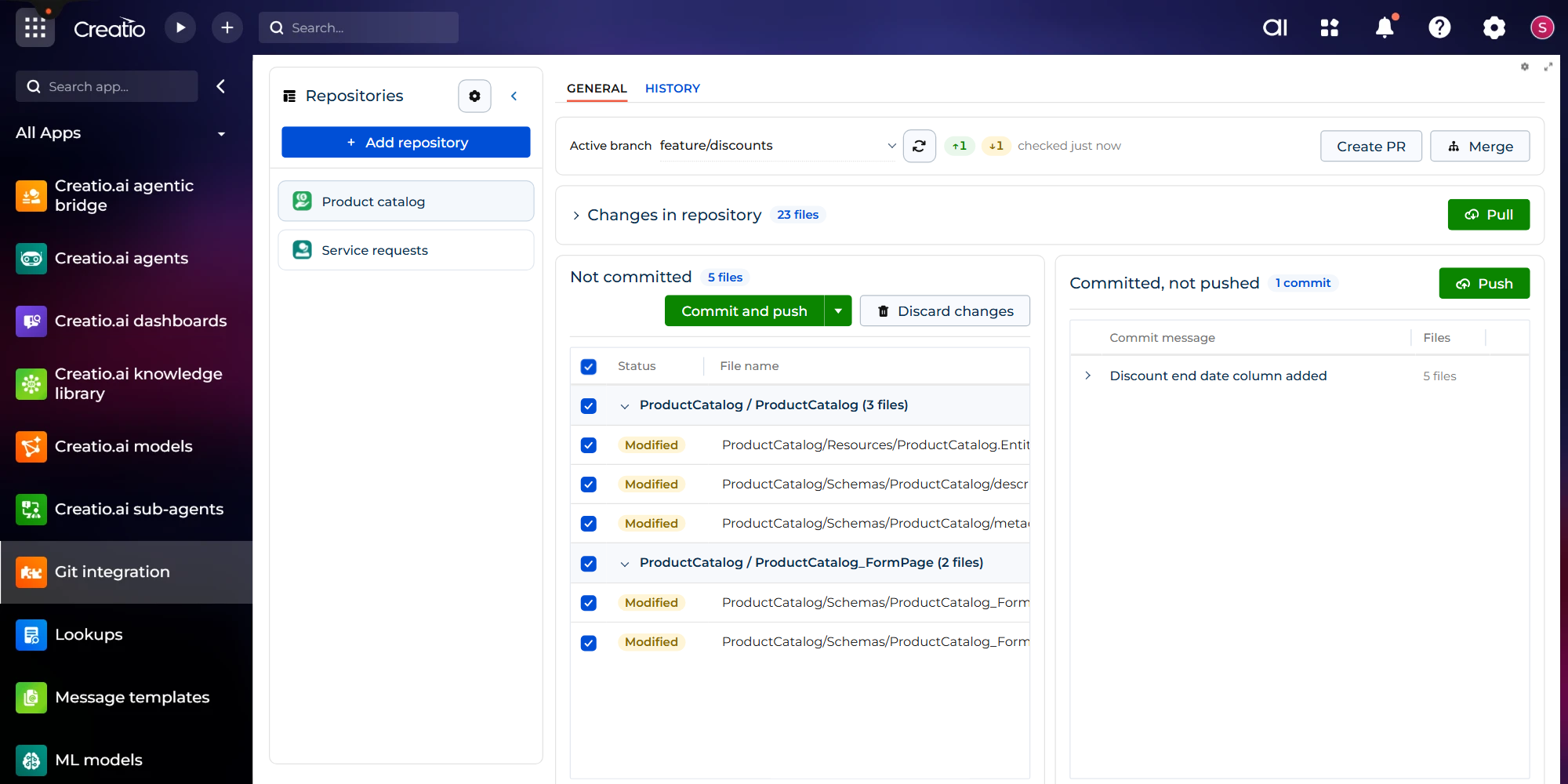
Package and schema change tracking
The General tab lists the changes not committed yet by package and schema, next to the incoming changes from the repository and the commits not pushed yet. Counters beside the branch show how many commits wait to be pulled and pushed.
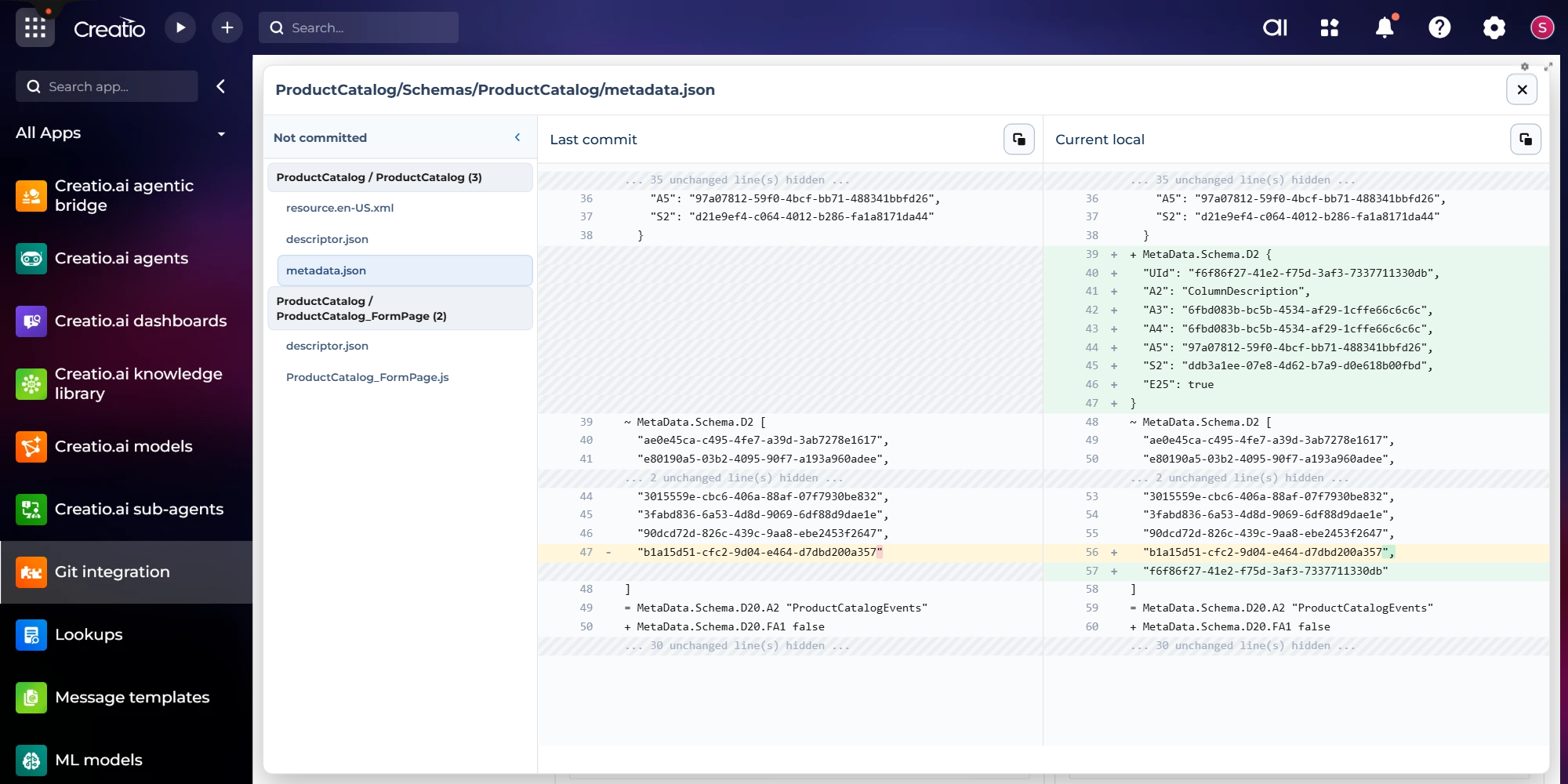
Review changes before you commit or pull
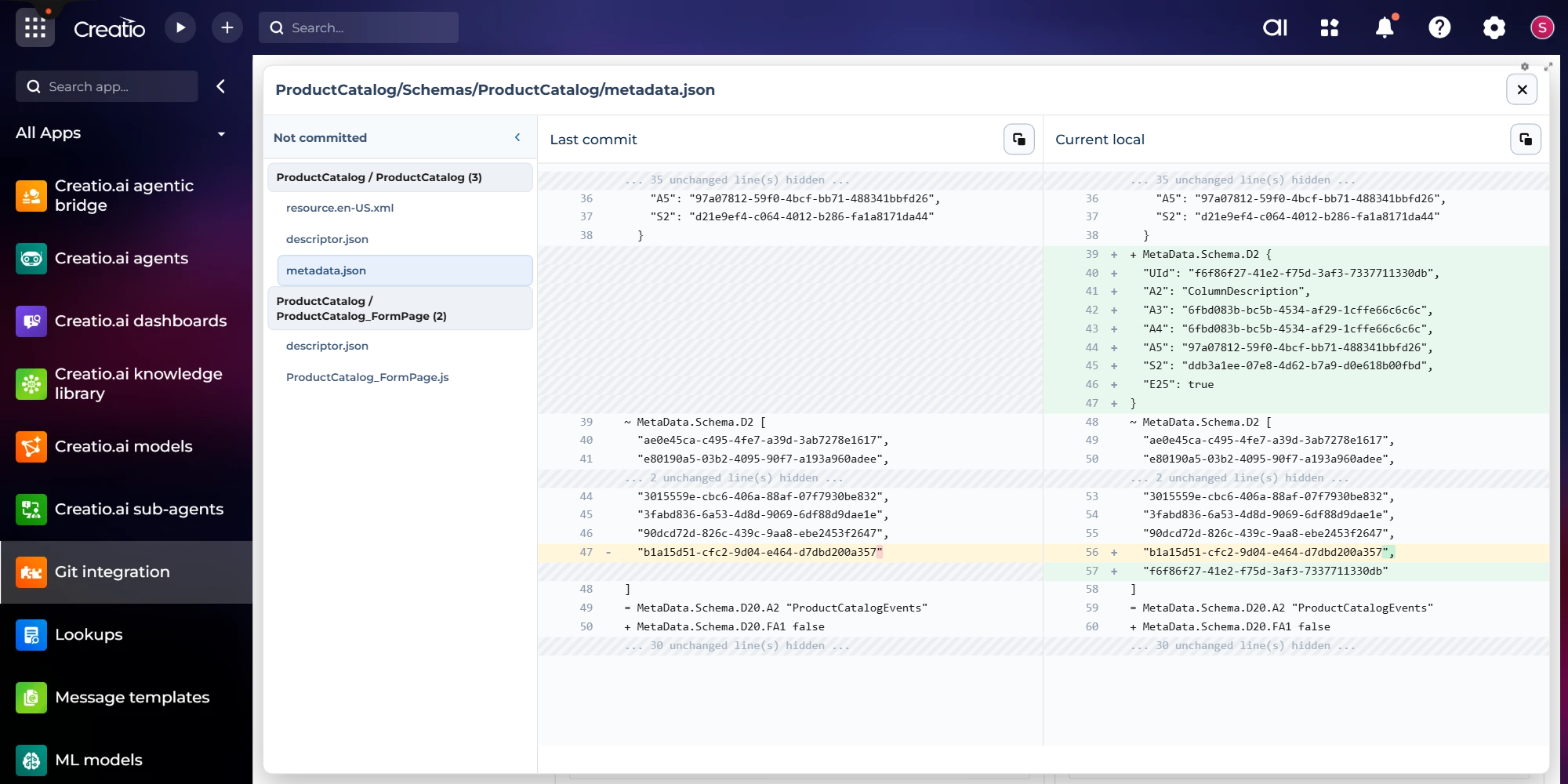
See the diff of every changed file, both for your own changes and for the incoming ones from the repository. Both versions appear side by side, and the full-screen view lets you go through all the files one by one.
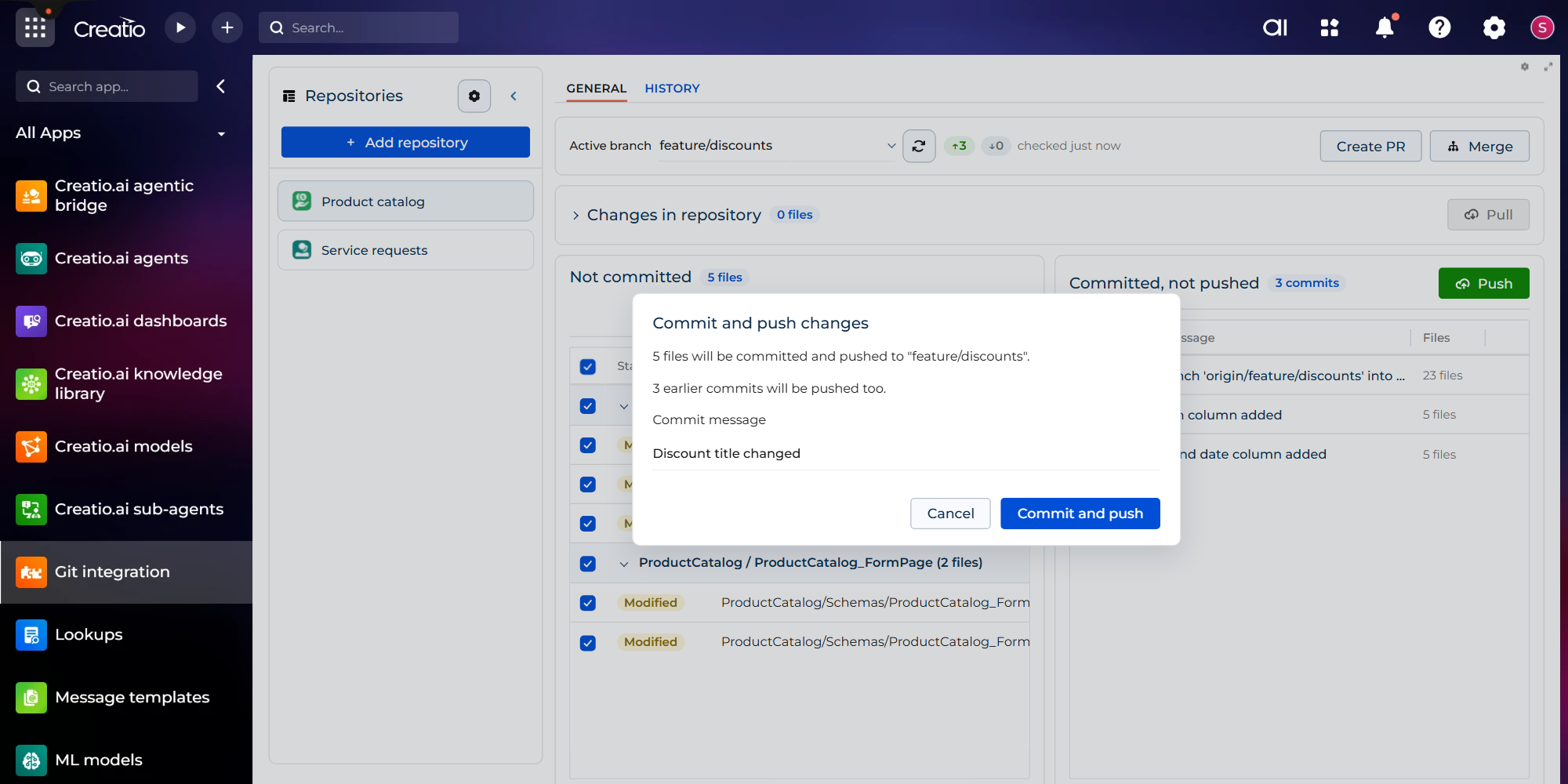
Commit, push and pull
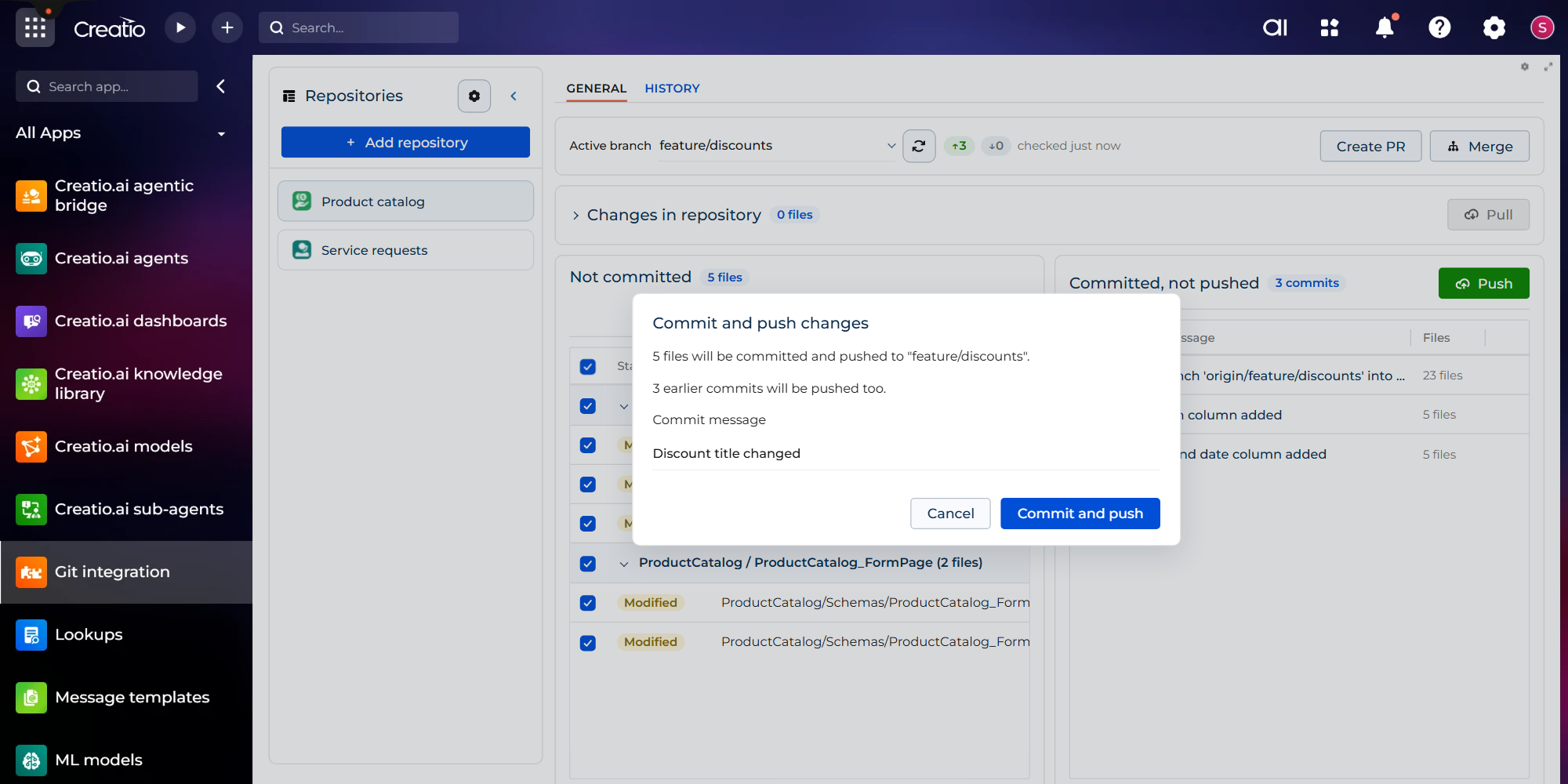
Commit the selected files and push them in one step, or commit now and push later. Pull brings in what others pushed and installs the affected packages, and Discard returns the selected files to their last committed version.
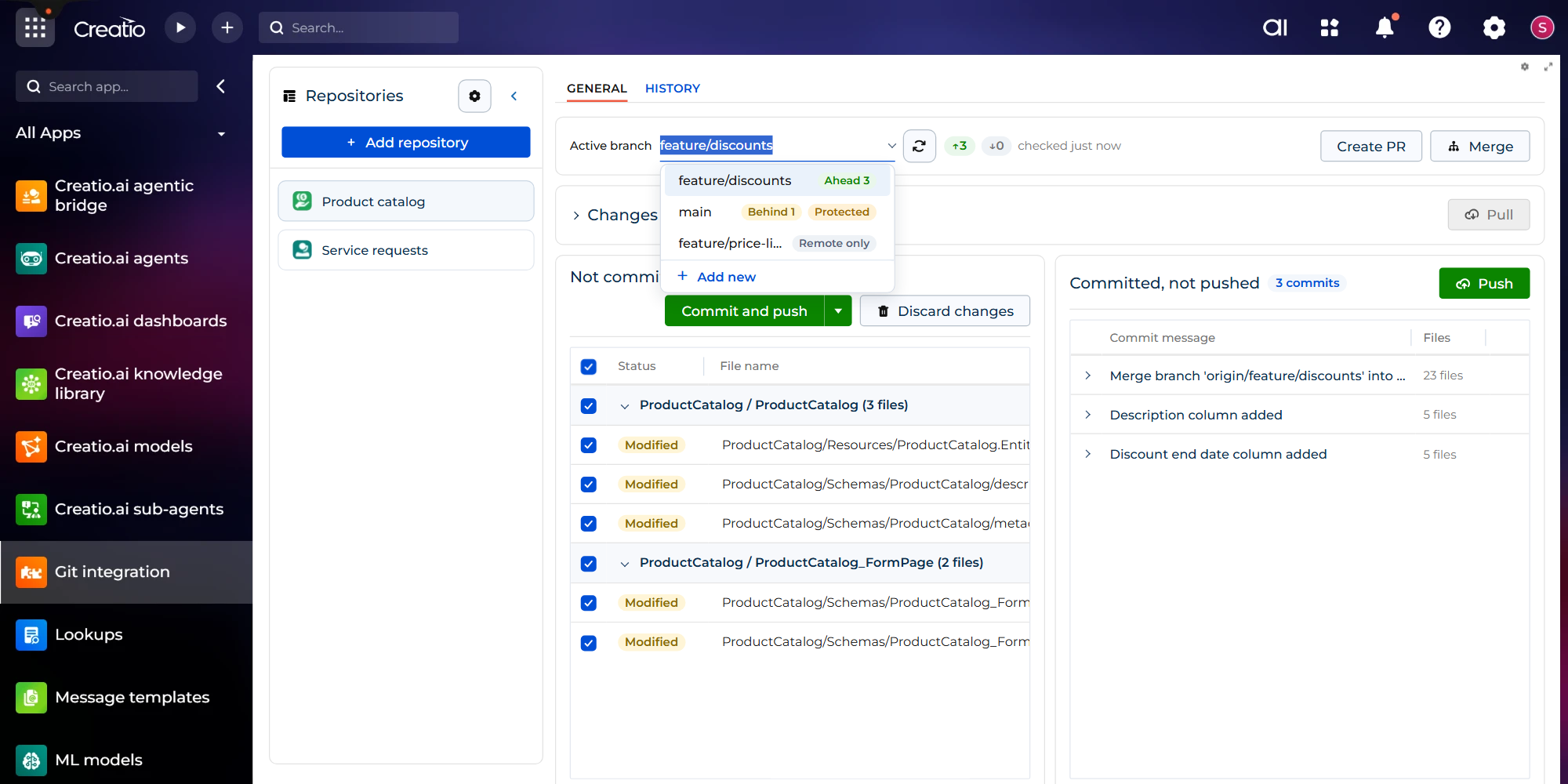
Work in branches
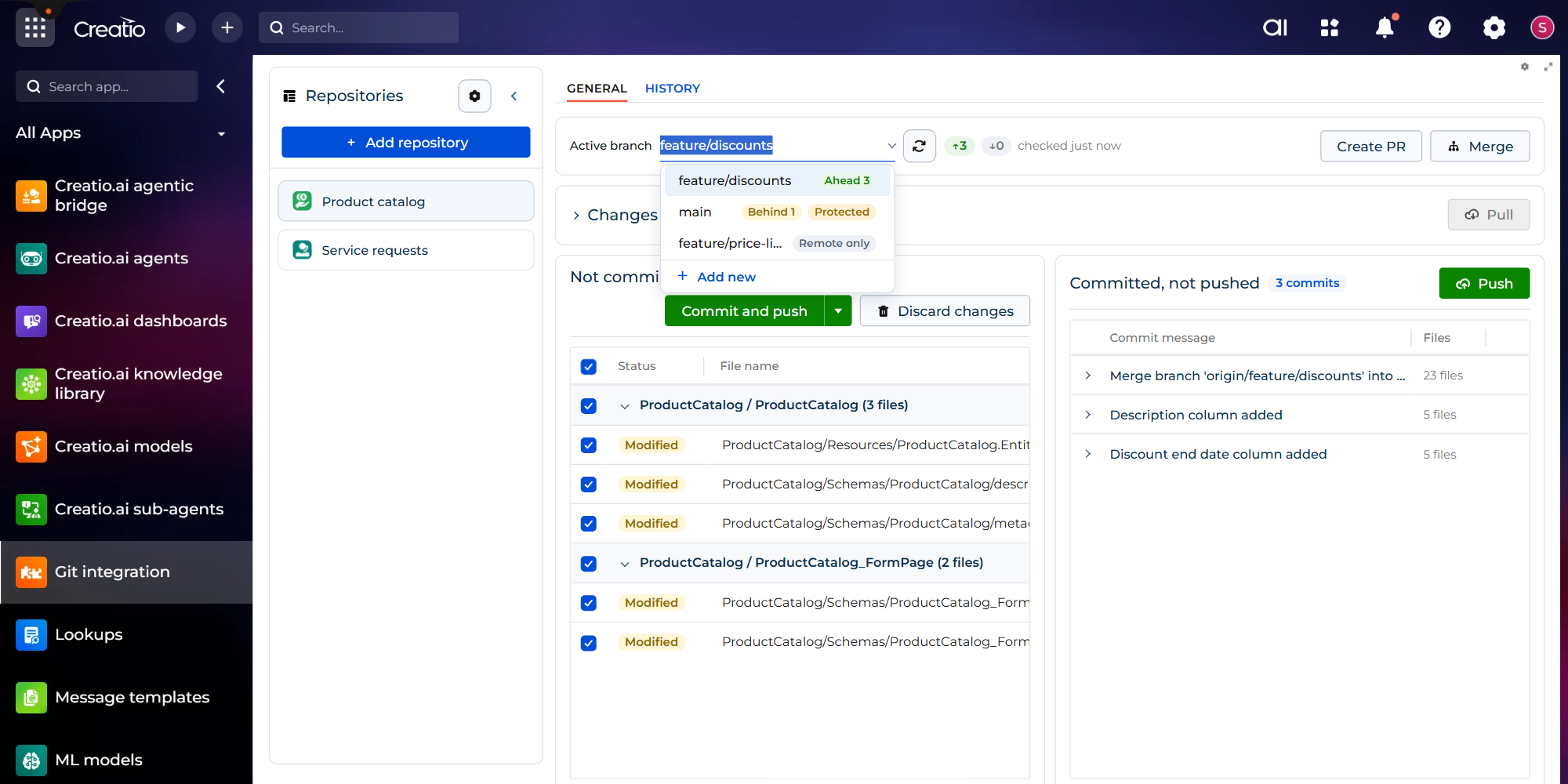
Switch branches from a searchable list that marks each one as protected, unpublished, ahead or behind, and create a feature branch from any remote branch. Uncommitted changes stay with the branch you leave, and a push to a protected branch goes to a new branch instead.
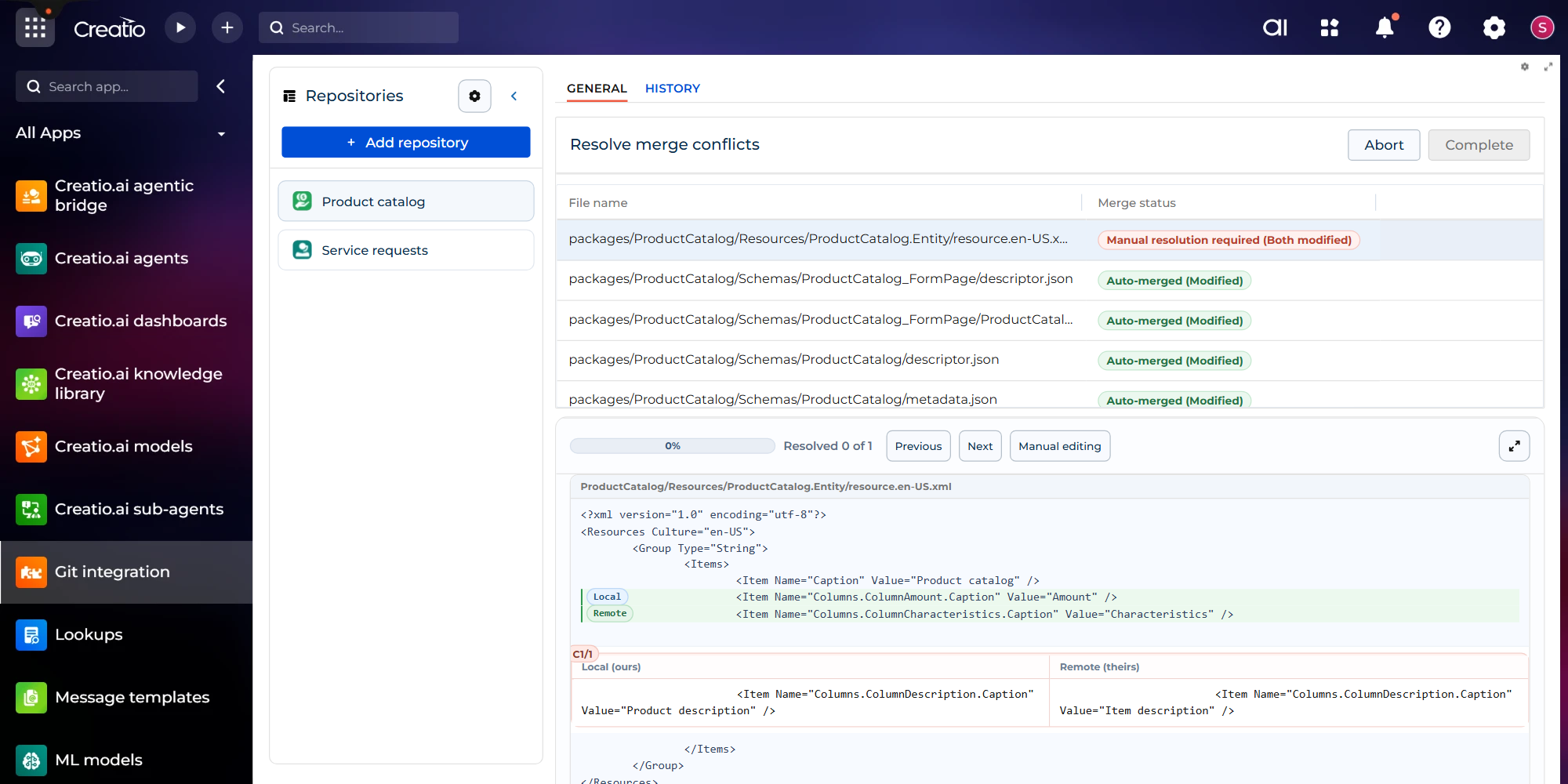
Merge and resolve conflicts
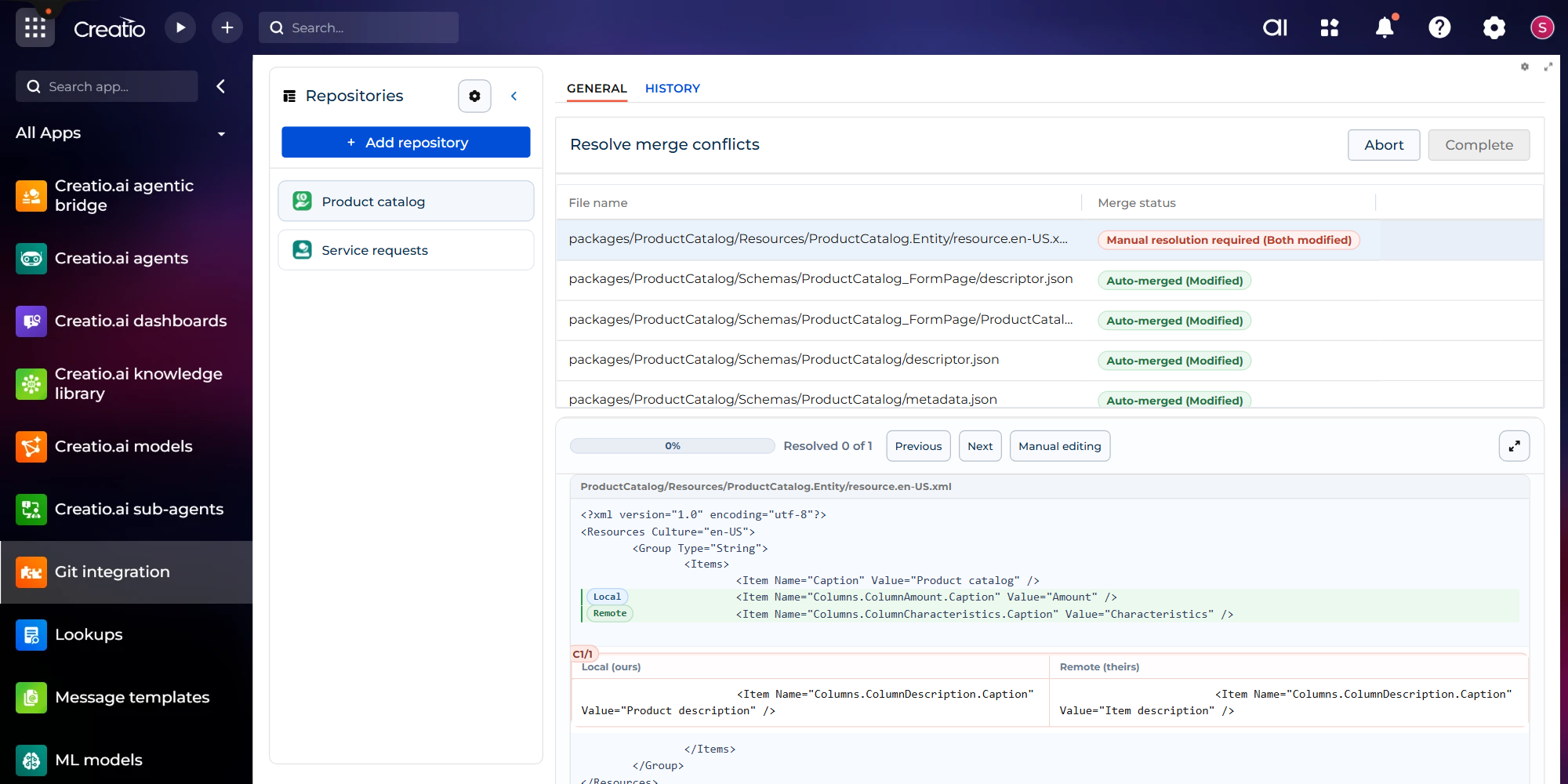
When a pull or a branch merge meets edits on both sides, Creatio schemas such as objects, pages, add-ons and localizable strings are merged automatically. Only real conflicts, where both sides changed the same value, are left for manual resolution: keep either version or edit the result.
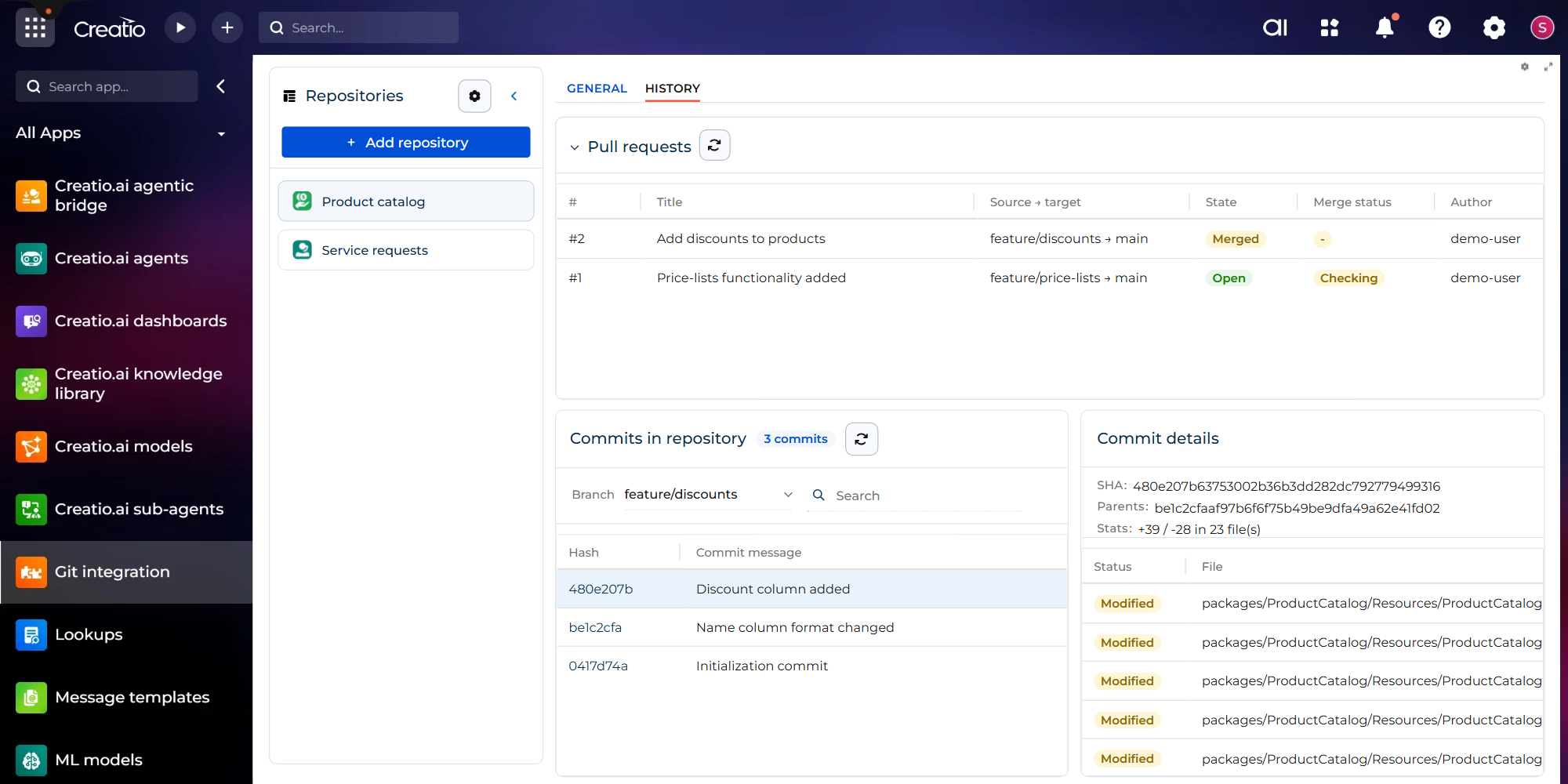
Pull requests and history
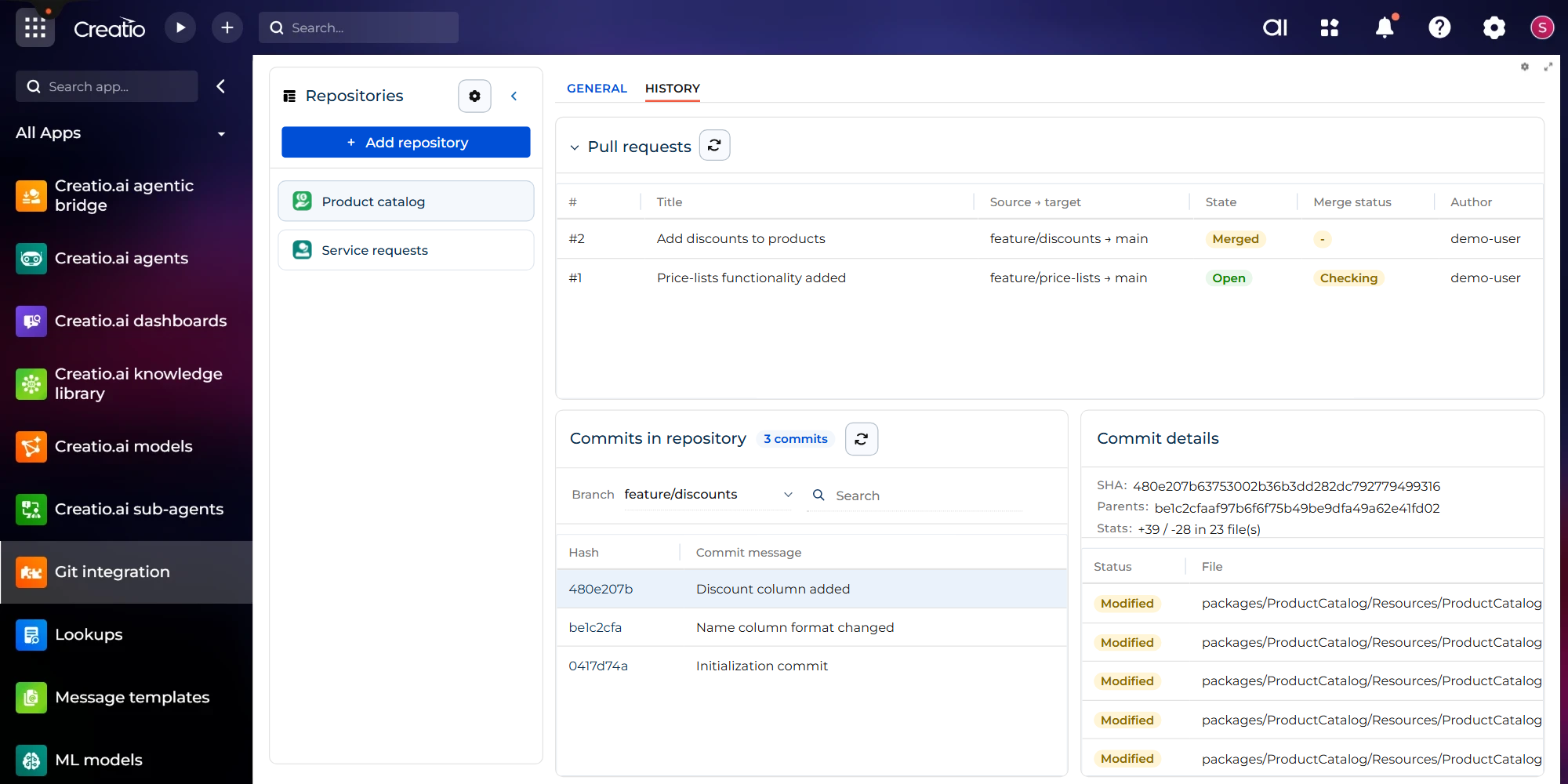
Create pull requests from the General tab and follow their state and merge status on the History tab. Browse the commits in the repository by branch, author or message, with the files each commit changed and their diffs.
Pricing
Monthly
Annual
Standard
Free
Terms and Conditions
By installing this product you agree to terms and conditions outlined in the license agreement.
Support
Support is available for this application
The Support is provided by Creatio following the package you have purchased for your Subscription Services. Detailed information about the support packages and the support terms is stated in your Master Agreement (available at Creatio website).
Installation
Setup guide
Before you start
- Create a new, empty repository on GitHub for your application.
- Create a classic personal access token with the "repo" scope for a GitHub account that has the "Write" role or higher in the repository.
- Install the application from Creatio Marketplace using the "Install" button.
- Select the environment and confirm the installation.
- Wait for the installation to complete. The Git integration app then appears in All Apps.
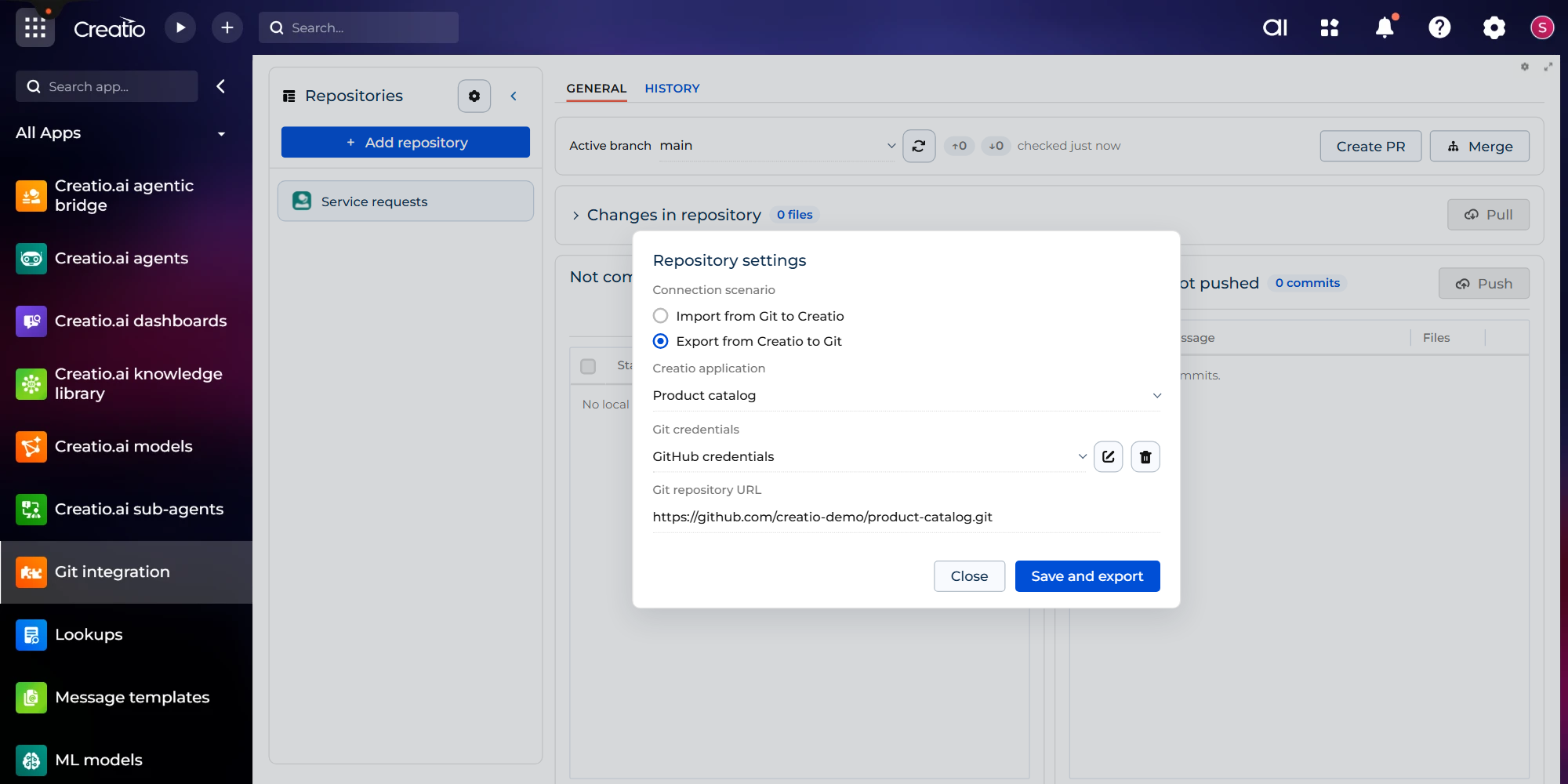
- Open the Git integration app and click "Add repository". The "Repository settings" window opens.
- Select the connection scenario:
- "Export from Creatio to Git" pushes an installed application to the empty repository as its first commit. Select the application in the "Creatio application" field.
- "Import from Git to Creatio" installs the application from a repository exported this way, for example, on another developer's environment.
- In the "Git credentials" field, select a saved credential, or click "+ Add new" and fill in the "Create Git credential" form:
- Credential name: any name, for example, GitHub.
- Git server URL: https://api.github.com for github.com. For GitHub Enterprise, use the address of your server, for example, https://<your-company>.ghe.com.
- Access token: the token you created.
- Click "Save". The credential is checked against GitHub before it is saved.
- Enter the HTTPS URL of the repository and click "Save & Export" or "Save & Import".
- The repository appears in the Repositories list, and the General tab shows its active branch.
- Make a small change in a Creatio designer, for example, add a field to a page, and save it.
- Click the refresh button next to the active branch. The change appears under "Not committed".
Data sharing
- By installing or downloading the App, you confirm that you agree with sharing your account data (name, email, phone, company and country) with the App Developer as their End User.
- The App Developer will process your data under their privacy policy.
Versions
Versions history
Version
Compatibility
Release date
1.0.0
8.3.4 and up
Release summary
First release of Git Integration: connect a Creatio application to a GitHub repository, then commit, push, pull, branch, and merge its changes from a page inside Creatio.
Manual app installation
- Open the needed app → the Packages tab - download the Markeplace app files.
- Click in the top right → Application Hub
- Click New application. This opens a window.
- Select Install from file and click Select in the window that opens.
- Click Select file on the page of the Marketplace App Installation Wizard and specify the app file path.
Compatibility notes