


InterWeave MS Dynamics Integration
Overview
Product overview
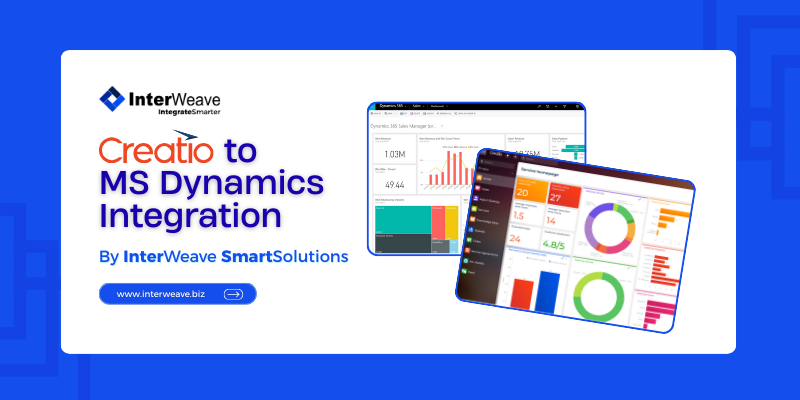
The Creatio to Microsoft Dynamics 365 SmartTracks Integration leverages a configurable, API-driven connector to synchronize data between the Creatio CRM platform and Microsoft Dynamics 365. It supports uni-directional or bi-directional workflows at the object level, ensuring records such as Accounts, Contacts, Leads, Opportunities, Orders, Invoices, Products, Activities, and custom entities are created or updated consistently across both systems.
The solution supports standard and custom field mappings and includes built-in error handling, monitoring, and configurable business logic to maintain data integrity between CRM and operational platforms. Integration tracks and mapping rules can be tailored to meet specific business requirements, enabling seamless data flow between front-office sales and service teams in Creatio and downstream operational processes managed in Dynamics 365.
Business Benefits
- Automated CRM and Operational Workflows
By automating the synchronization of leads, opportunities, orders, invoices, and customer updates between Creatio and Microsoft Dynamics 365, organizations eliminate manual re-entry, reduce errors, and accelerate sales, service, and fulfillment processes. - Data Consistency and Accuracy
Bi-directional synchronization ensures that customer, product, and transaction data remains accurate and up to date across both platforms, improving reporting reliability and reducing reconciliation issues. - Improved Cross-Team Visibility
Sales, operations, and service teams gain a unified view of customer interactions and transaction status, enabling better coordination, faster decision-making, and improved customer experiences. - Reduced Manual Effort and Operational Risk
Eliminating duplicate data entry and manual handoffs reduces administrative overhead and minimizes the risk of data inconsistencies or process breakdowns. - Enhanced Operational Efficiency
End-to-end automation between Creatio and Dynamics 365 streamlines order management, invoicing, and downstream processes, reducing cycle times and improving scalability. - Scalable and Flexible Architecture
The configurable SmartTracks platform allows organizations to adapt workflows, extend object coverage, and scale integrations over time without heavy custom development, supporting long-term growth and evolving business needs.
Key Features
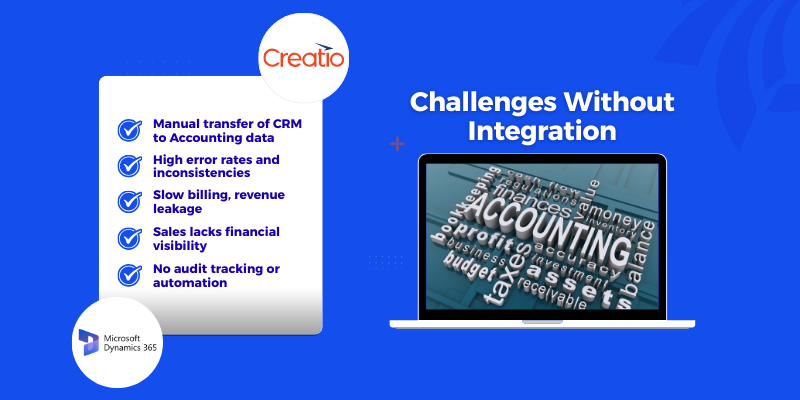
Challenges Without Integration
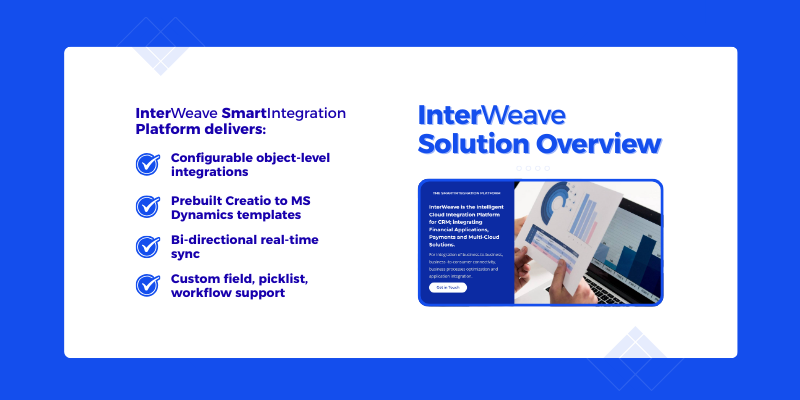
InterWeave Solution Overview
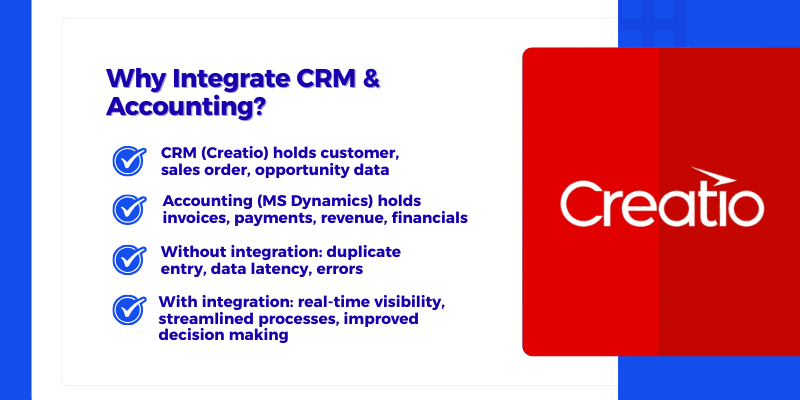
Why Integrate CRM & Accounting
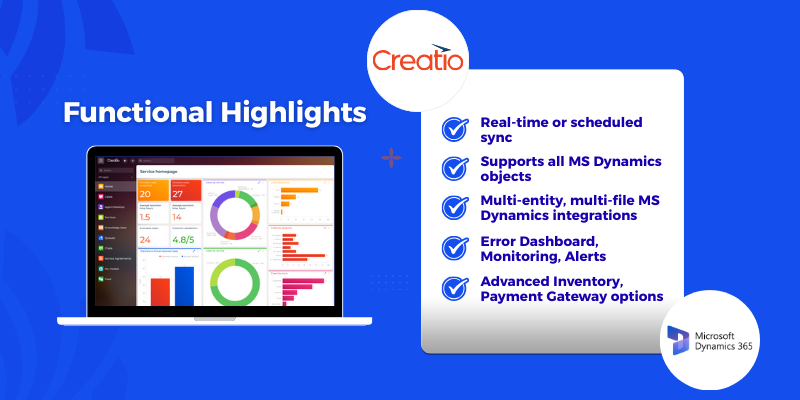
Creatio to MS Dynamics 365 Functional Highlights
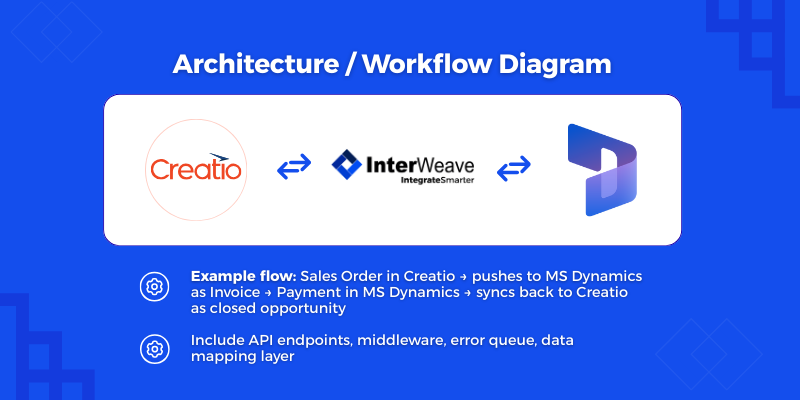
Architecture / Workflow diagram
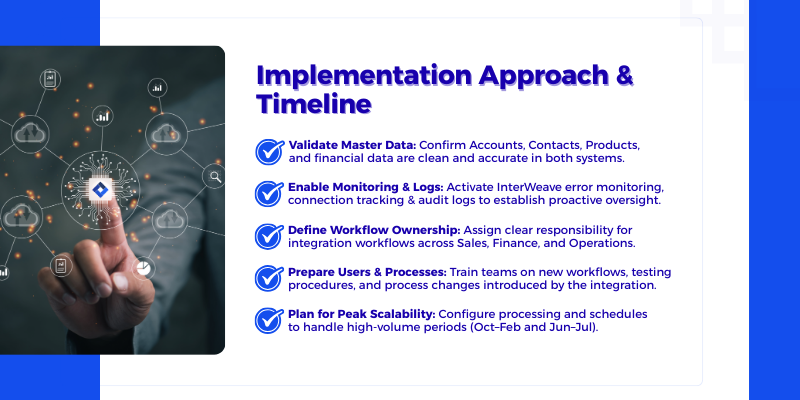
Implementation Approach & Timeline
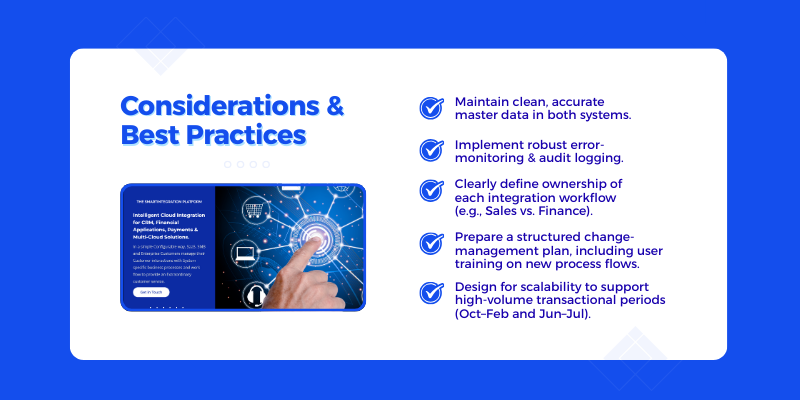
Consideration & Best Practices
Pricing
Third-party solution. The listed price includes the external subscription. Purchase and payment are processed via Creatio.
- The InterWeave Creatio to Microsoft Dynamics 365 Solution is offered as a subscription-based integration solution compatible with supported Microsoft Dynamics 365 environments. Pricing includes access to the InterWeave SmartSolutions platform, preconfigured Dynamics 365 connectors, configurable data mappings, workflow automation, monitoring, and ongoing platform maintenance.
- An active Creatio license and a supported Microsoft Dynamics 365 license are required to use this integration. Implementation, configuration, data migration, and any custom workflow or business logic services are not included in the subscription price and are scoped separately based on integration complexity, data volumes, and organizational requirements.
- Configuration, Training and initial Support is separate from License. See line 4 in the Editions in Creatio to MS Dynamics SmartTracks - The SmartIntegration Platform (InterWeave SmartTracks Service Charges).
Terms and Conditions
Support
InterWeave Solutions are enterprise-grade, designed to support a wide range of financial workflows and business models. Because implementation complexity varies by organization—based on payment methods, billing models, compliance needs, and system configuration—implementation estimates are provided on a case-by-case basis. Please contact InterWeave to discuss implementation options, timelines, and pricing tailored to your specific needs.
Additional Support and Training options are available. For more information, go to - InterWeave SmartSupport | InterWeave SmartSolutions.
Installation
Setup guide
Creatio to MS Dynamics Integration - Installation & Setup
To ensure a smooth onboarding experience, InterWeave provides a clear, user-friendly setup process for configuring your Creatio to Microsoft Dynamics 365 integration after installation. Follow the steps below to get started.
1. Begin with the Quick Start Guide
After installation, open the Quick Start Setup Guide, which walks you through the initial configuration in a simple, easy-to-follow format. This overview helps you understand required prerequisites, permissions, and connection settings before moving into detailed configuration.
2. Follow the Step-by-Step Configuration Process
The setup is organized into sequential steps within the InterWeave Customer Portal and Integration Manager Console. Each step includes direct links to full documentation for deeper reference.
Typical steps include:
-
Connecting Creatio and Microsoft Dynamics 365
-
Selecting integration objects and entities
-
Mapping standard and custom fields
-
Defining synchronization direction and schedules
-
Running and validating your first test synchronization
3. Clearly Labeled Setup Stages
Each stage of the setup process is clearly labeled—Connection Setup, Object Selection, Field Mapping, Workflow Configuration, and Activation—making the configuration intuitive even for first-time users.
4. Visual Setup Assistance
Screenshots, short video clips, and annotated interface highlights are provided to guide users through each screen of the Integration Manager Console. These visuals simplify configuration, reduce onboarding time, and help ensure accuracy.
5. Tested, Validated, and Supported
The installation and configuration process is thoroughly tested to ensure reliable operation across supported Microsoft Dynamics 365 environments, including multi-entity and customized Dataverse deployments. Troubleshooting tips and FAQs are included to address common setup questions, along with recommended resolutions and best practices.
For implementation approaches and cost estimates tailored to your organization’s specific requirements, please contact InterWeave for a personalized consultation.
Data sharing
- By installing or downloading the App, you confirm that you agree with sharing your account data (name, email, phone, company and country) with the App Developer as their End User.
- The App Developer will process your data under their privacy policy.
Versions
Manual app installation
- Open the needed app → the Packages tab - download the Markeplace app files.
- Click in the top right → Application Hub
- Click New application. This opens a window.
- Select Install from file and click Select in the window that opens.
- Click Select file on the page of the Marketplace App Installation Wizard and specify the app file path.