

P7M Email Attachment Decryptor for Creatio
P7M Email Attachment Decryptor for Creatio application automatically decrypts S/MIME .p7m files in Email attachments.
Overview
Product overview
Product description
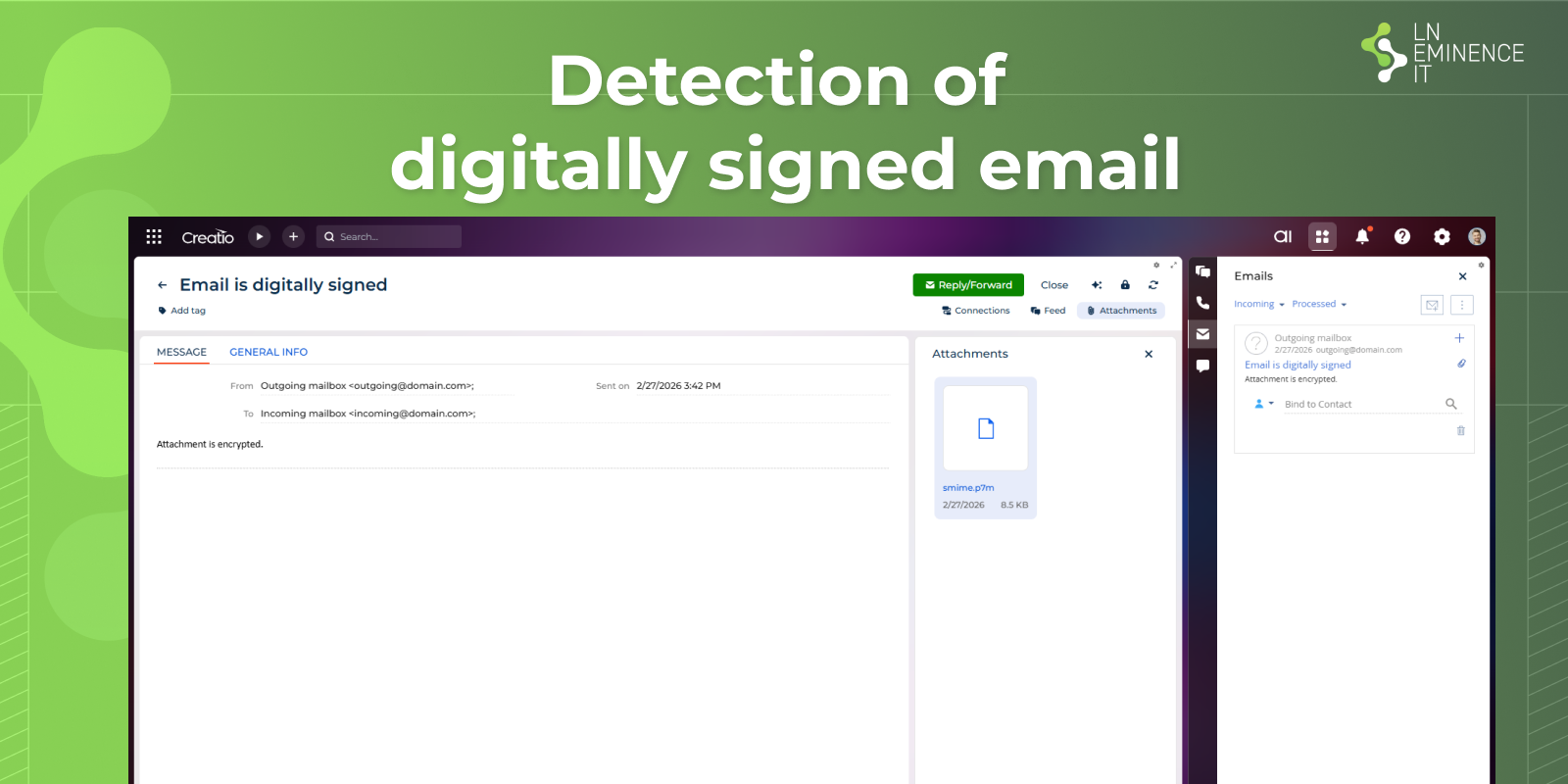
Upon receiving a digitally signed email, P7M Email Attachment Decryptor for Creatio automatically processes and decrypts the attached S/MIME .p7m files, extracting the original signed content (e.g. PDF, XML, DOCX) and attaching it to the corresponding email in Creatio for immediate access. This app provided seamless integration with Creatio Email module without user interaction.
Key Features
Attachment decryption
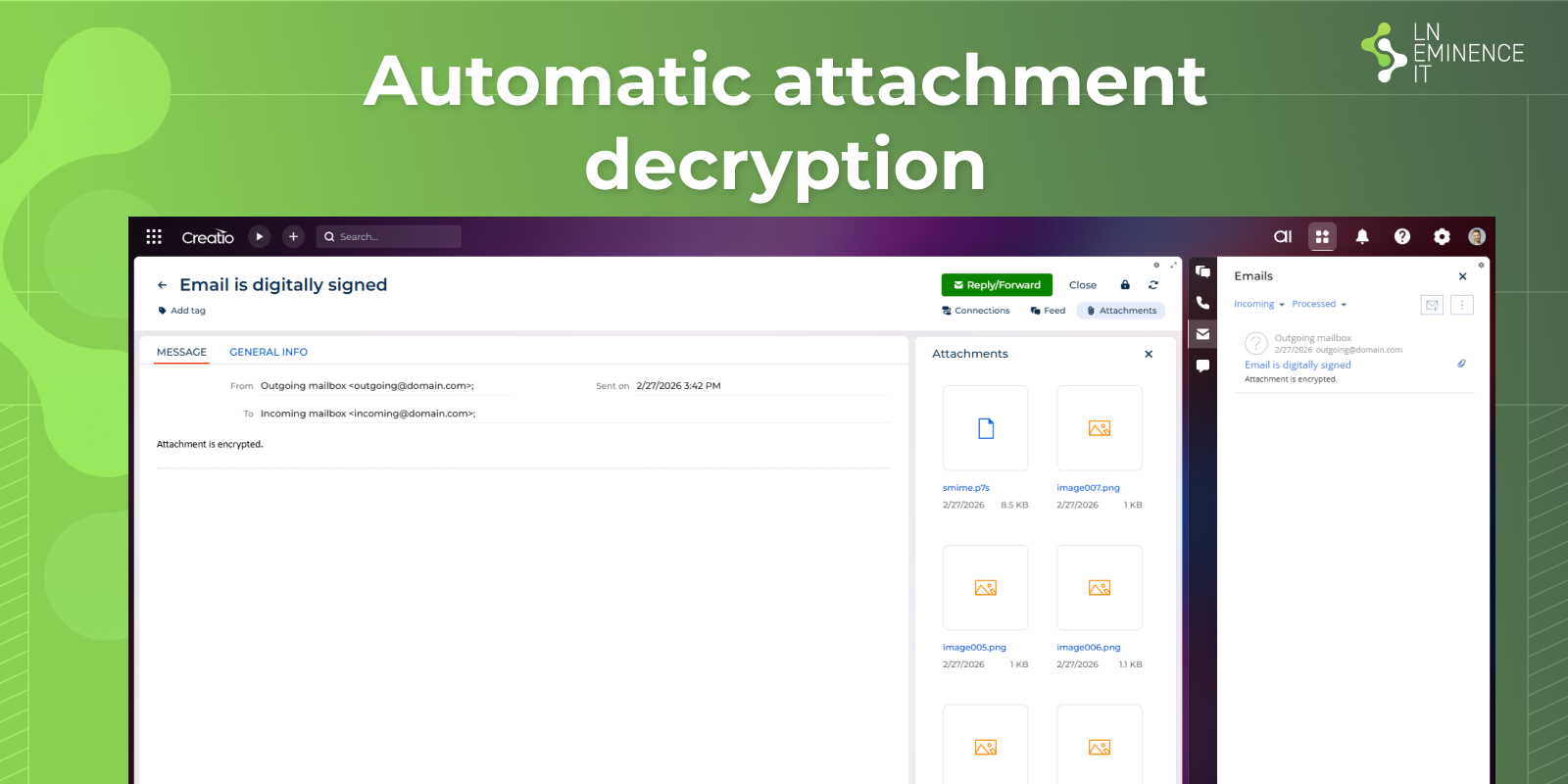
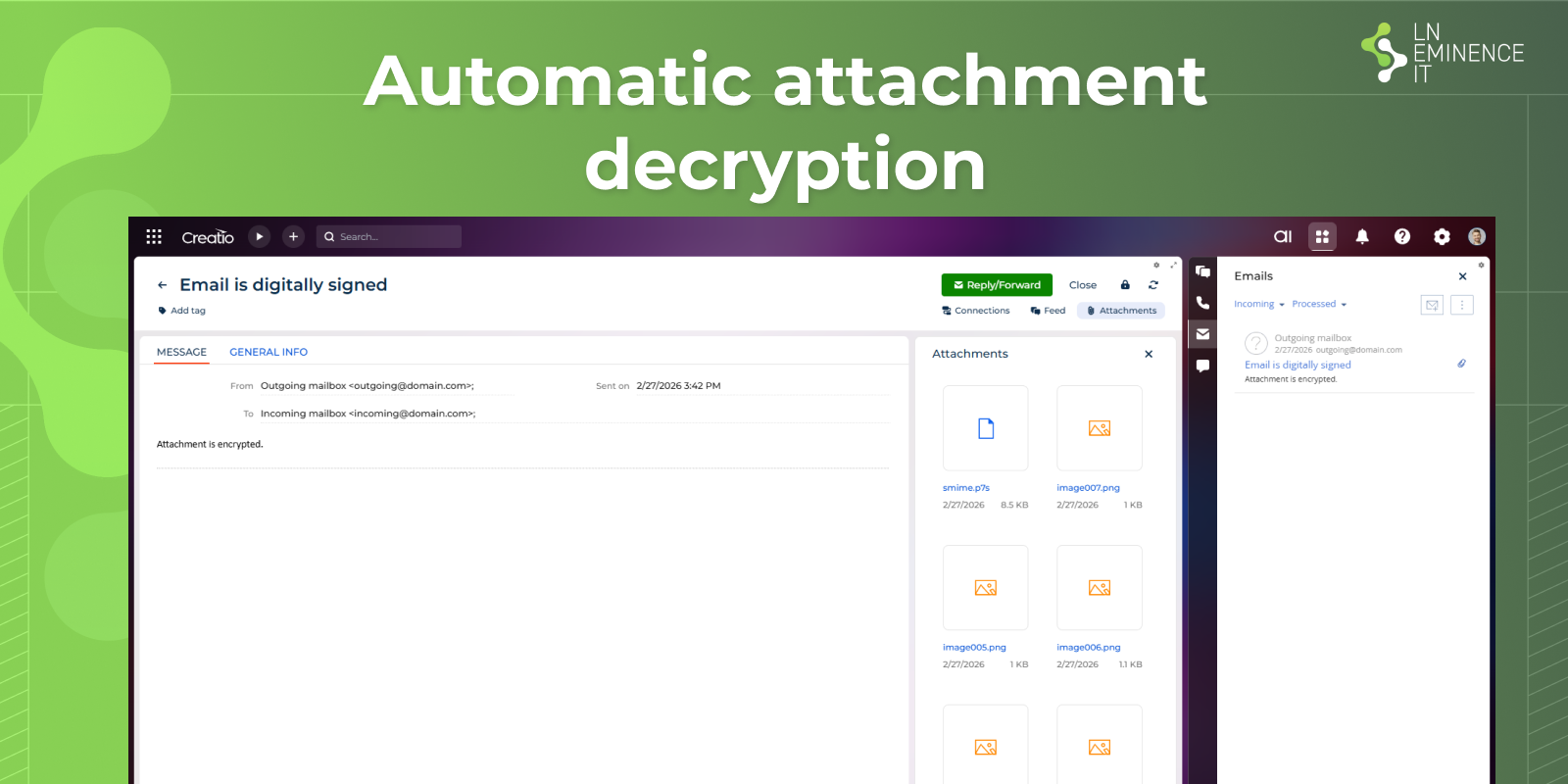
Encrypted smime.p7m attachments are automatically processed, decrypted, and the original document(s) are attached to the corresponding email record.
Pricing
Monthly
Annual
Standard
$
5.00 / month
billed annually
Terms and Conditions
By installing this product you agree to terms and conditions outlined in the license agreement.
Support
Support is available for this application
Support is provided by the developer within the “Basic” and “Business” packages. Detailed information about the support packages and the support terms can be found on the Creatio website.
Installation
Data sharing
- By installing or downloading the App, you confirm that you agree with sharing your account data (name, email, phone, company and country) with the App Developer as their End User.
- The App Developer will process your data under their privacy policy.
Versions
Versions history
Version
Compatibility
Release date
1.0.0
8.0.0 and up
Manual app installation
- Open the needed app → the Packages tab - download the Markeplace app files.
- Click in the top right → Application Hub
- Click New application. This opens a window.
- Select Install from file and click Select in the window that opens.
- Click Select file on the page of the Marketplace App Installation Wizard and specify the app file path.