


SalesUp Multichannel Chats for Creatio
Overview
Product overview
SalesUp Multichannel Chats for Creatio is an extension for SalesUp Multichannel Chatbots for Creatio that adds full live-agent communication on top of your automated bot conversations. While the chatbots handle automated interactions across channels, this extension brings the human side into the same flow — consolidating group and one-on-one chats from external messaging apps into a single interface within Creatio, so managers can step in and take over a conversation the moment a personal touch is needed.
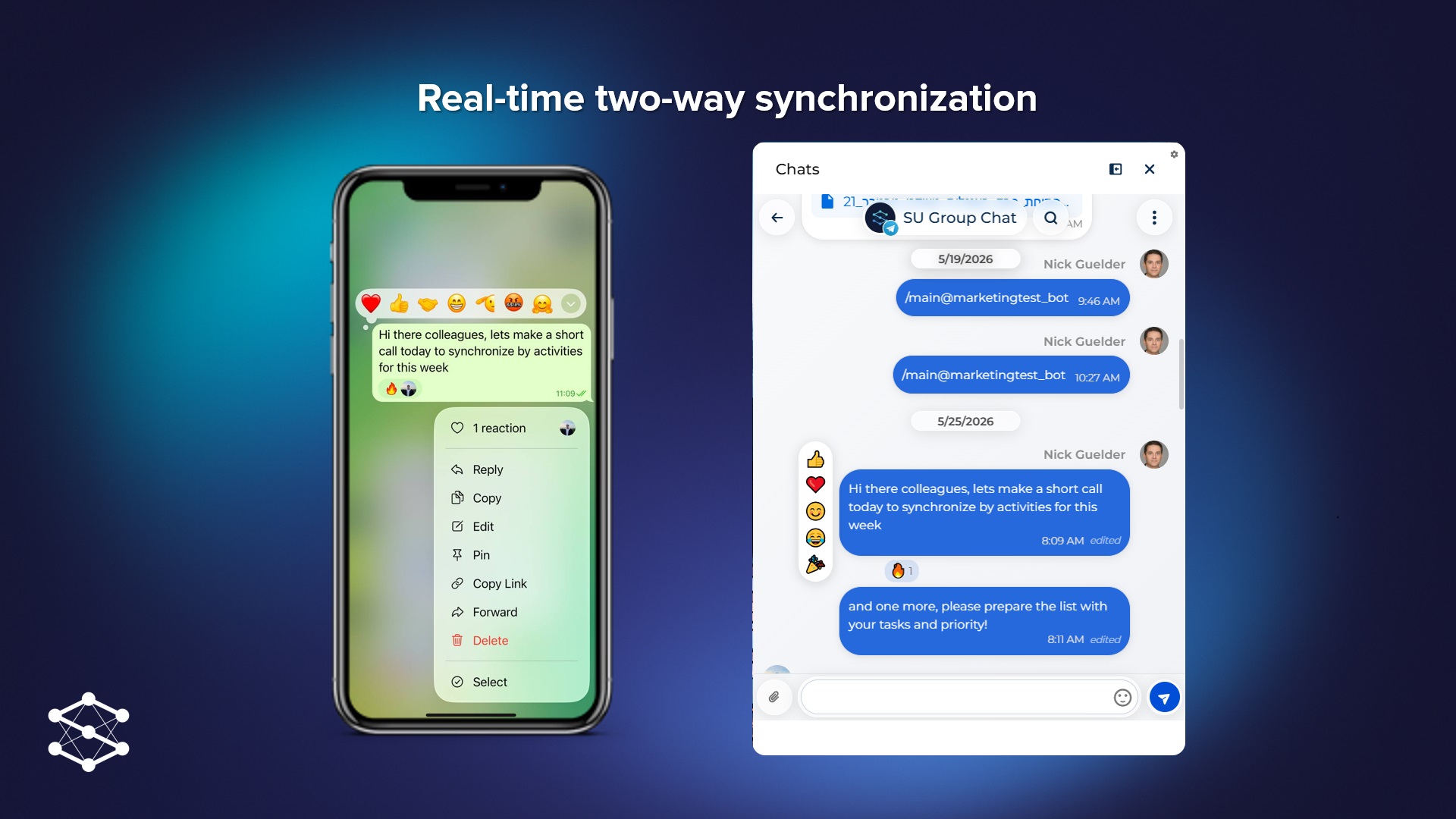
Built on the same multichannel foundation, it requires no separate setup and inherits the channels you've already connected. Managers no longer switch between apps — all conversations, history, and context live directly in Creatio, with full chat functionality and real-time two-way synchronization.
The extension is especially useful in the following cases:
- Customer Support: Create a case directly from a customer message. The subject, description, contact information, and account are filled in automatically — picking up seamlessly where the bot leaves off.
- B2B Sales: Group chats with client teams are linked to accounts and orders, with the full communication history stored in Creatio.
- Internal Communication: A complete replacement for separate internal chat tools — the Internal Chats functionality is included at no extra cost.
Key Features
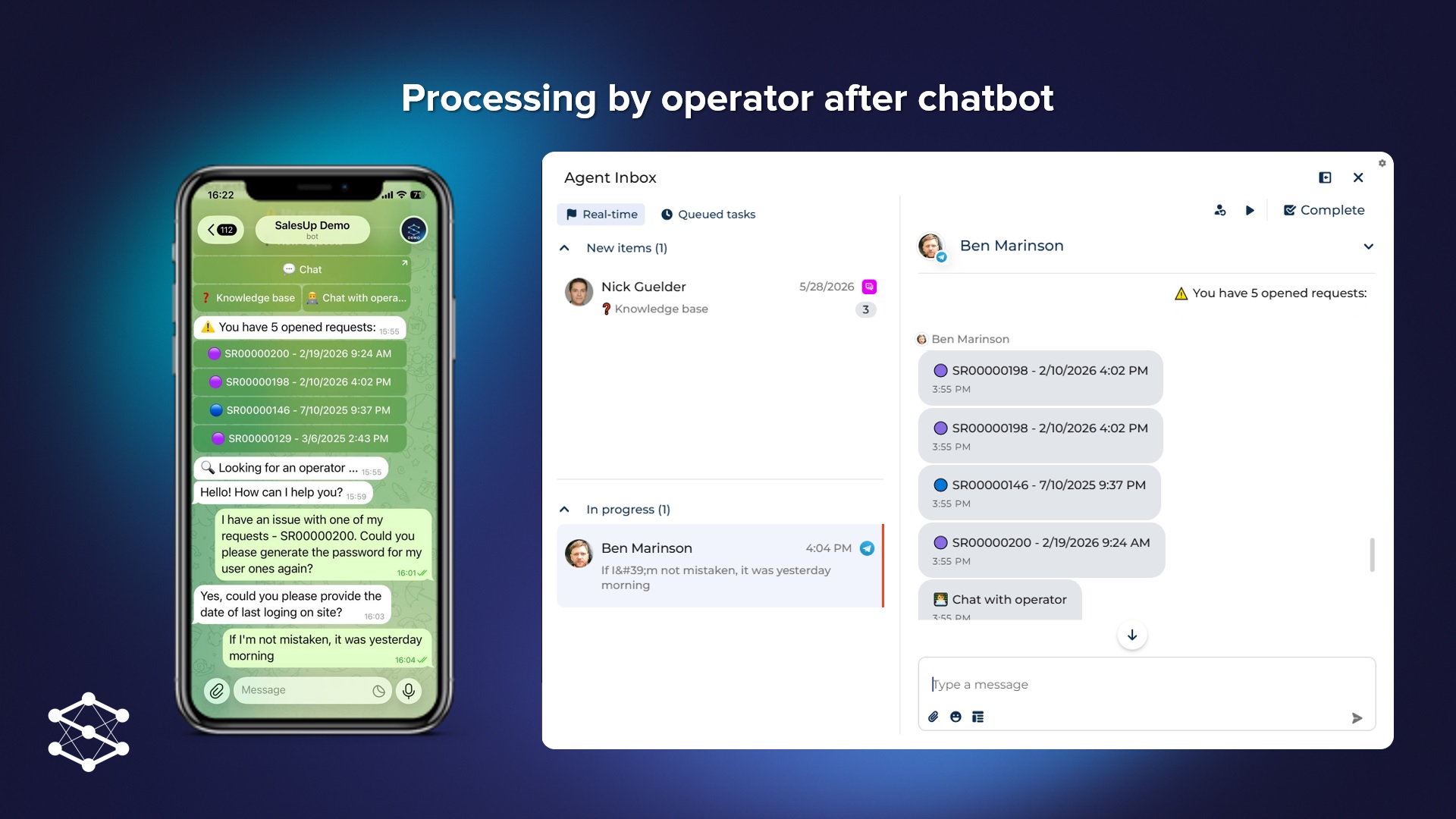
Processing by operator after chatbot
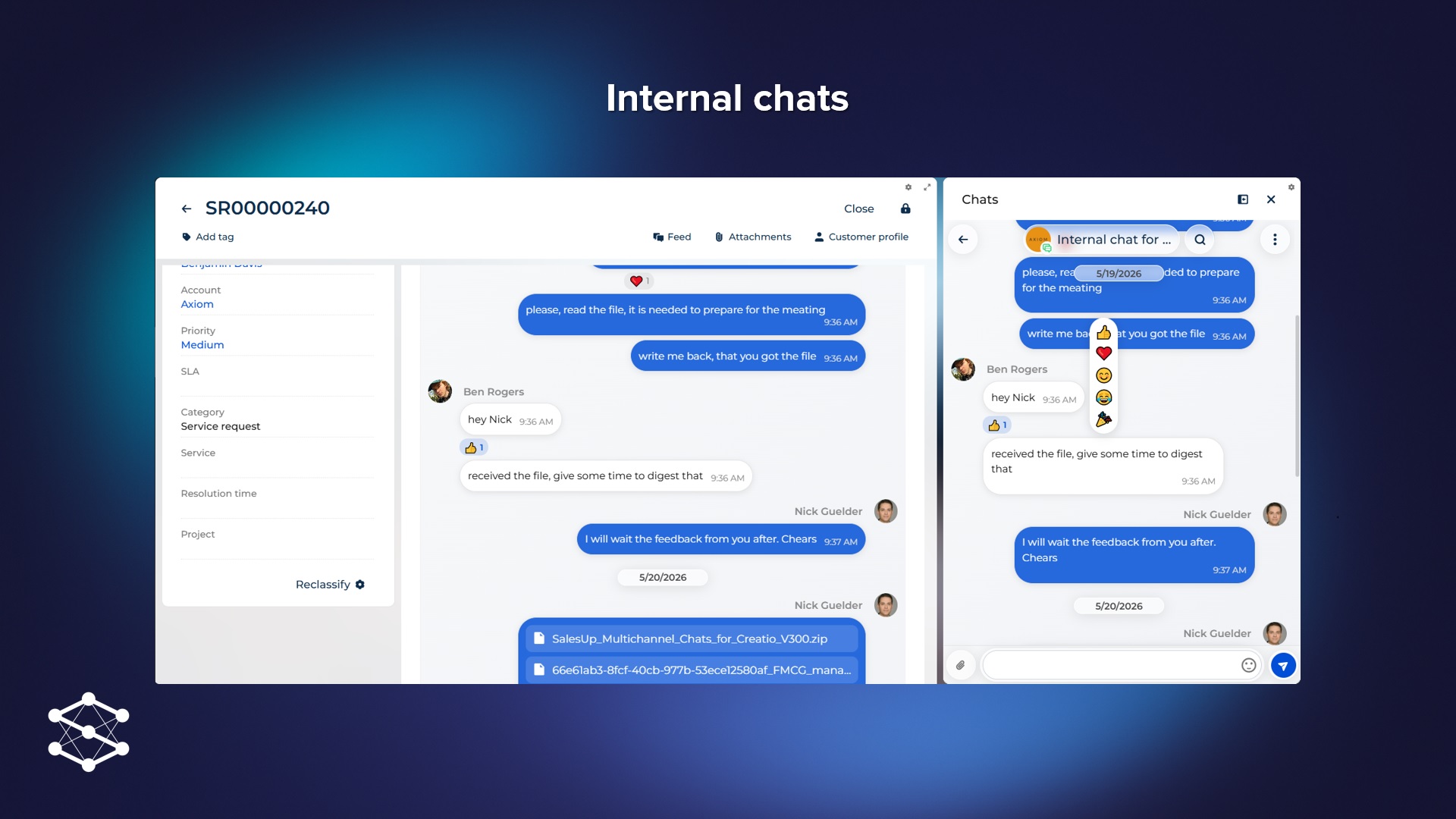
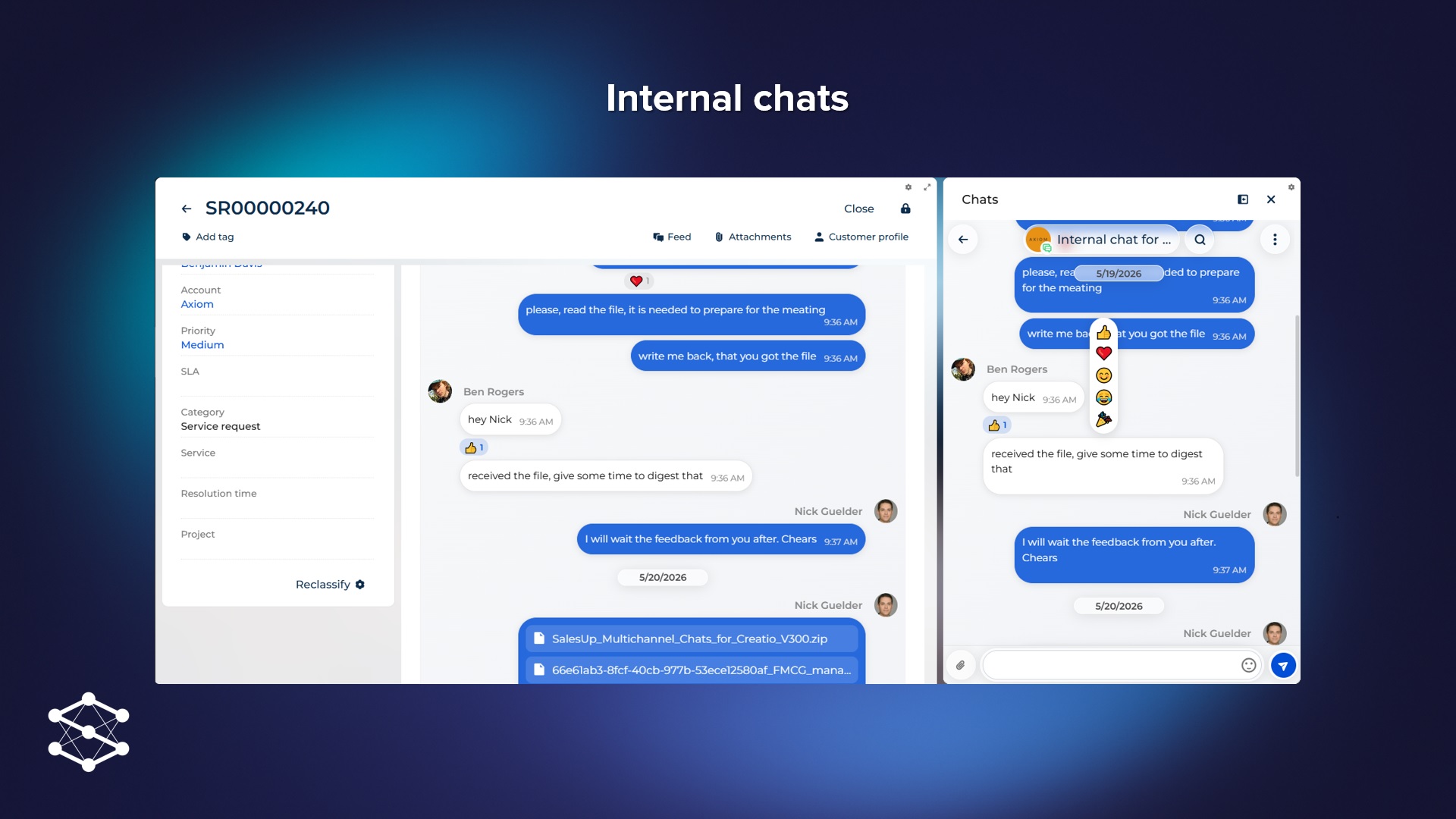
Internal chat as a corporate messaging tool
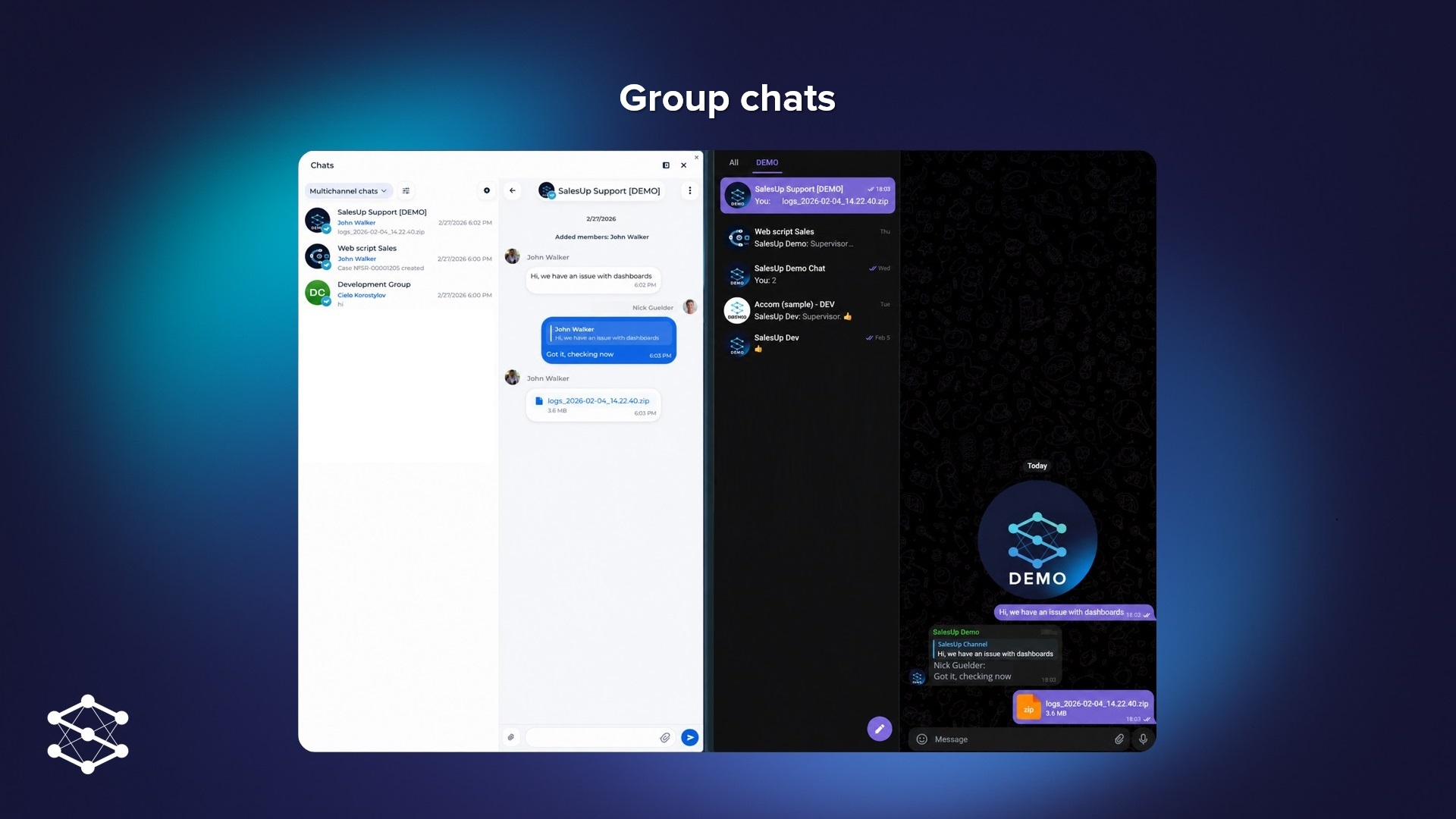
Group chats with your customers
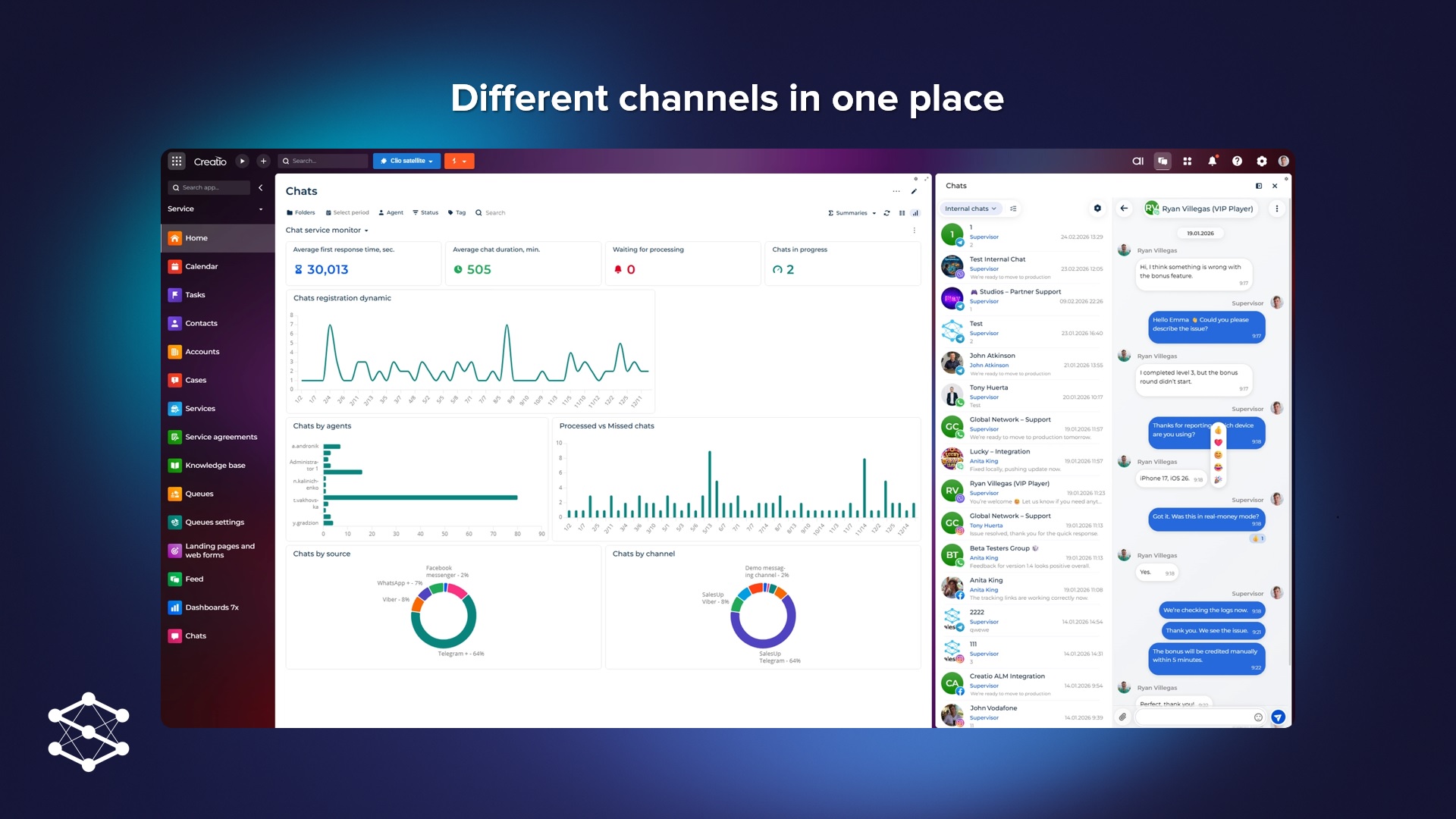
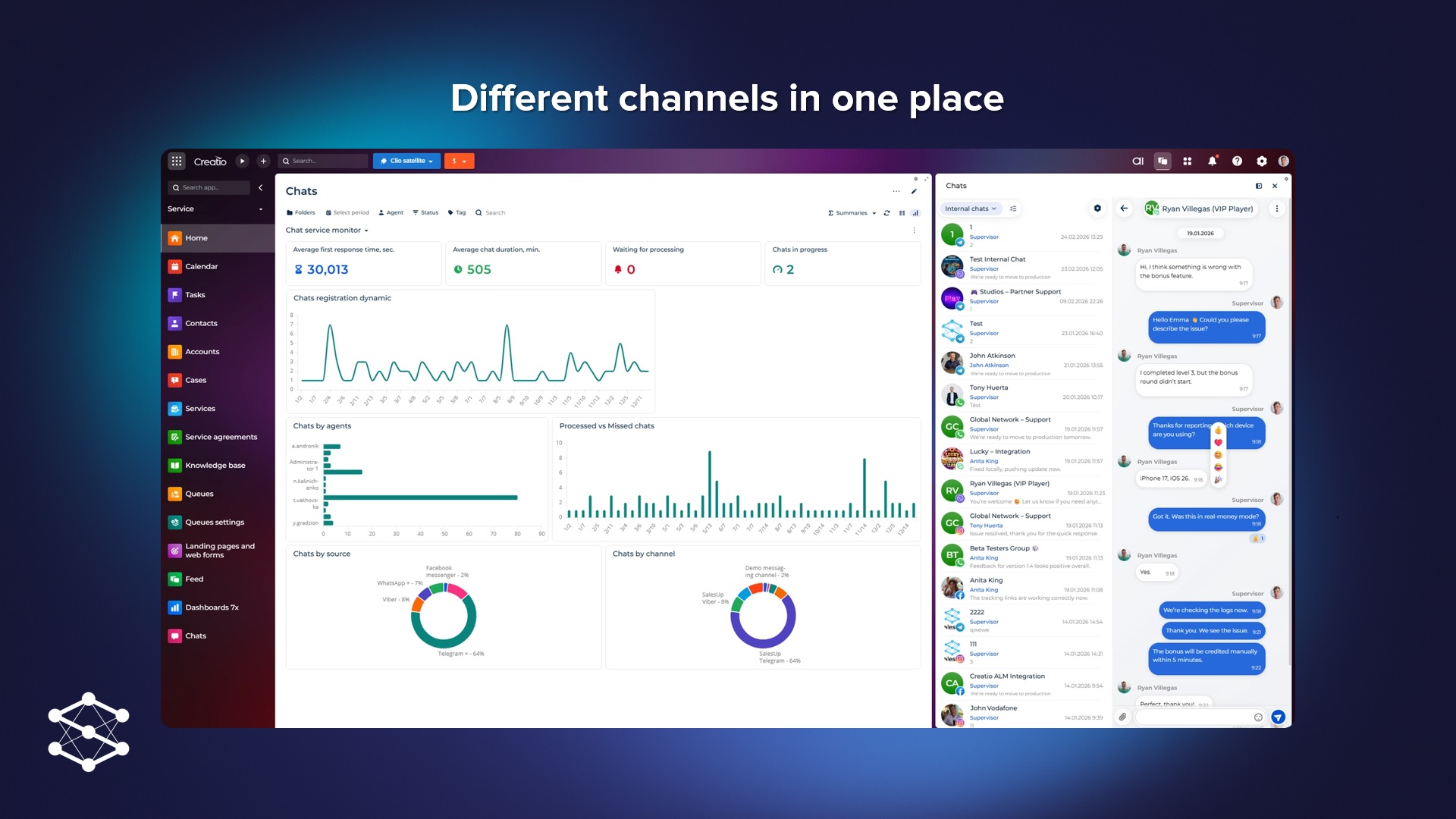
Communication channels in a single interface
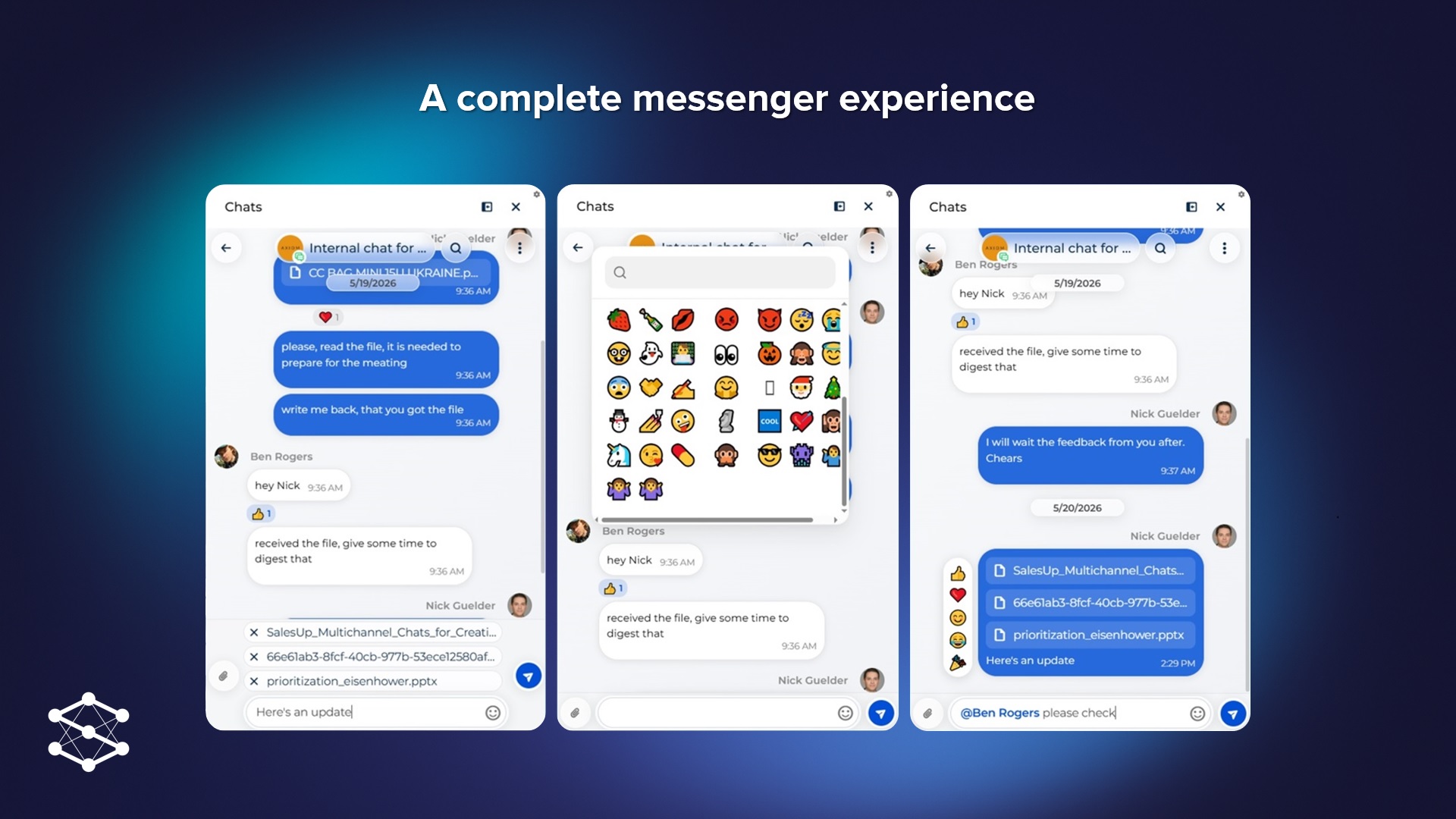
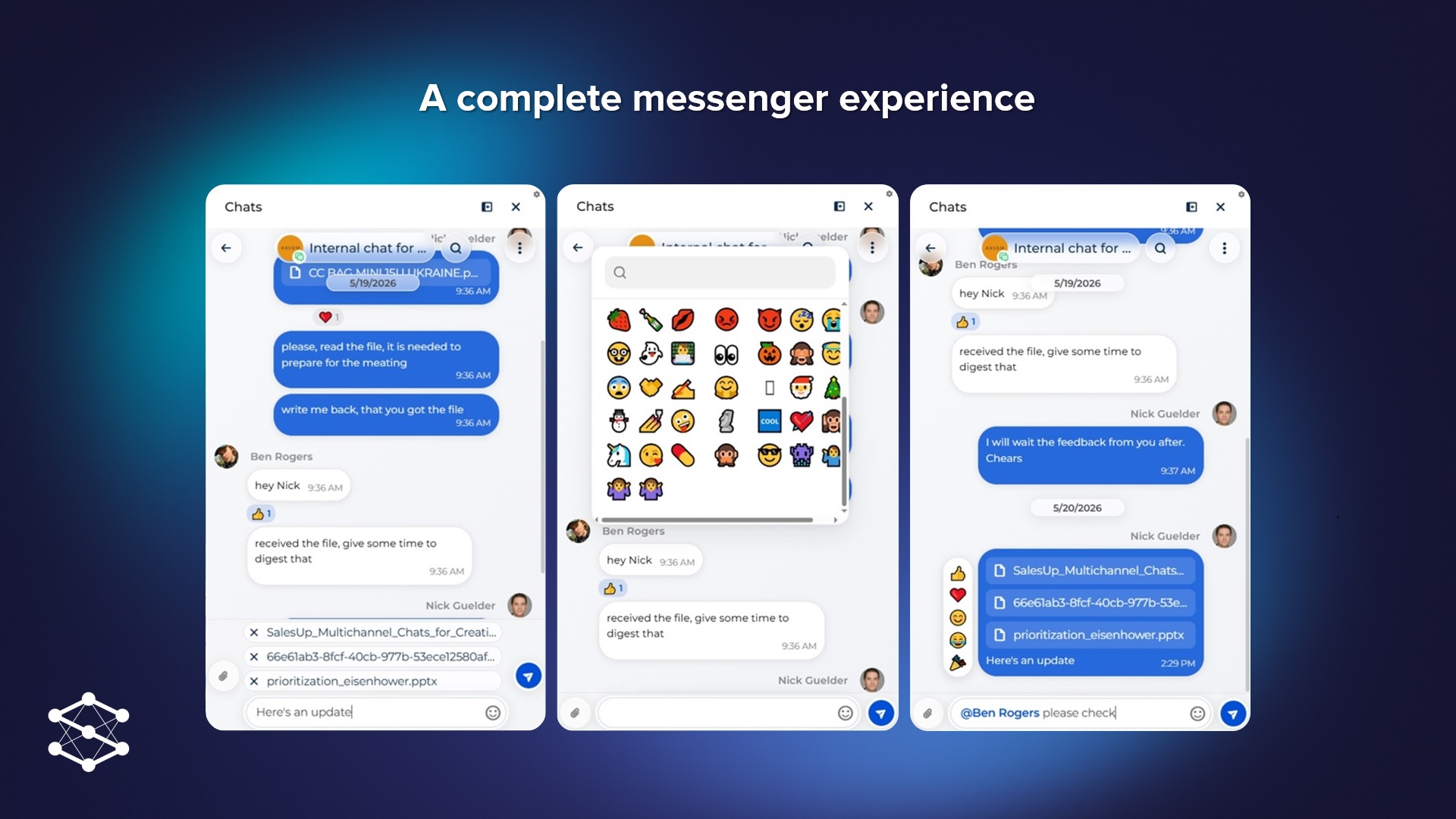
A complete messenger experience
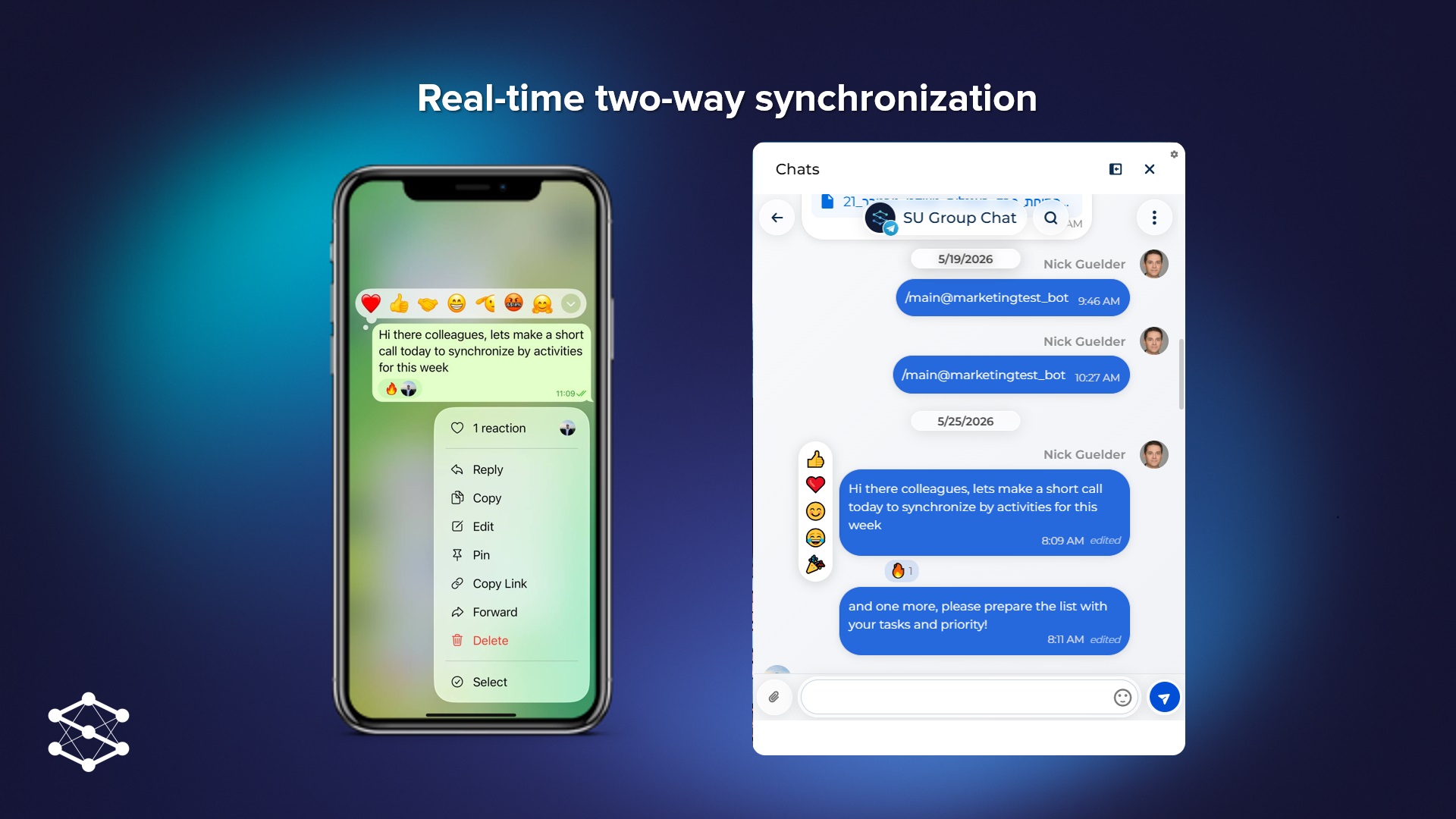
Real-time two-way synchronization
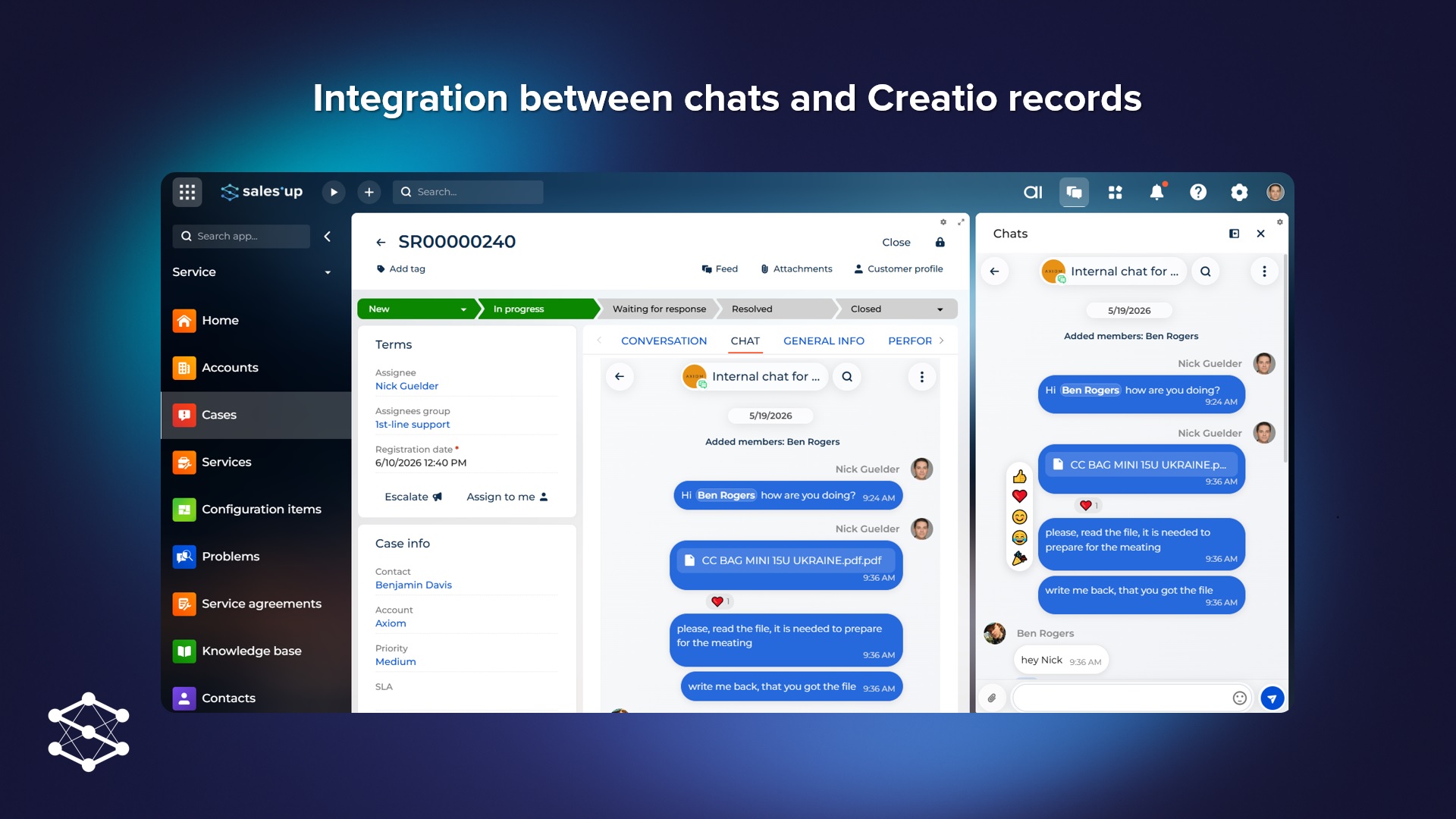
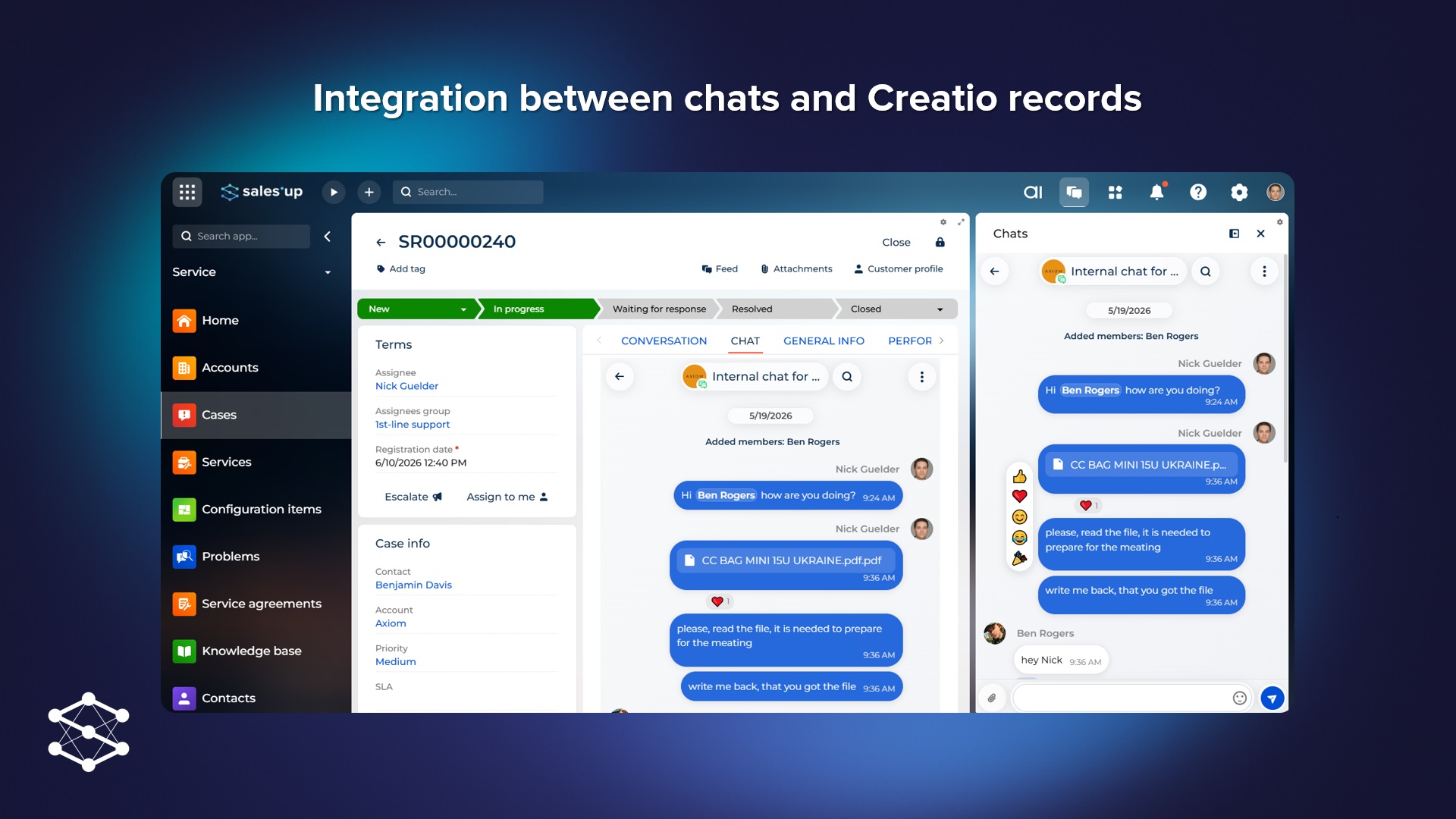
Integration between chats and Creatio records
Pricing
- The SalesUp Multichannel Chatbots for Creatio license is required to install and work with SalesUp Multichannel Chats for Creatio app.
- As you make the first purchase or extend the product license, our experts will provide you with 4 hours of consultation and help with setting up the product.
Terms and Conditions
Support
Installation
Setup guide
There are two ways to install the application:
- Automatically - by specifying the site address and clicking the "Install" button
- Manually - by downloading the archive with packages and installing by the application installation wizard.
To request SalesUp demo licenses for 14 days:
- Go to the "SalesUp License Manager" in the system designer.
- Click the "Request licenses" button.
- In the modal window that appears, select the product, fill in the company name, email for communication and click the "submit" button.
A temporary license of SalesUp for 14 days will be installed independently.
Resources
Data sharing
- By installing or downloading the App, you confirm that you agree with sharing your account data (name, email, phone, company and country) with the App Developer as their End User.
- The App Developer will process your data under their privacy policy.
Versions
Versions history
Manual app installation
- Open the needed app → the Packages tab - download the Markeplace app files.
- Click in the top right → Application Hub
- Click New application. This opens a window.
- Select Install from file and click Select in the window that opens.
- Click Select file on the page of the Marketplace App Installation Wizard and specify the app file path.