

Syntech File Core for Creatio
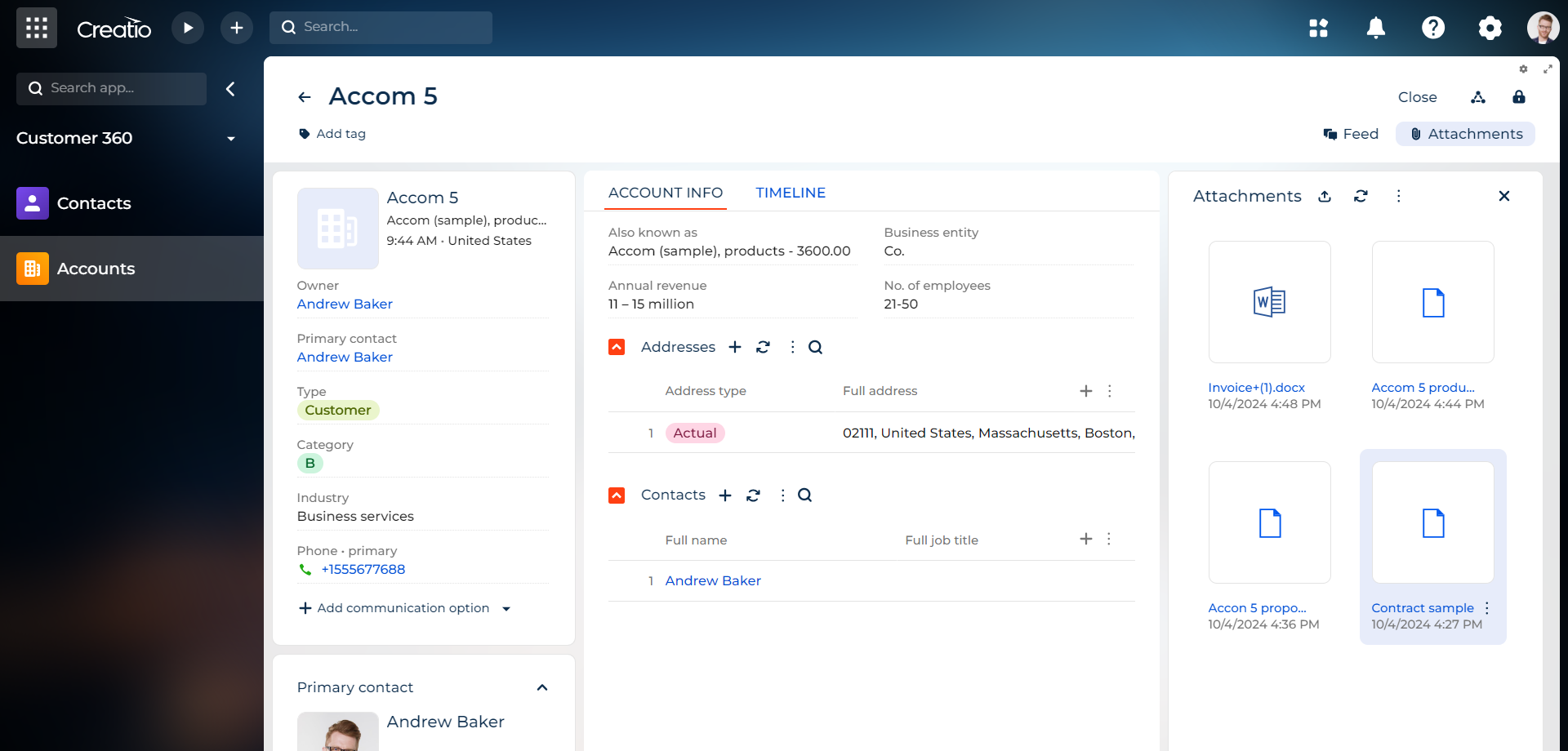
File management by Google Workspace integration. Creating, editing, viewing, uploading files and adding folders in the Creatio interface.
Overview

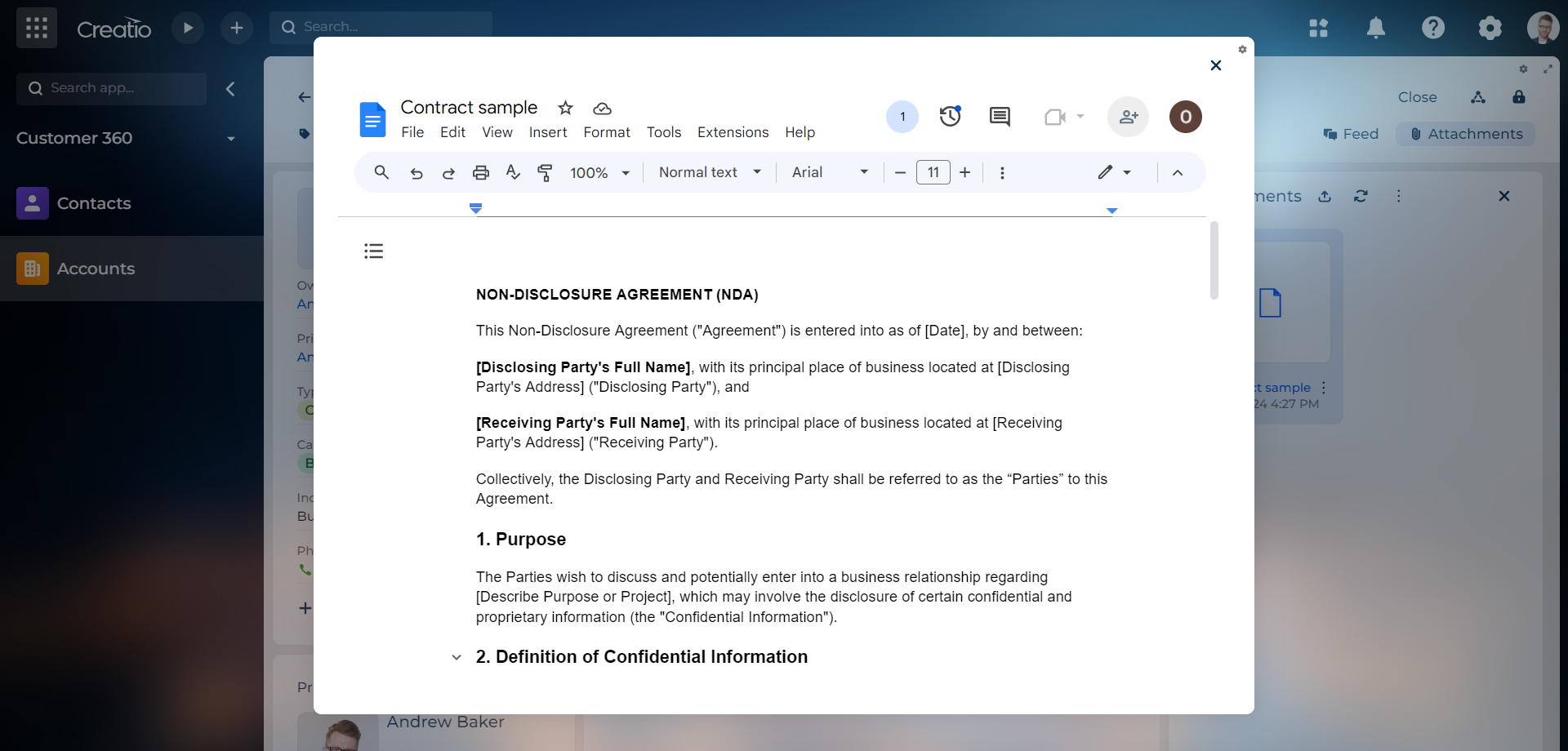
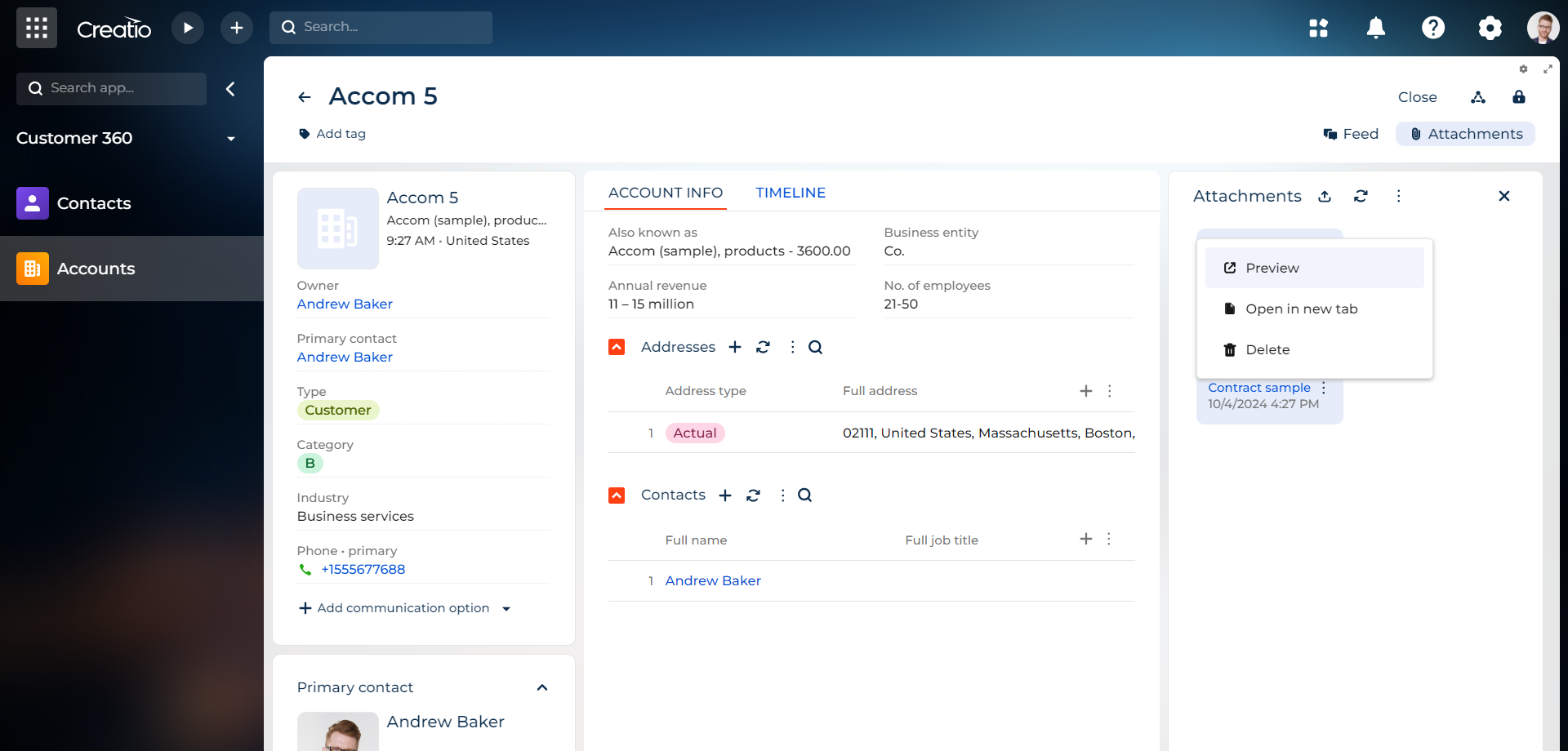
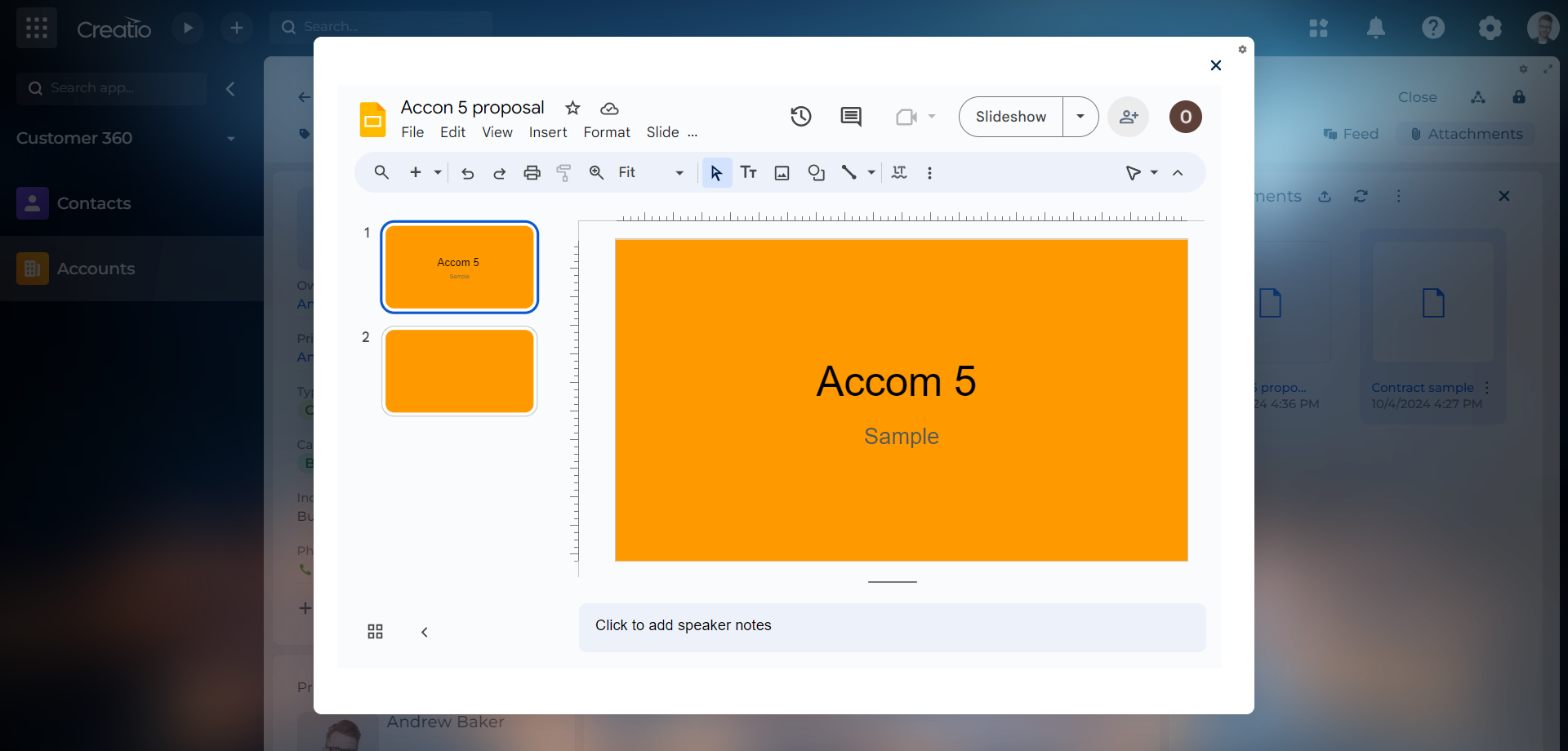
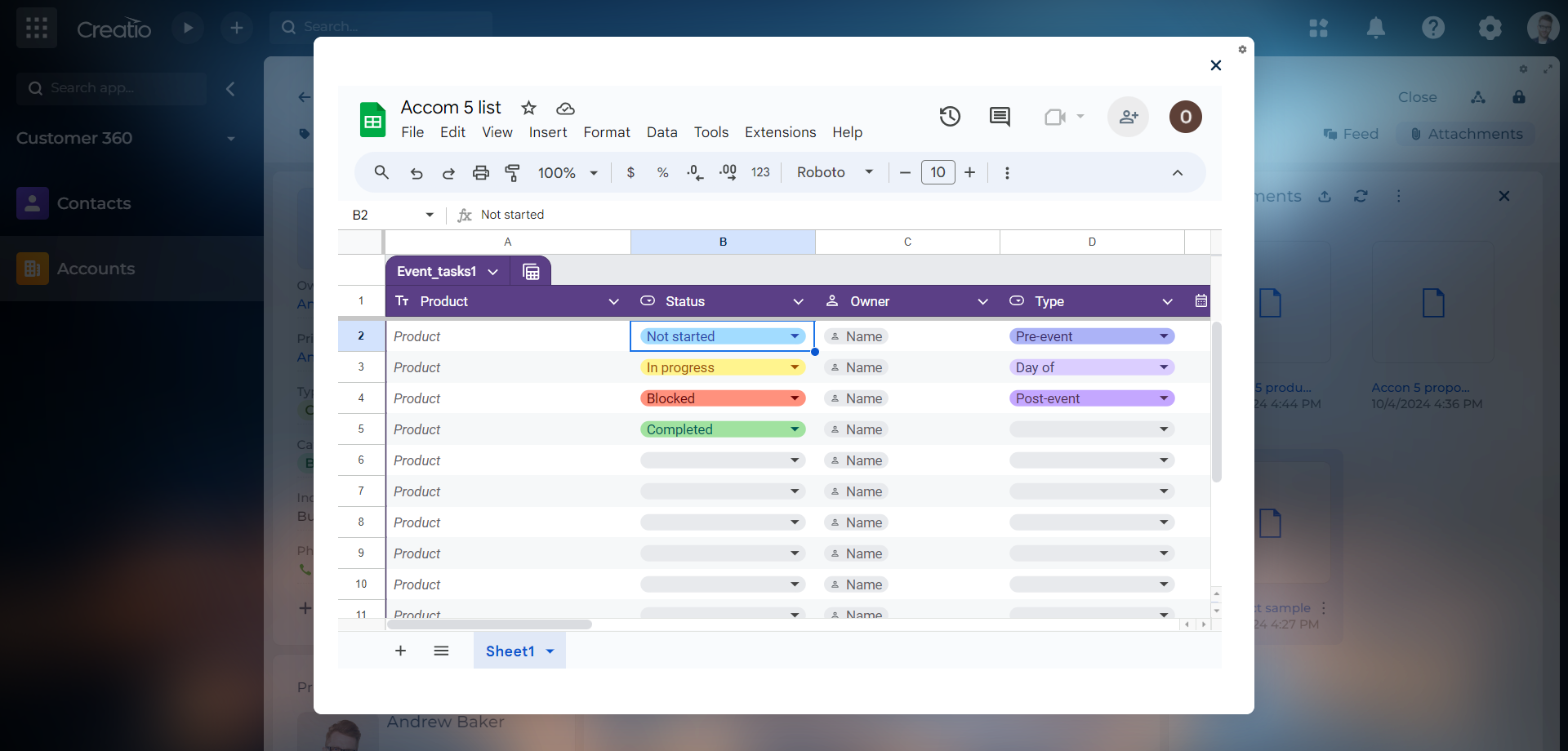
Product overview
Product description
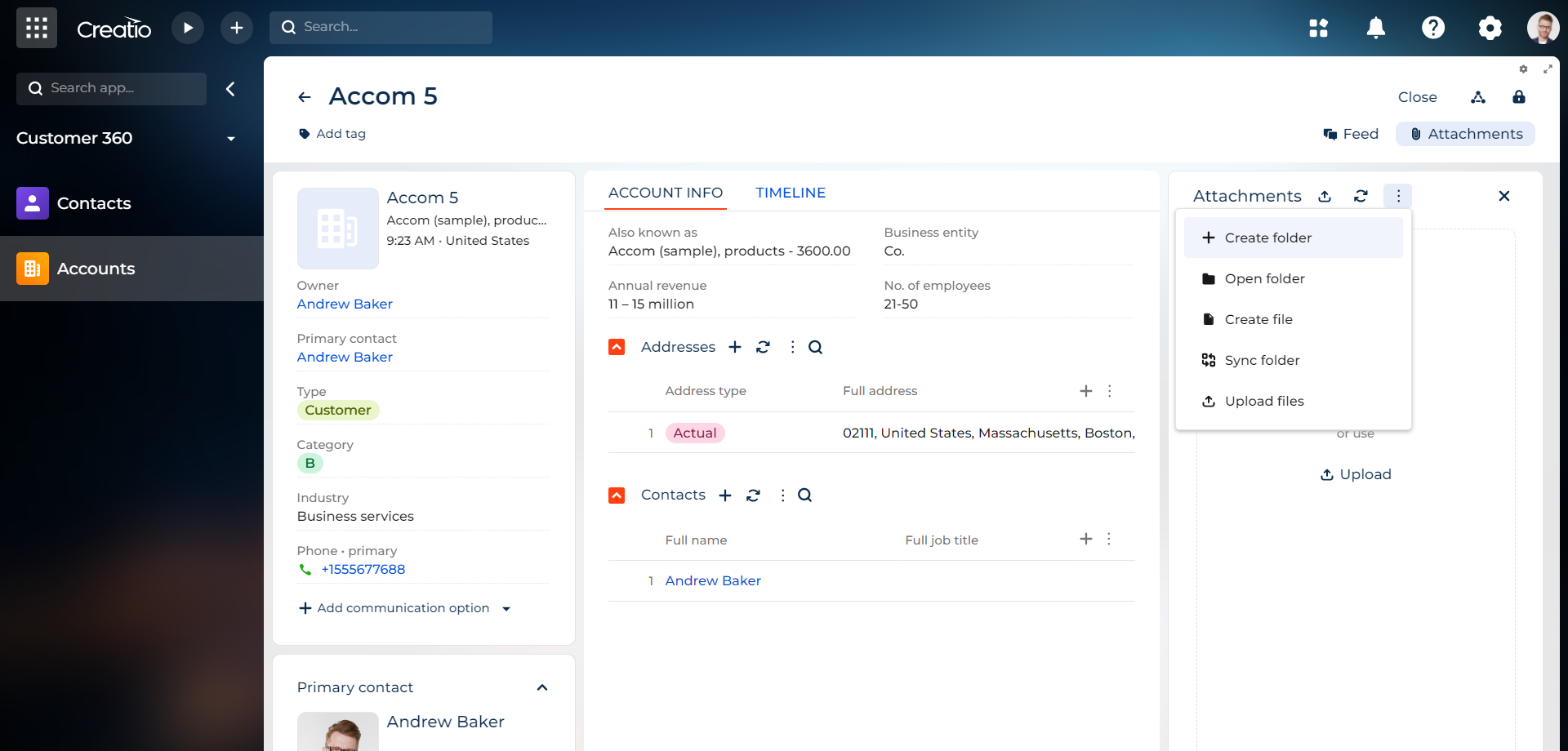
Syntech File Core for Creatio expands the capabilities of working with files through integration with Google Workspace, providing a full range of content management functions.
Key Features
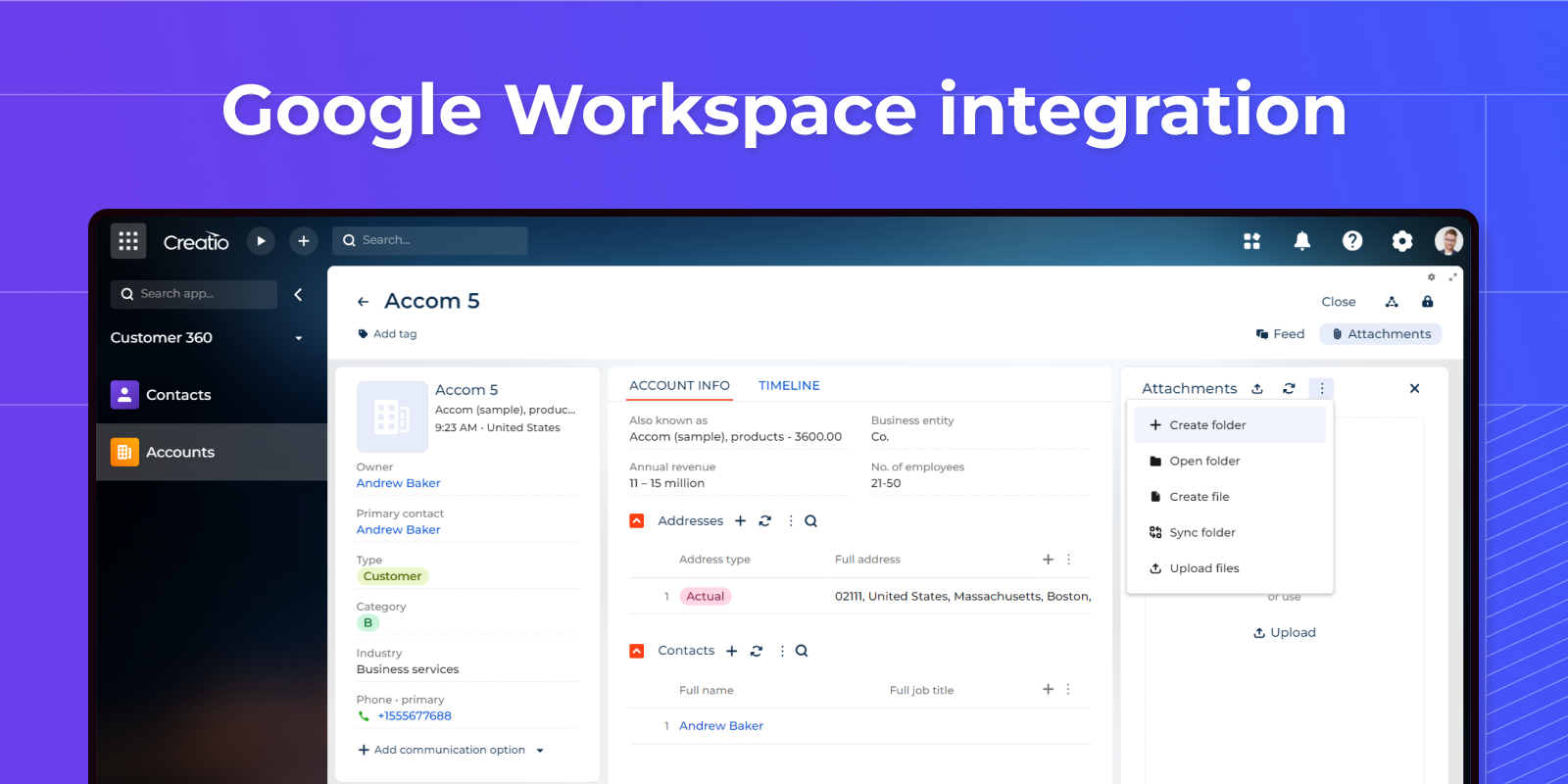
Seamless Google Workspace integration
Manage content without switching tools. The integration enables working with files and folders directly in the Creatio interface, aligning daily file operations with established Workspace workflows (Google Drive, Docs, Sheets, Slides).
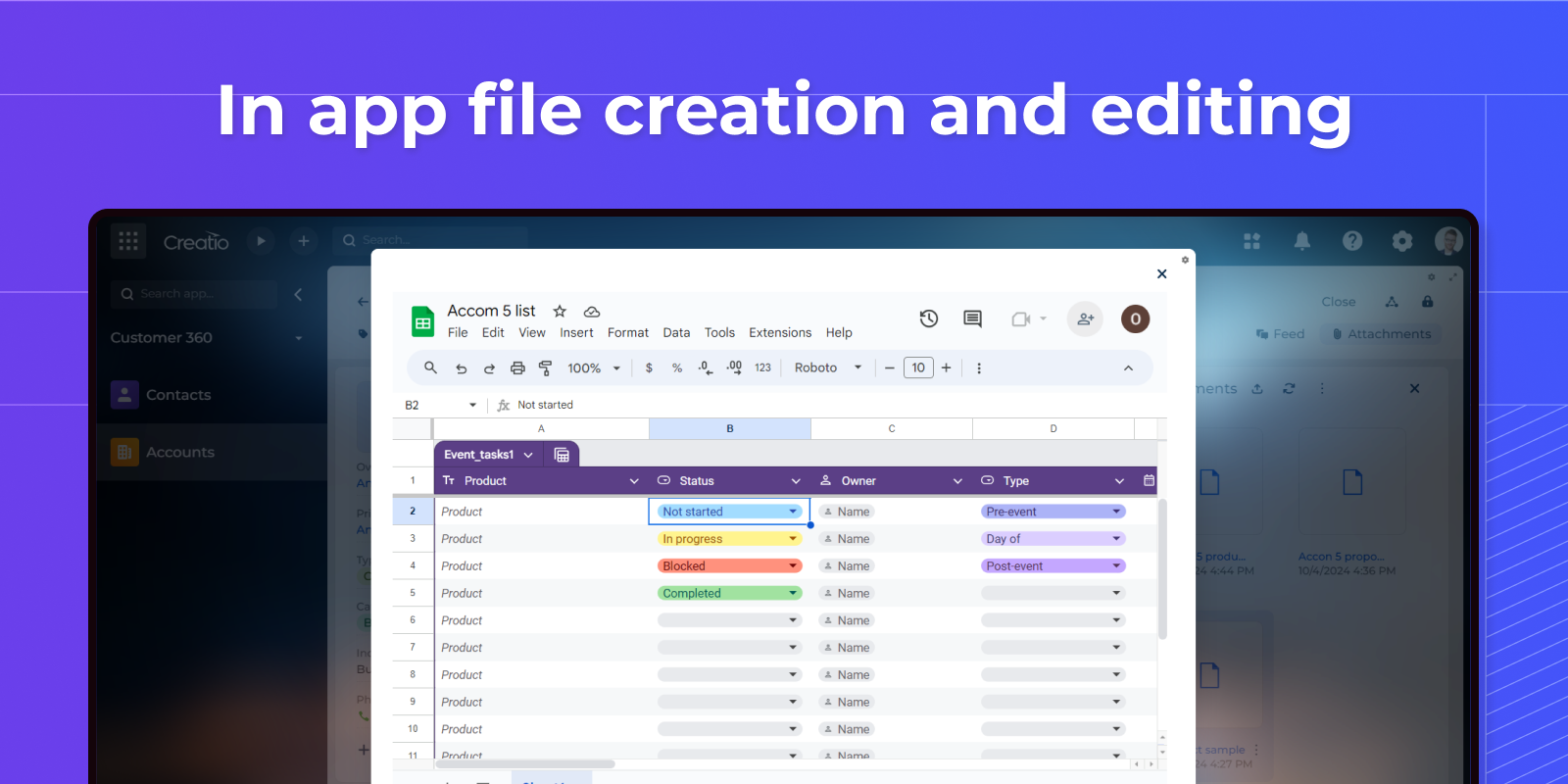
In-app file creation and editing
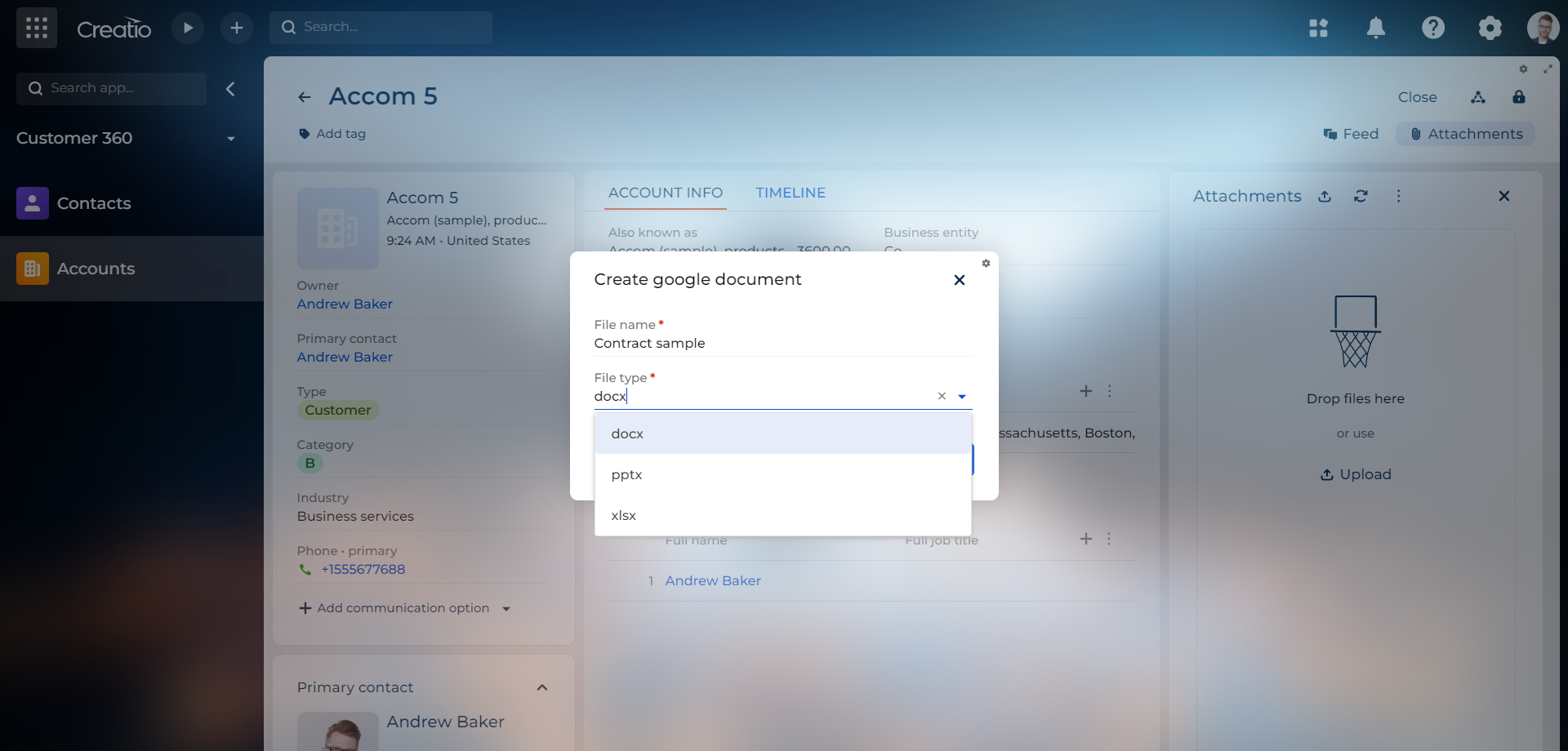
Create and edit files from within Creatio, avoiding external tabs. Users can initiate new documents and make updates in context, keeping work centralized and consistent across processes powered by Google Workspace integration.
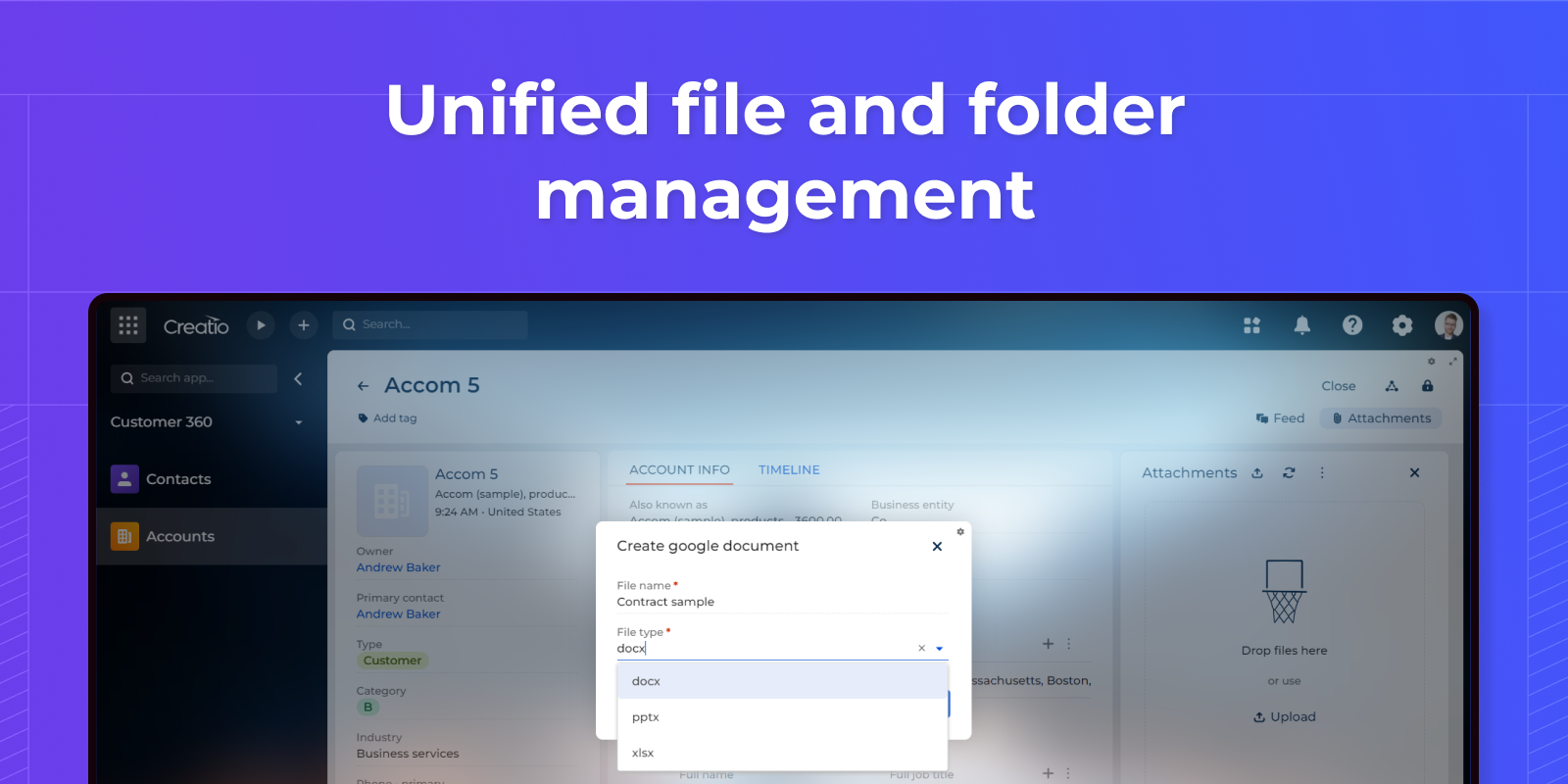
Unified file and folder management
Organize and upload files and folders within the Creatio interface. Centralized management simplifies navigation and maintenance, ensuring content stays accessible and aligned with Google Workspace resources.
Pricing
Monthly
Annual
Standard
$
200.00 / month
billed annually
For the solution to work correctly, an active account in the Google Cloud Platform is required.
Terms and Conditions
By installing this product you agree to terms and conditions outlined in the license agreement.
Support
Support is available for this application
Support is provided by the developer within the “Basic”, “Business” and “Premium“ packages. Detailed information about the support packages and the support terms can be found on the Creatio website.
Installation
Setup guide
1. Register an account with Google Cloud Platform.
2. Complete the integration settings according to the attached instructions.
Resources
Data sharing
- By installing or downloading the App, you confirm that you agree with sharing your account data (name, email, phone, company and country) with the App Developer as their End User.
- The App Developer will process your data under their privacy policy.
Versions
Versions history
Version
Compatibility
Release date
3.0
8.1.5 and up
2.5
8.1.5 and up
2.3
8.1.4 and up
2.3
8.1.4 and up
Release summary
Added message dialog for Freedom UI.
2.2
8.1.4 and up
Release summary
Added support for Freedom UI.
2.1.2
7.18 and up
Release summary
Syncing existing files from Google Drive to Creatio.
Minor bug fixed.
Minor bug fixed.
2.0.0
7.18 and up
Release summary
The list of supported extensions has been expanded (doc, docx, xls, xlsx, pdf, txt, pptx, zip, rtf, jpg, png, csv, aac, adt, adts, accdb, accde, accdr, accdt, aif, aifc, aiff, aspx, avi, bat, bin, bmp, cab, cda, dif, dll, docm, dot, dotx, eml, eps, exe, flv, gif, htm, html, ini, iso, jar, jpeg, m4a, mdb, mid, midi, mov, mp3, mp4, mpeg, mpg, msi, mui, pot, potm, potx, ppam, pps, ppsm, ppsx, ppt, pptm, psd, pst, pub, rar, sldm, sldx, swf, svg, sys, tif, tiff, tmp, vob, vsd, vsdm, vsdx, vss, vssm, vst, vstm, vstx, wav, wbk, wks, wma, wmd, wmv, wmz, wms, wpd, wp5, xla, xlam, xll, xlm, xlsm, xlt, xltm, xltx, xps, json, config).
The ability to create folders for each section record has been added.
The ability to create folders for each section record has been added.
1.6
7.18 and up
Release summary
Fixed problem with cloud installation.
Manual app installation
- Open the needed app → the Packages tab - download the Markeplace app files.
- Click in the top right → Application Hub
- Click New application. This opens a window.
- Select Install from file and click Select in the window that opens.
- Click Select file on the page of the Marketplace App Installation Wizard and specify the app file path.