

Syntech Scheduler for Creatio
Syntech Scheduler is an intuitive calendar management component for Creatio that transforms how you visualize and manage time-based records.
Overview
Product overview
Product description
Syntech Scheduler is an enterprise-grade calendar and scheduling component designed specifically for Creatio's Freedom UI platform. It transforms any time-based data in your Creatio system into interactive, visual schedules with multiple viewing perspectives. Whether you're managing appointments, service bookings, project timelines, or resource allocation, Syntech Scheduler provides the tools you need to visualize, manage, and optimize your time-based operations.
Key Features
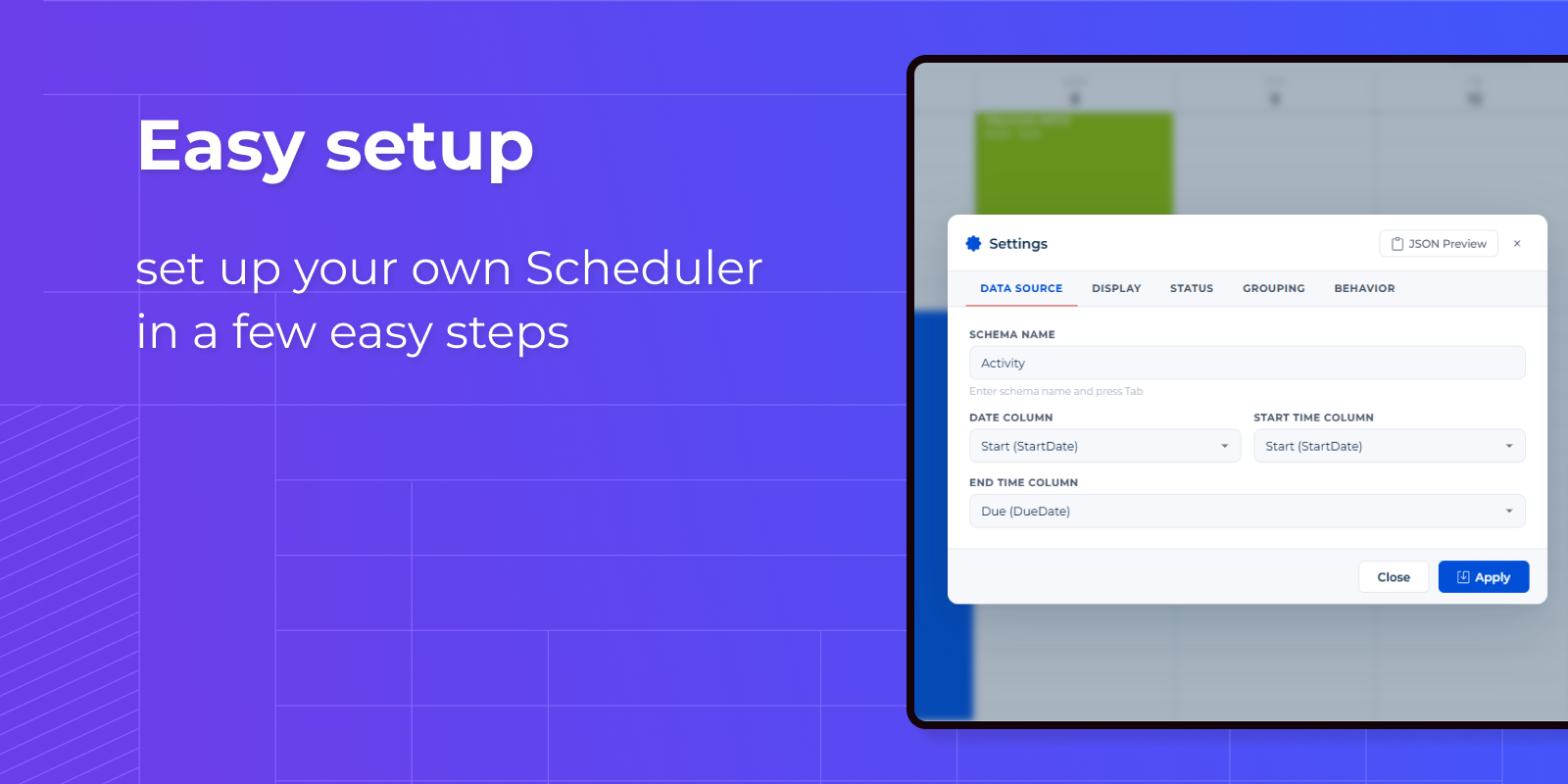
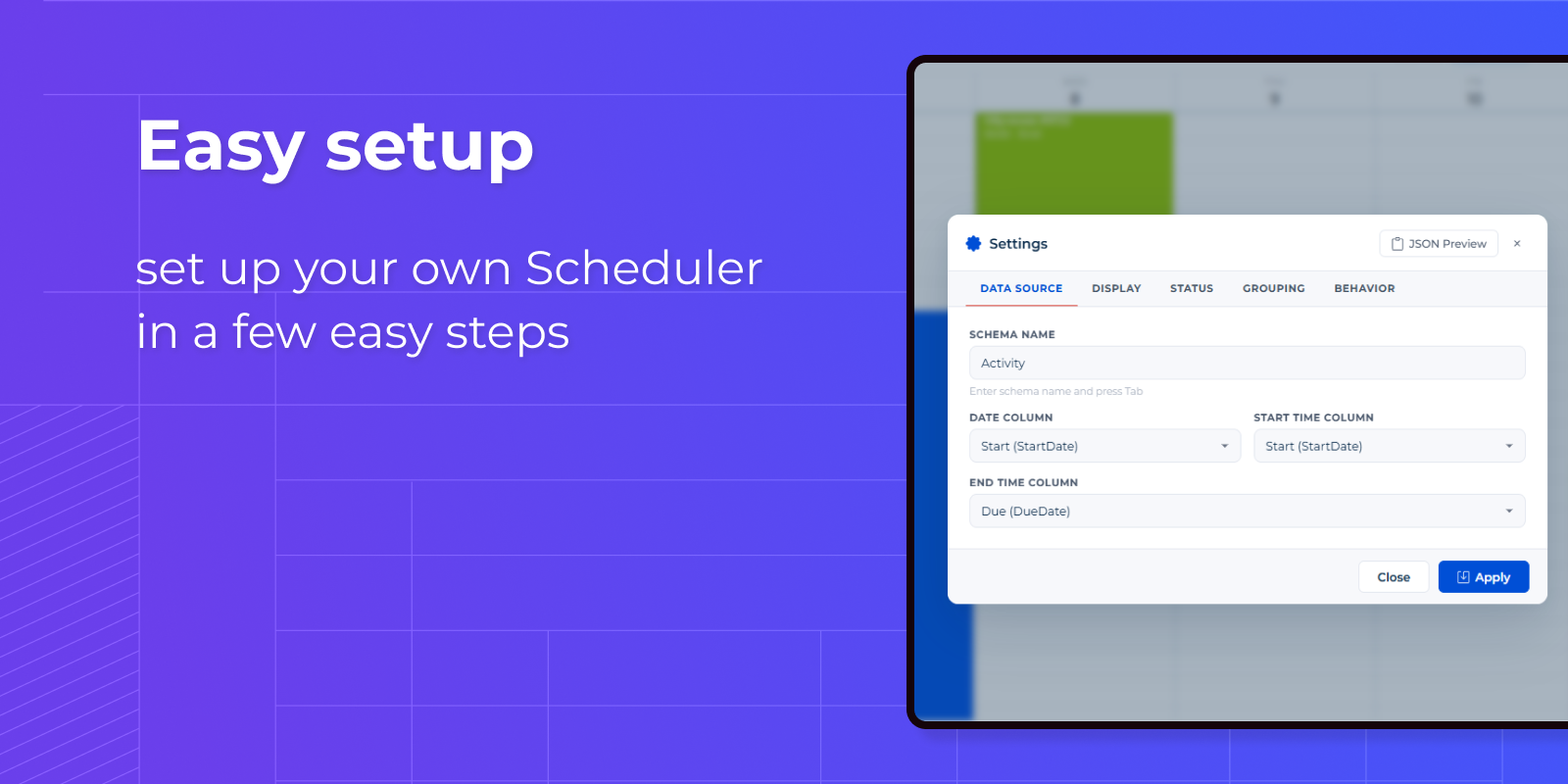
Easy Setup
Point to your Creatio entity, define a few columns — done. User-friendly menu configuration with smart defaults means you only set what matters. No coding, no complex integrations. Works with OOTB sections or any custom object. Status colors pull automatically from lookups. Deploy in minutes, not days.
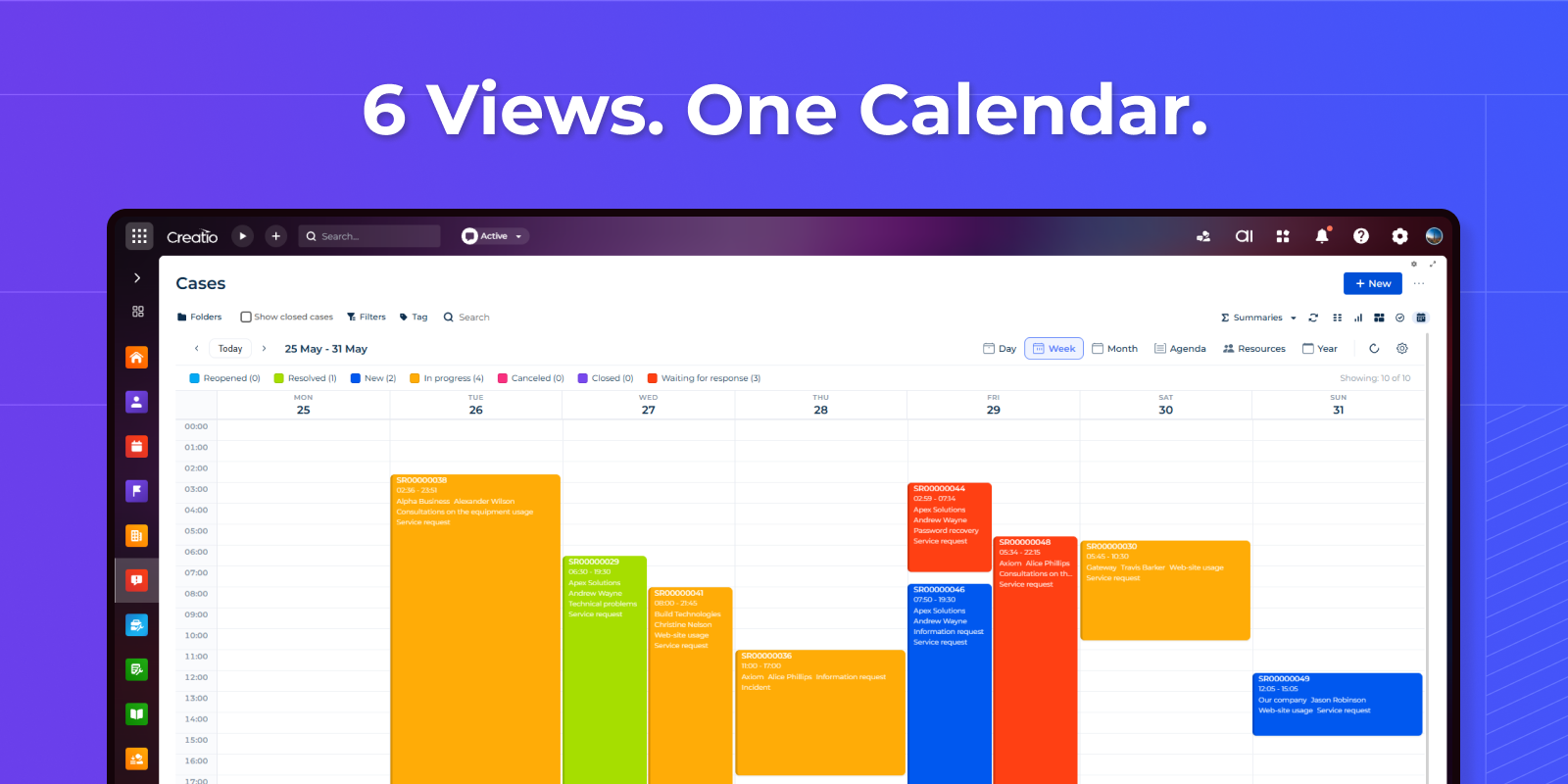
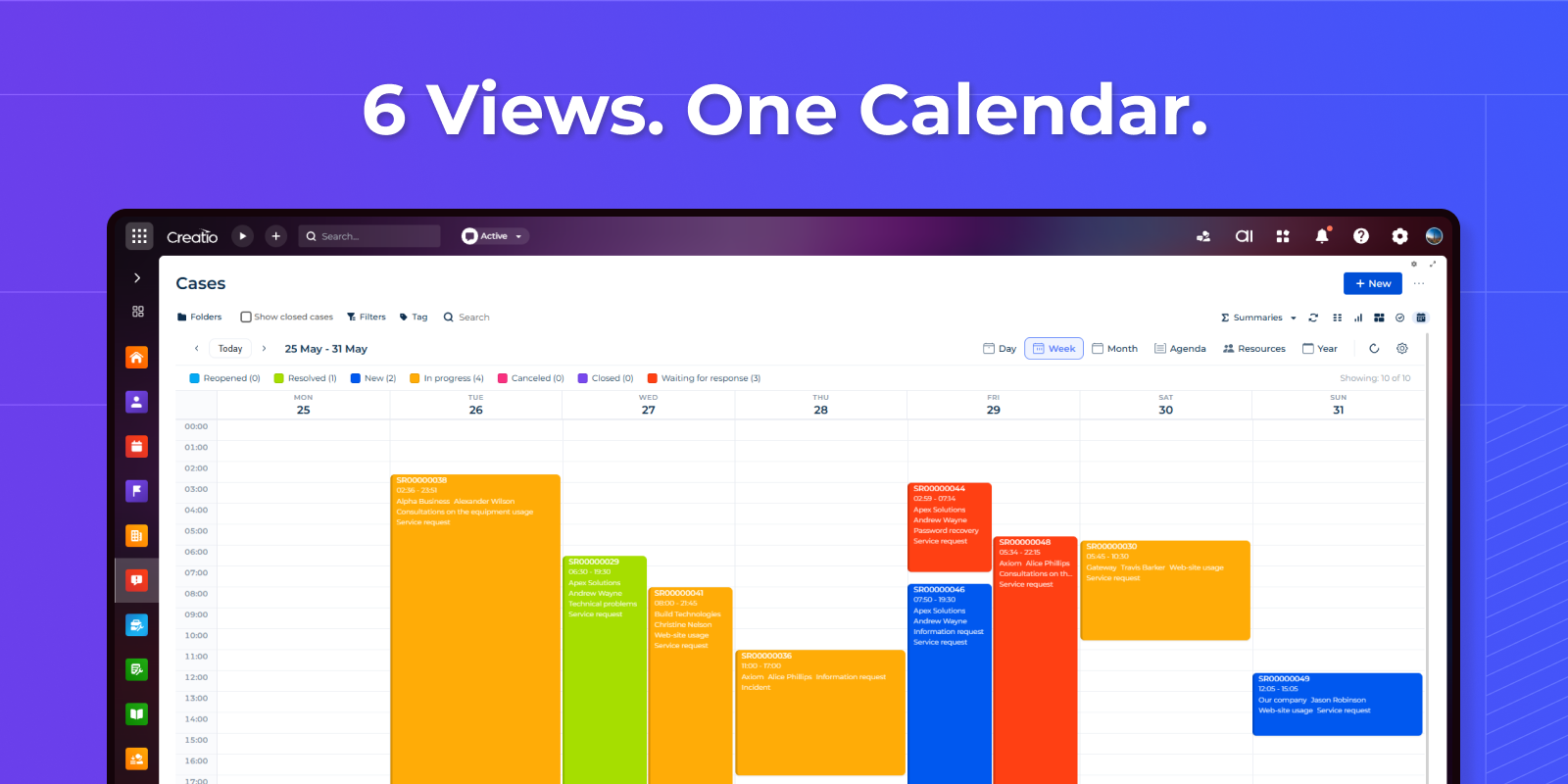
6 Views. One Scheduler
Day for focus. Week for planning. Month for the big picture. Year for long-term vision. Agenda for what's next. Resource Timeline for team coordination. Switch instantly with one click. Same data, different perspectives — whatever your workflow demands.
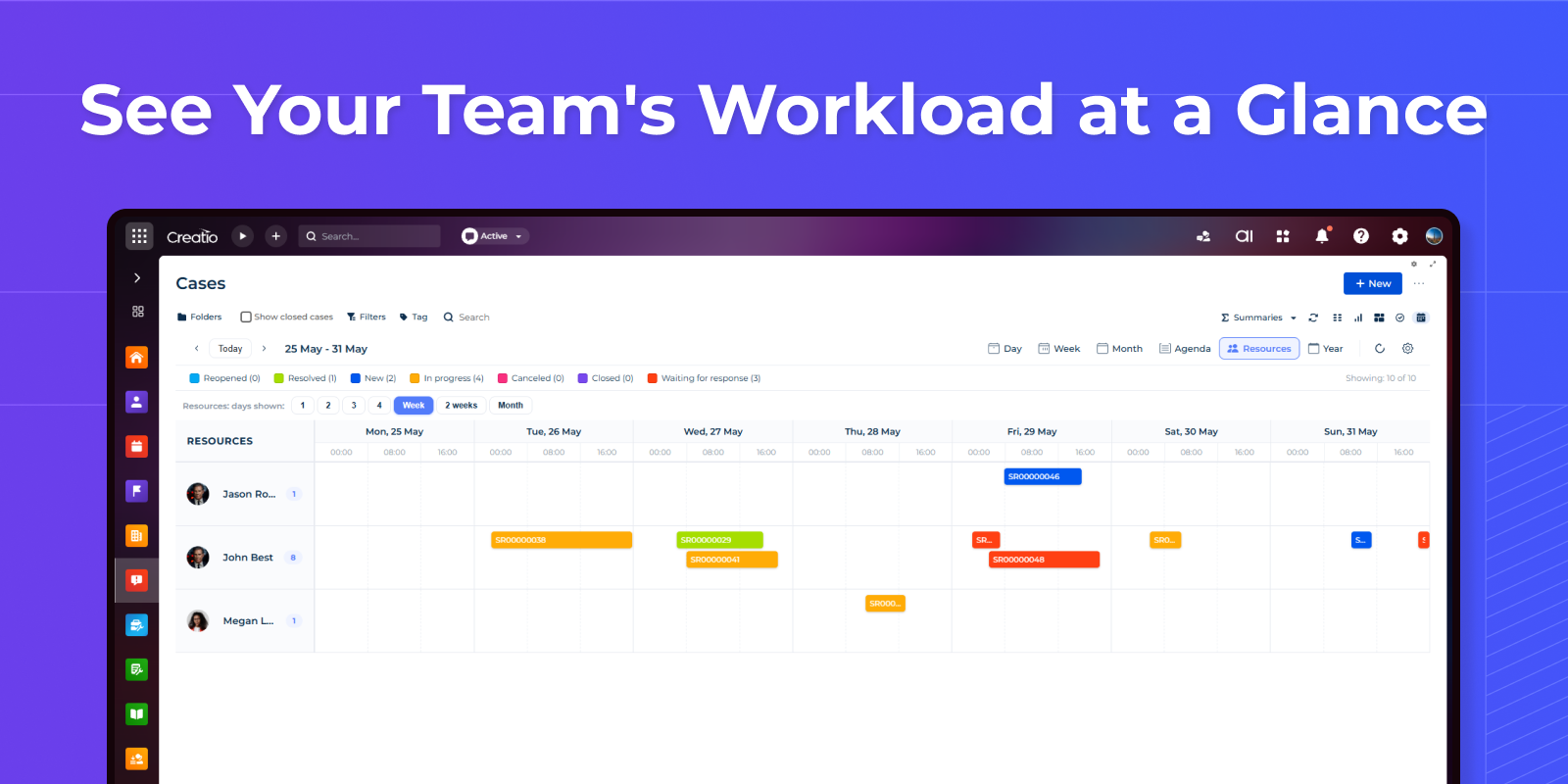
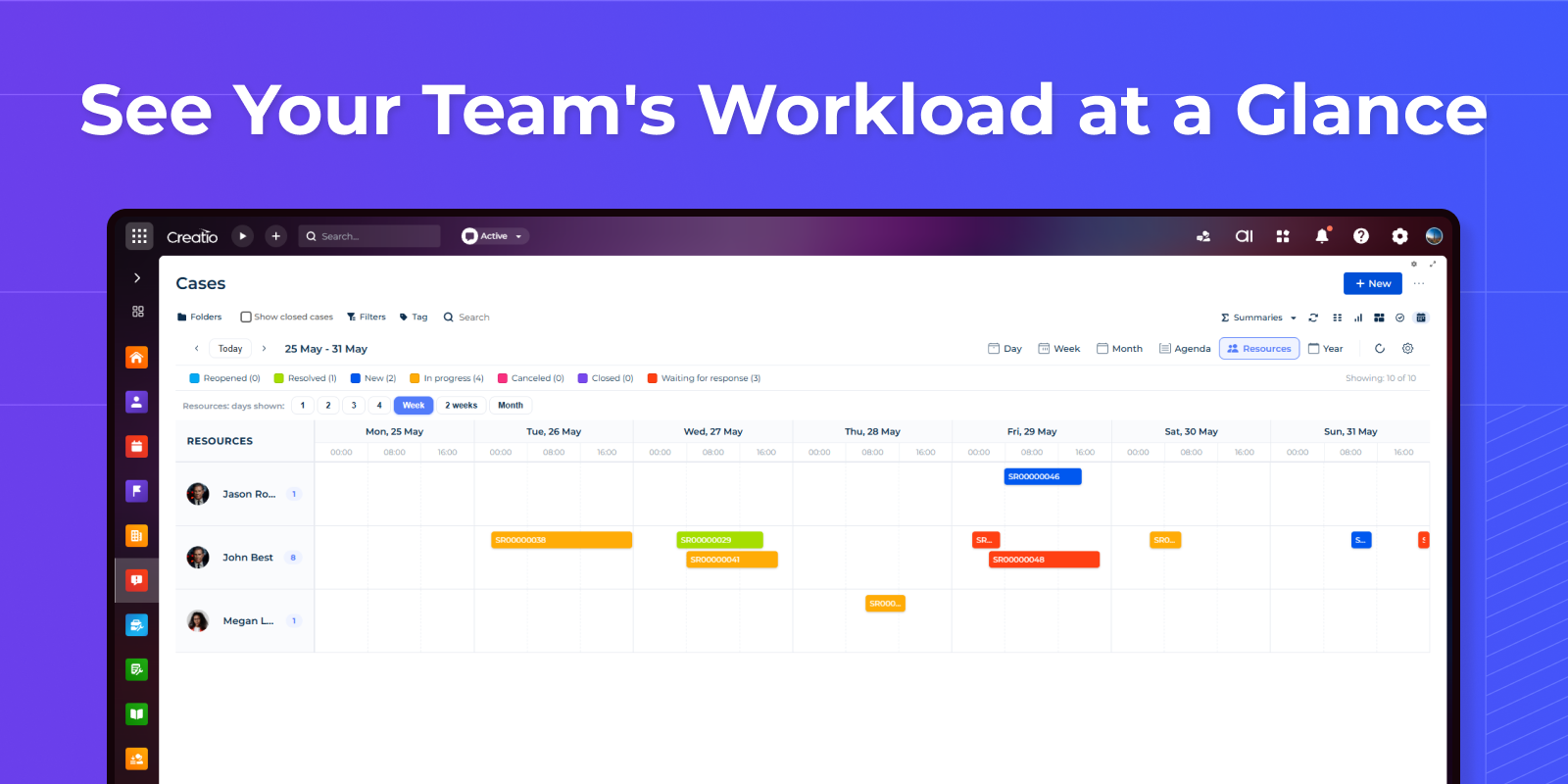
See Your Team's Workload at a Glance
Resource Timeline groups events by owner, department, or any lookup field. See who's overloaded and who has capacity. Spot scheduling conflicts before they happen. Drag tasks between team members to balance workloads. Week mode shows 7 days of team activity on one screen.
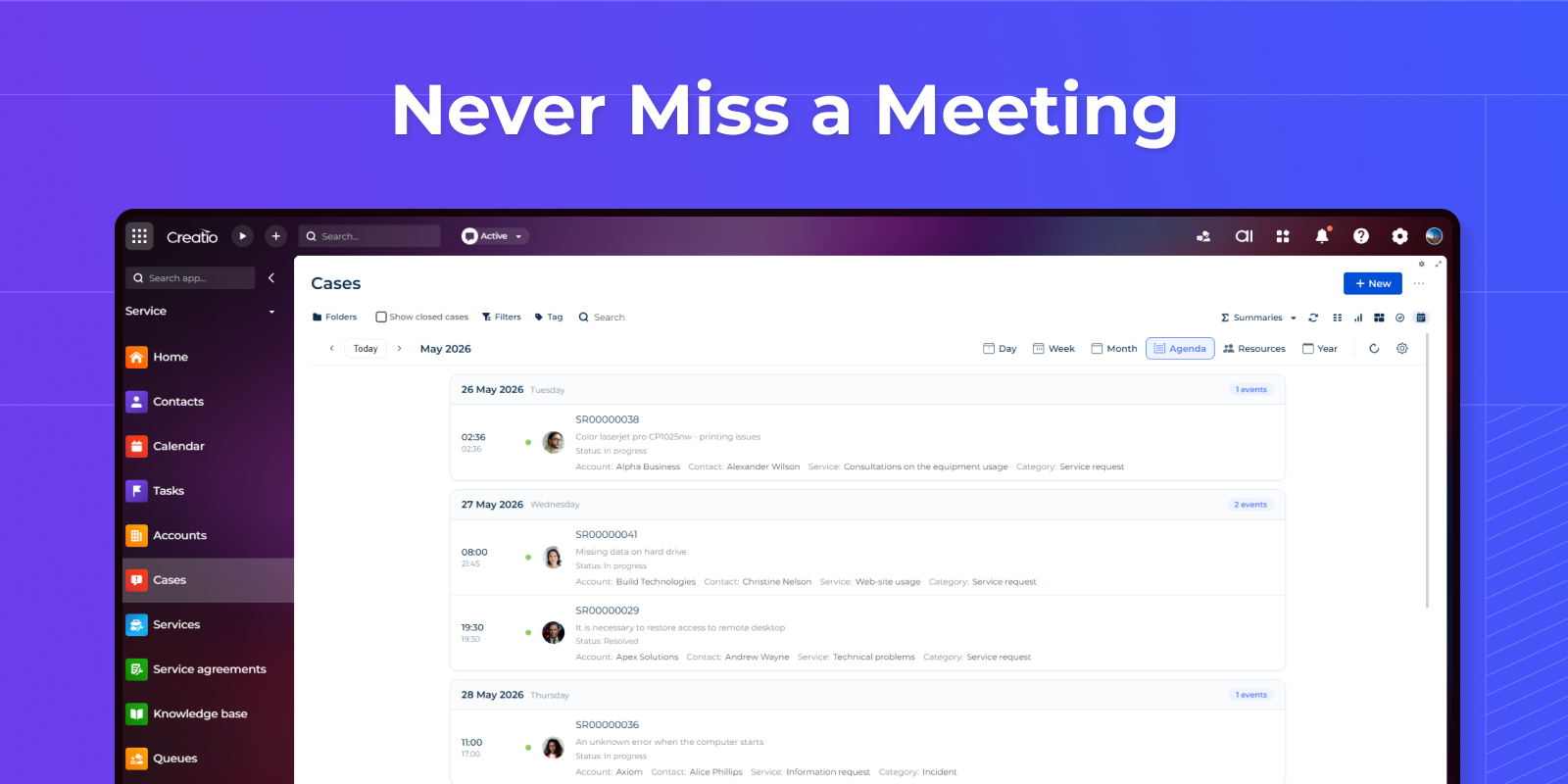
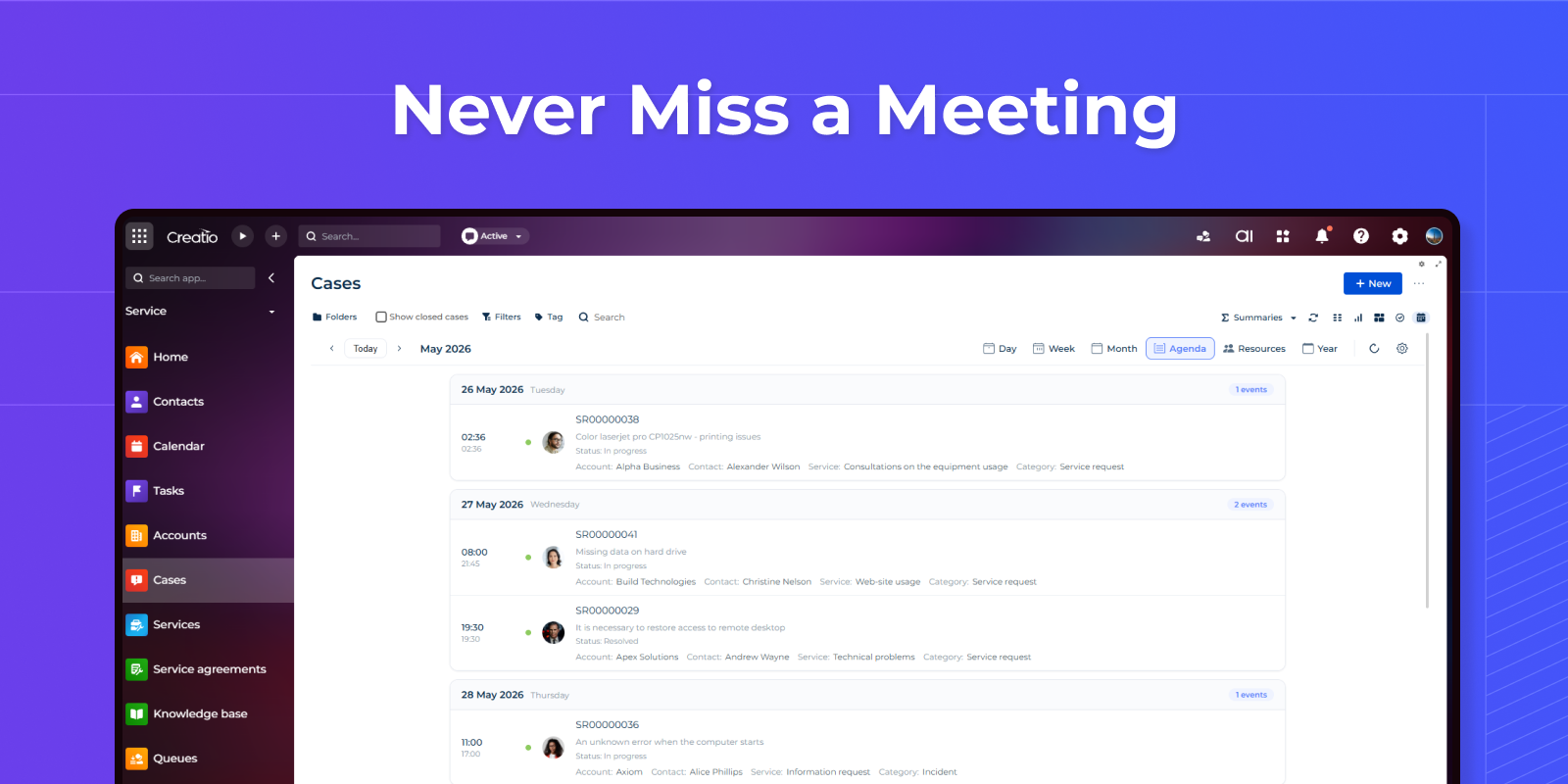
Never Miss a Meeting
Agenda view lists all upcoming events in a clean, scrollable format. Date, time, status — everything visible without clicks. Color-coded by status so priorities stand out. Perfect for morning planning or quick daily reviews. Your schedule, simplified.
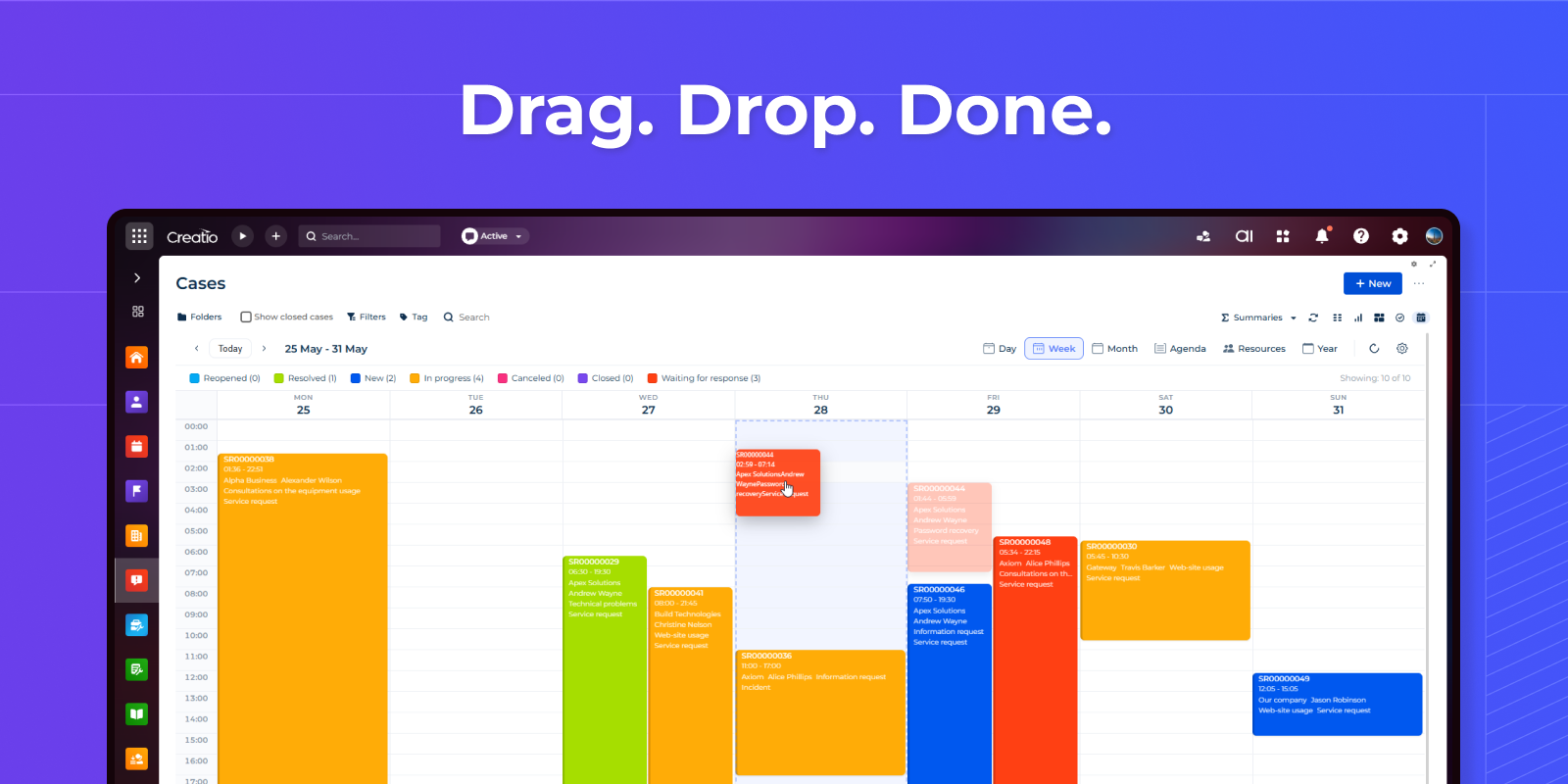
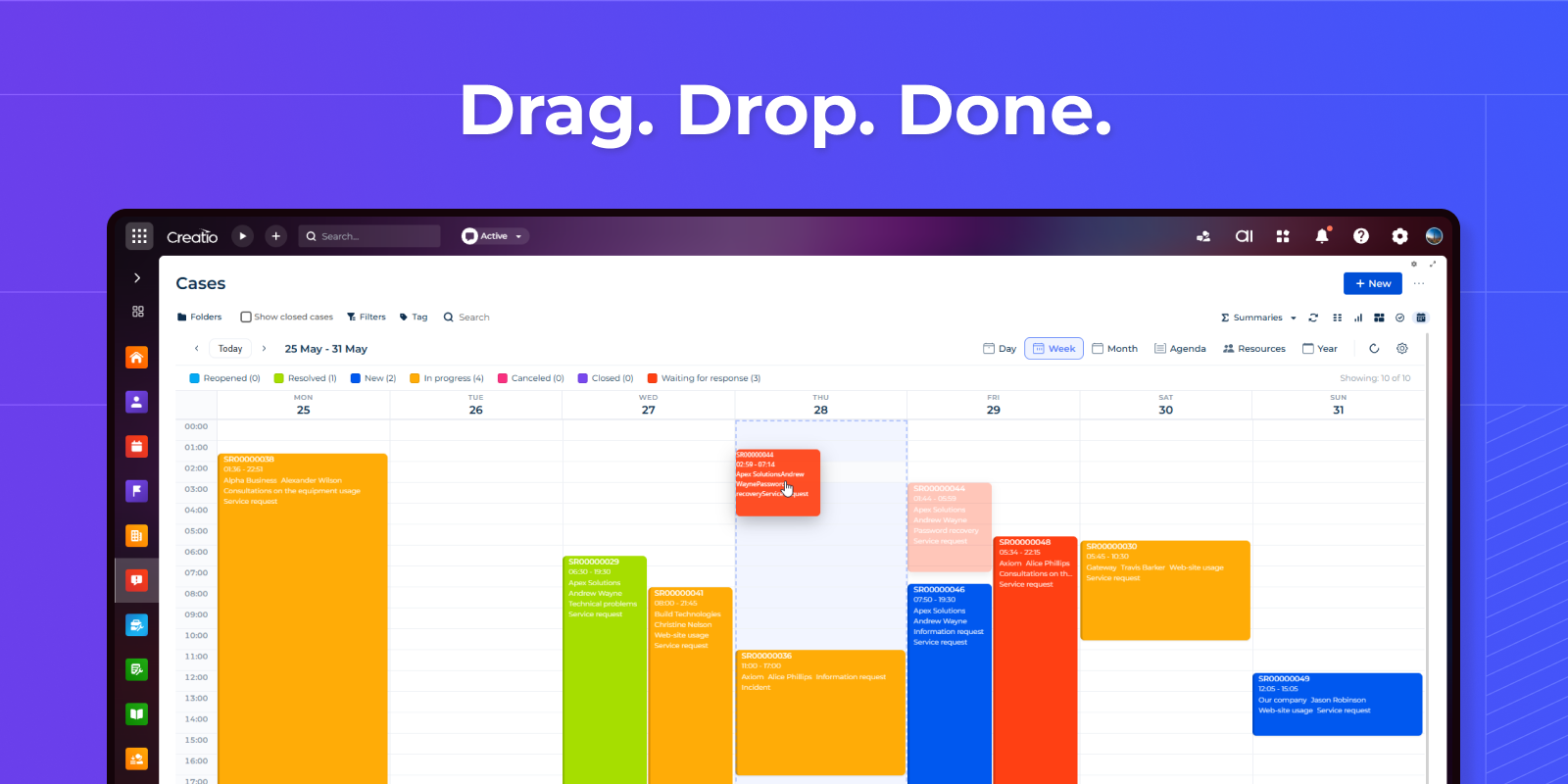
Drag. Drop. Done
Reschedule meetings by dragging to a new time or day. Resize events to adjust duration. Move tasks between team members in timeline view. Changes save instantly to Creatio. No forms, no confirmations, no friction. Scheduling that feels natural.
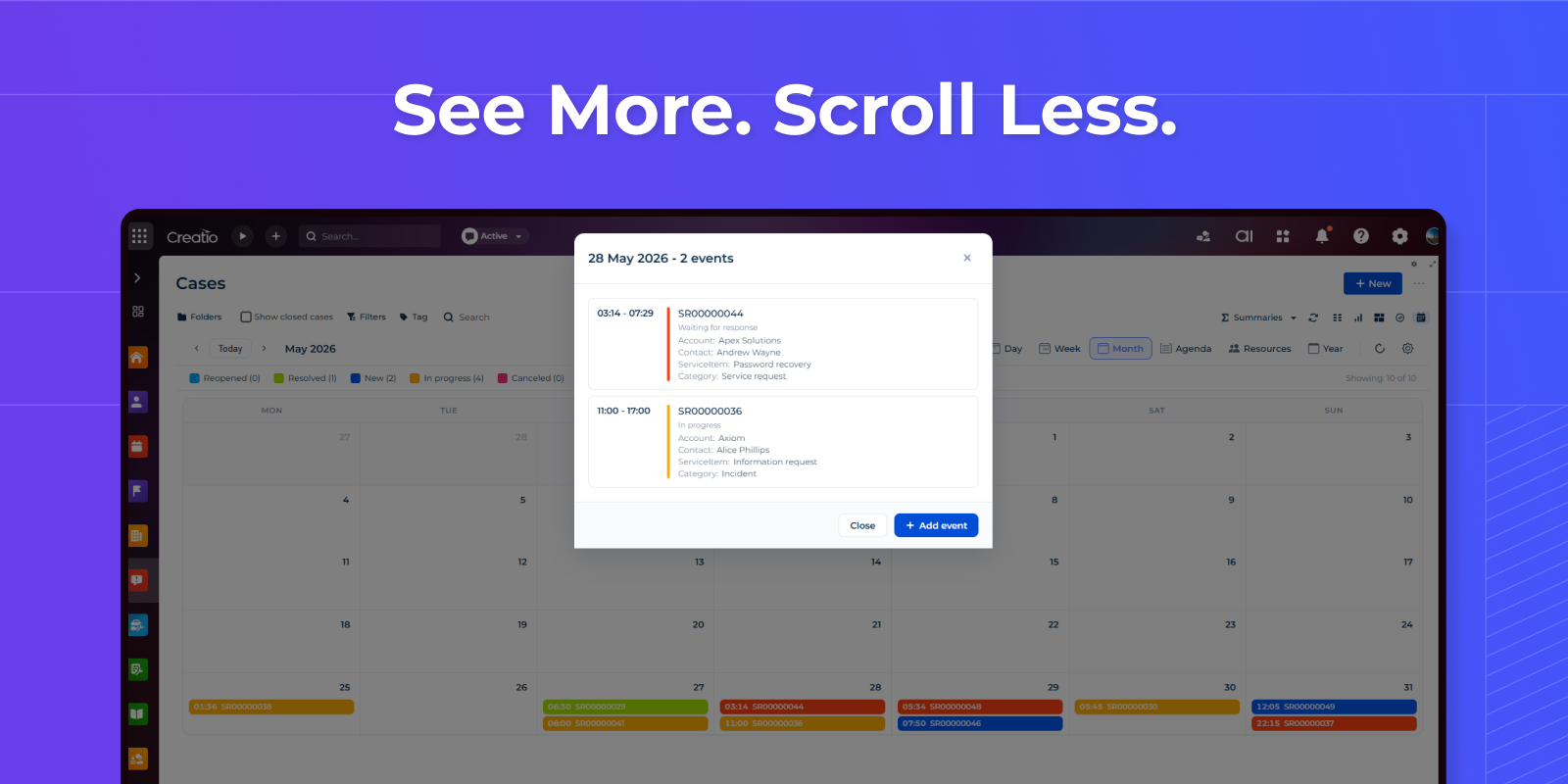
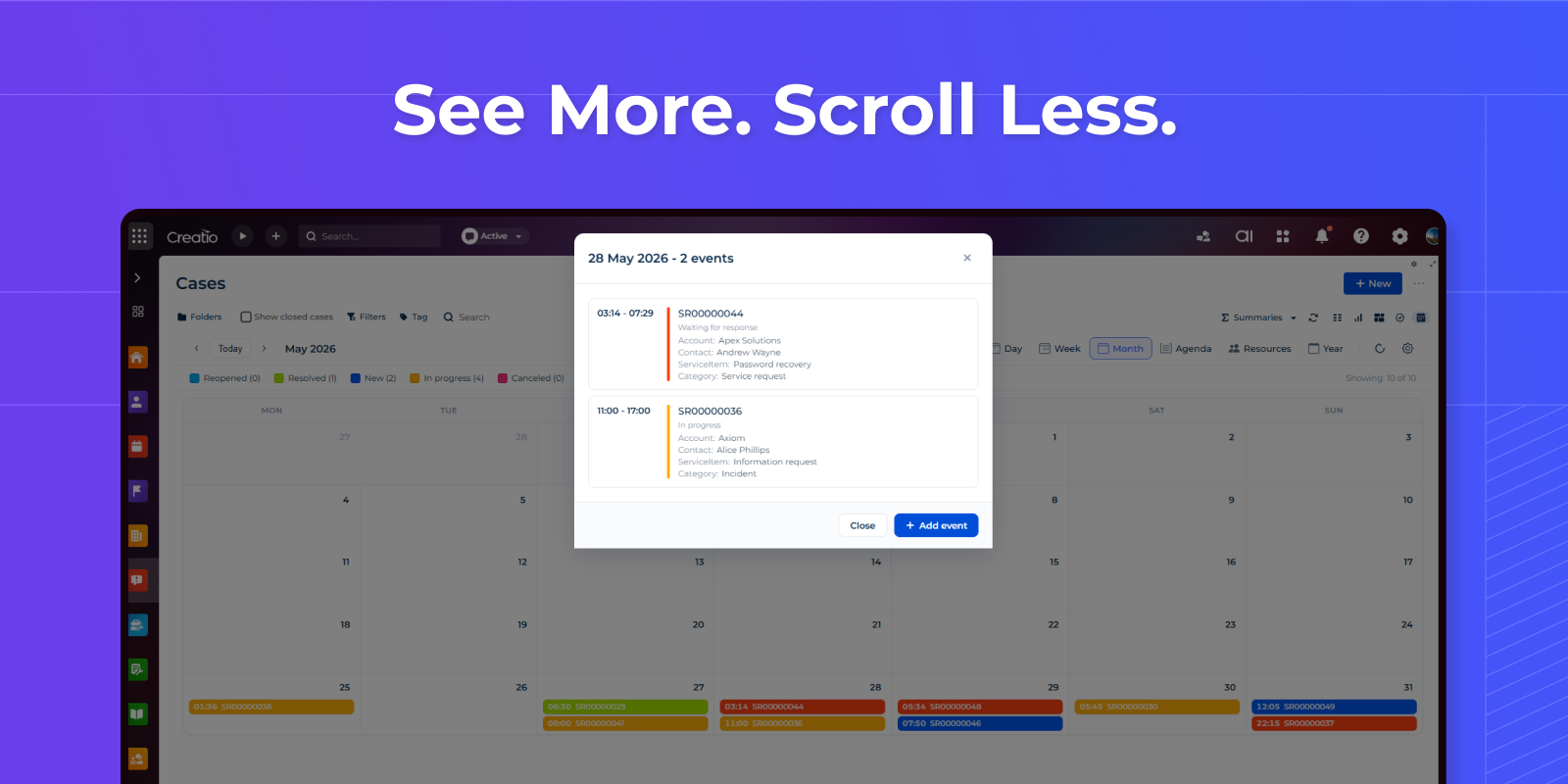
See More. Scroll Less
Month view handles 100+ tasks without clutter. Compact event cards show titles and status colors. Visual density without visual chaos. One screen, full month, complete clarity.
Pricing
Monthly
Annual
Standard
$
100.00 / month
billed annually
Terms and Conditions
By installing this product you agree to terms and conditions outlined in the license agreement.
Support
Support is available for this application
Support is provided by the developer within the “Basic”, “Business” and “Premium“ packages. Detailed information about the support packages and the support terms can be found on the Creatio website.
Installation
Resources
Data sharing
- By installing or downloading the App, you confirm that you agree with sharing your account data (name, email, phone, company and country) with the App Developer as their End User.
- The App Developer will process your data under their privacy policy.
Versions
Versions history
Version
Compatibility
Release date
1.4.0
8.3.0 and up
1.3.0
8.3.0 and up
1.2.0
8.3.0 and up
1.0.1
8.3.0 and up
1.0.0
8.3.0 and up
Release summary
Initial version.
Manual app installation
- Open the needed app → the Packages tab - download the Markeplace app files.
- Click in the top right → Application Hub
- Click New application. This opens a window.
- Select Install from file and click Select in the window that opens.
- Click Select file on the page of the Marketplace App Installation Wizard and specify the app file path.