

Syntech Screenshot Tool for Creatio
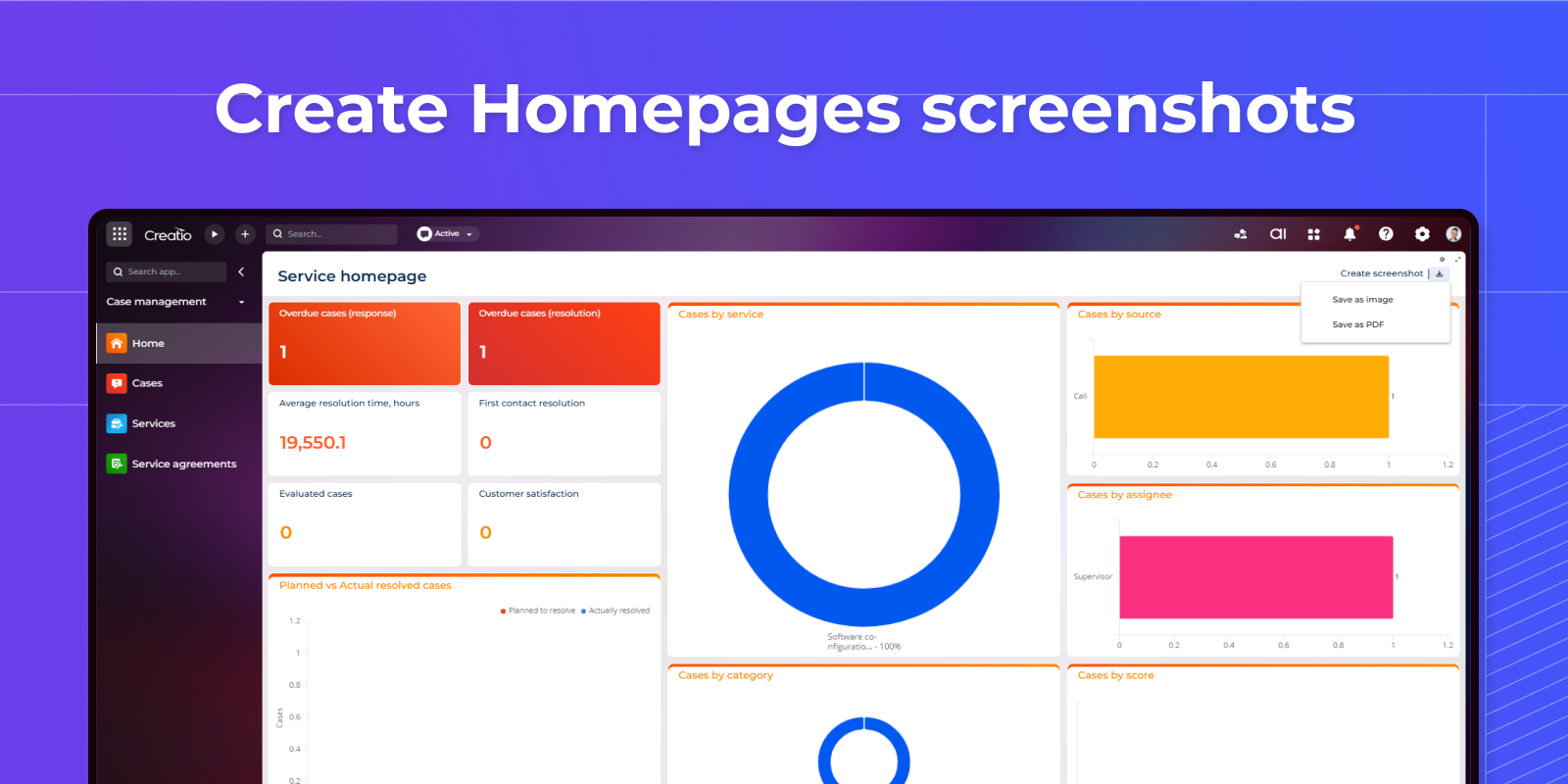
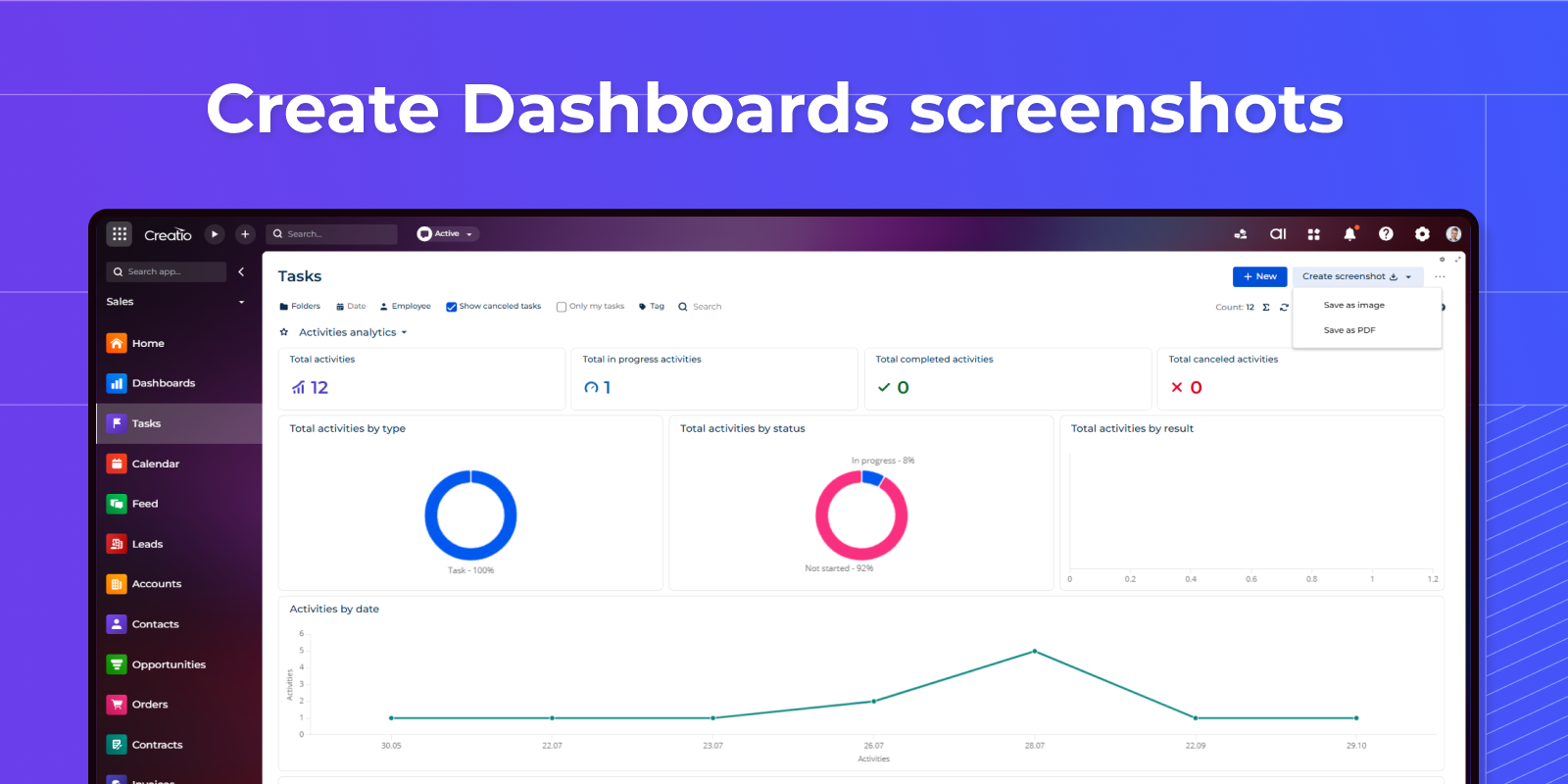
Syntech Screenshot Tool for Creatio is a Freedom UI add-on that enables users to capture screenshots of Creatio homepage and dashboard pages directly from the application interface.
Overview
Product overview
Product description
Syntech Screenshot Tool for Creatio is a Freedom UI add-on that enables users to capture screenshots of Creatio homepage and dashboard pages directly from the application interface. The solution eliminates the need for external screenshot tools, browser extensions, or manual image editing, providing a fast and convenient way to create presentation-ready visuals from Creatio. Screenshots can be exported in PDF and JPG formats for easy sharing, reporting, documentation, training materials, and stakeholder presentations.
Key Features
Simple screenshot creation
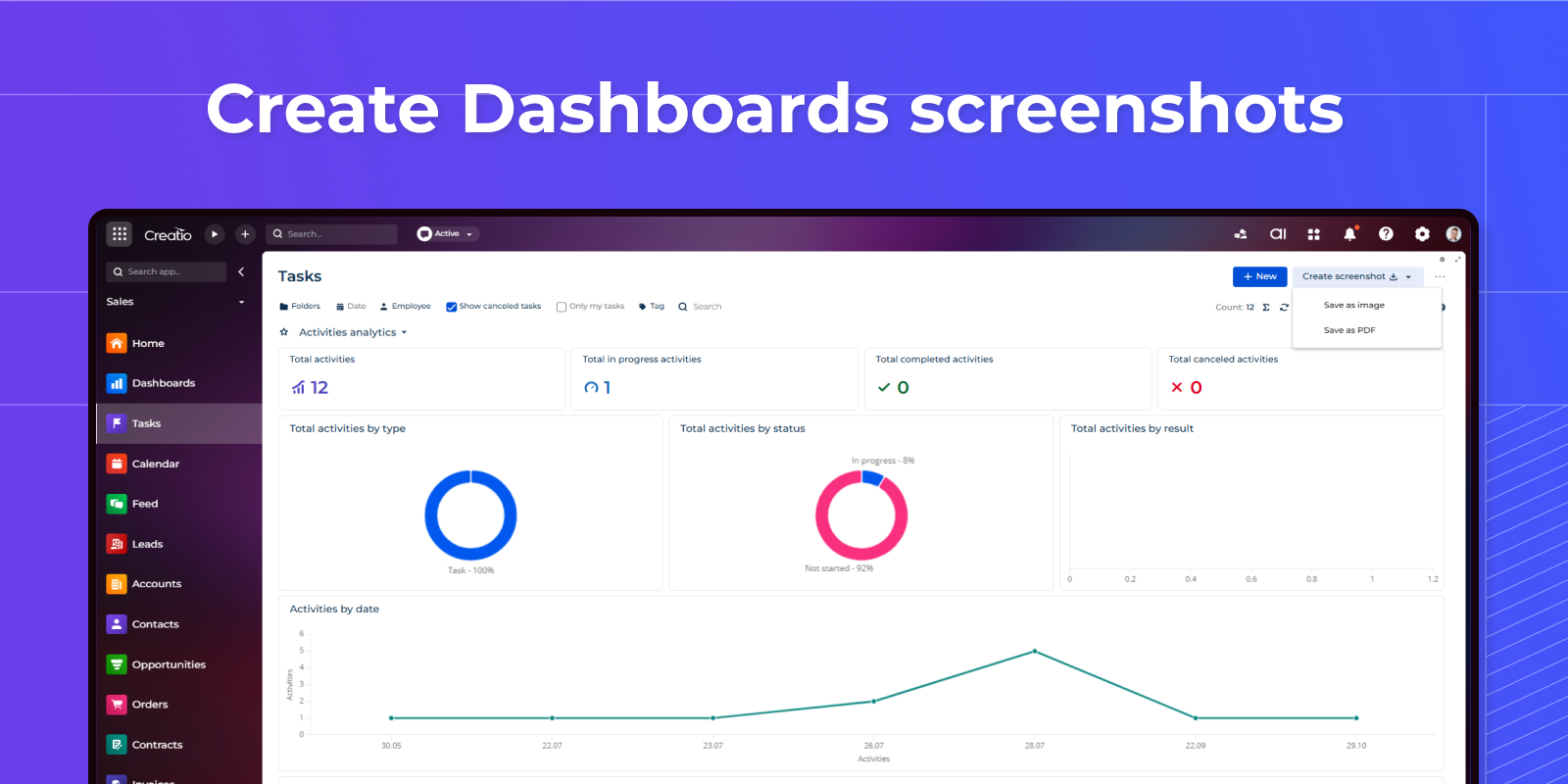
Simplify screenshot collection for Homepages and Dashboards with an intuitive interface that minimizes user effort and accelerates reporting workflows.
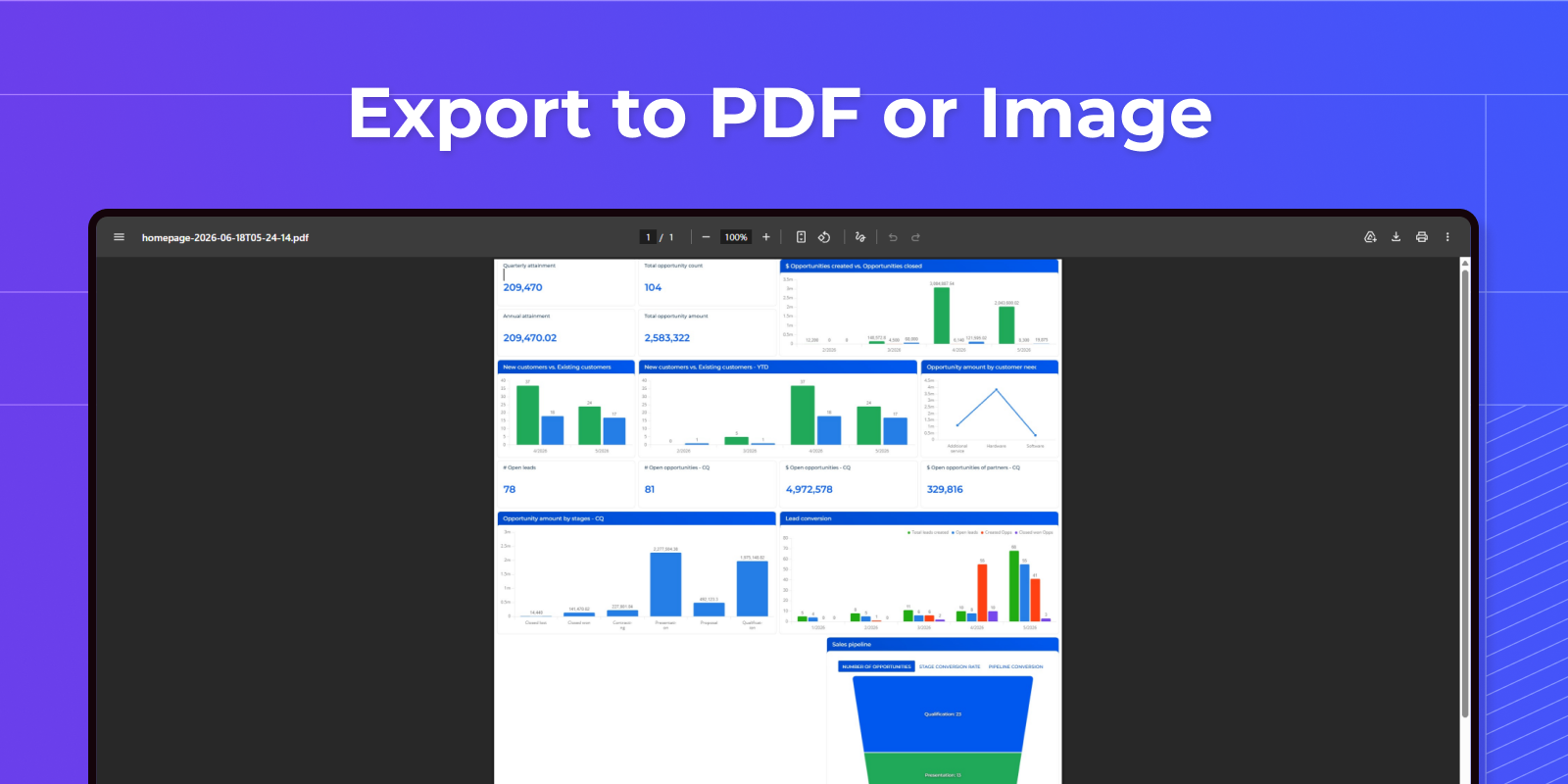
Select a suitable format
Quick, lightweight JPG image for sharing, or a multi-page PDF for printing and archiving.
Pricing
Monthly
Annual
Standard
Free
Terms and Conditions
By installing this product you agree to terms and conditions outlined in the license agreement.
Support
Support is available for this application
To keep this listing free of charge, support is provided only by email.
Installation
Data sharing
- By installing or downloading the App, you confirm that you agree with sharing your account data (name, email, phone, company and country) with the App Developer as their End User.
- The App Developer will process your data under their privacy policy.
Versions
Versions history
Version
Compatibility
Release date
1.0.0
8.3.0 and up
Manual app installation
- Open the needed app → the Packages tab - download the Markeplace app files.
- Click in the top right → Application Hub
- Click New application. This opens a window.
- Select Install from file and click Select in the window that opens.
- Click Select file on the page of the Marketplace App Installation Wizard and specify the app file path.