


Syntech Upcoming Widgets for Creatio
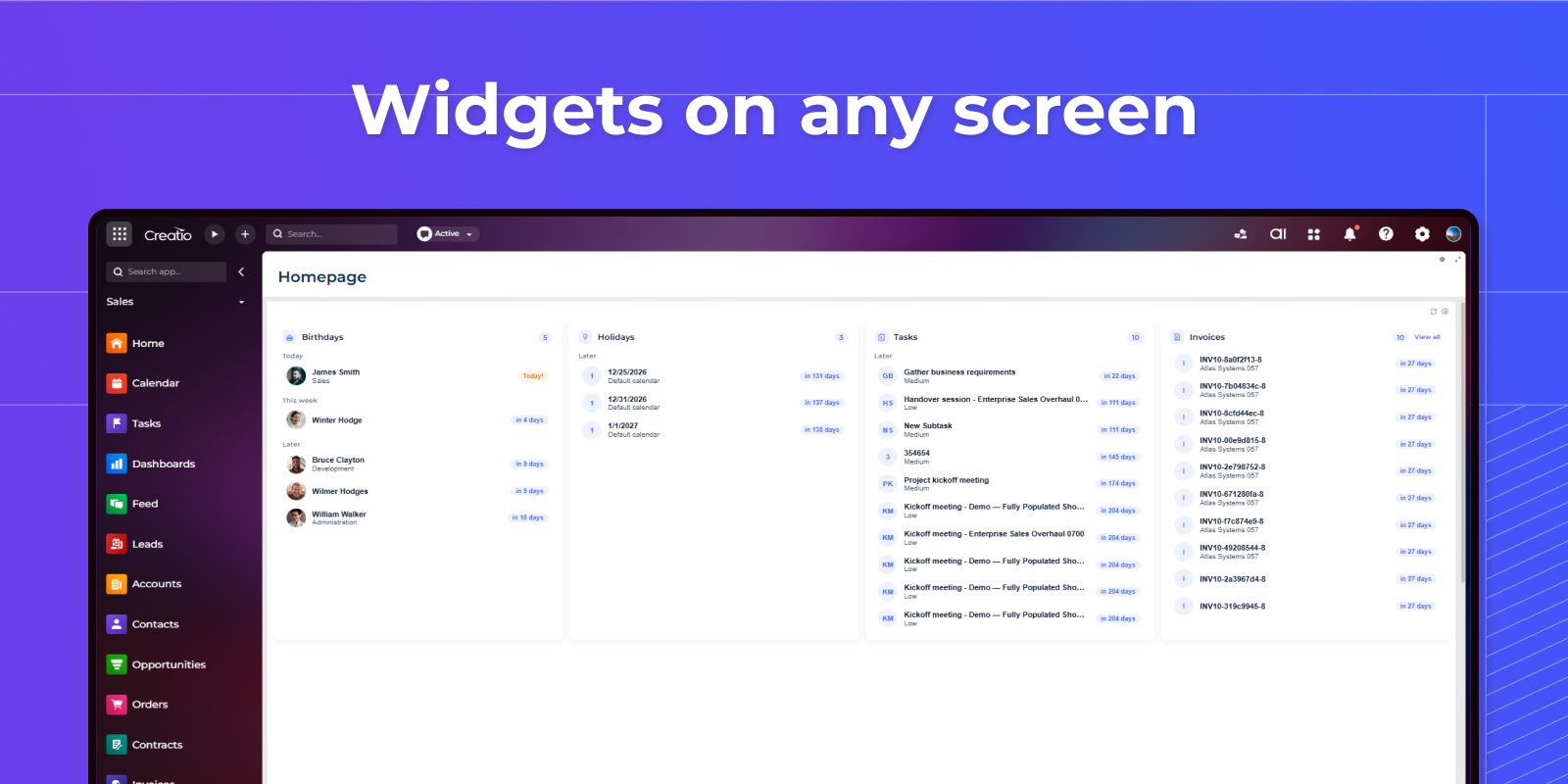
Syntech Upcoming Widgets for Creatio is a no-code event dashboard component for Freedom UI home pages that helps users stay informed about important upcoming activities and business events.
Overview
Product overview
Product description
Syntech Upcoming Widgets for Creatio is a no-code event dashboard component for Freedom UI home pages that helps users stay informed about important upcoming activities and business events.
The solution consolidates multiple event-based widgets into a single configurable component, providing quick visibility into upcoming birthdays, work anniversaries, new employees, public holidays, meetings, tasks, calls, deadlines, contract renewals, invoices, and custom business events.
Key Features
Everything that matters, at a glance
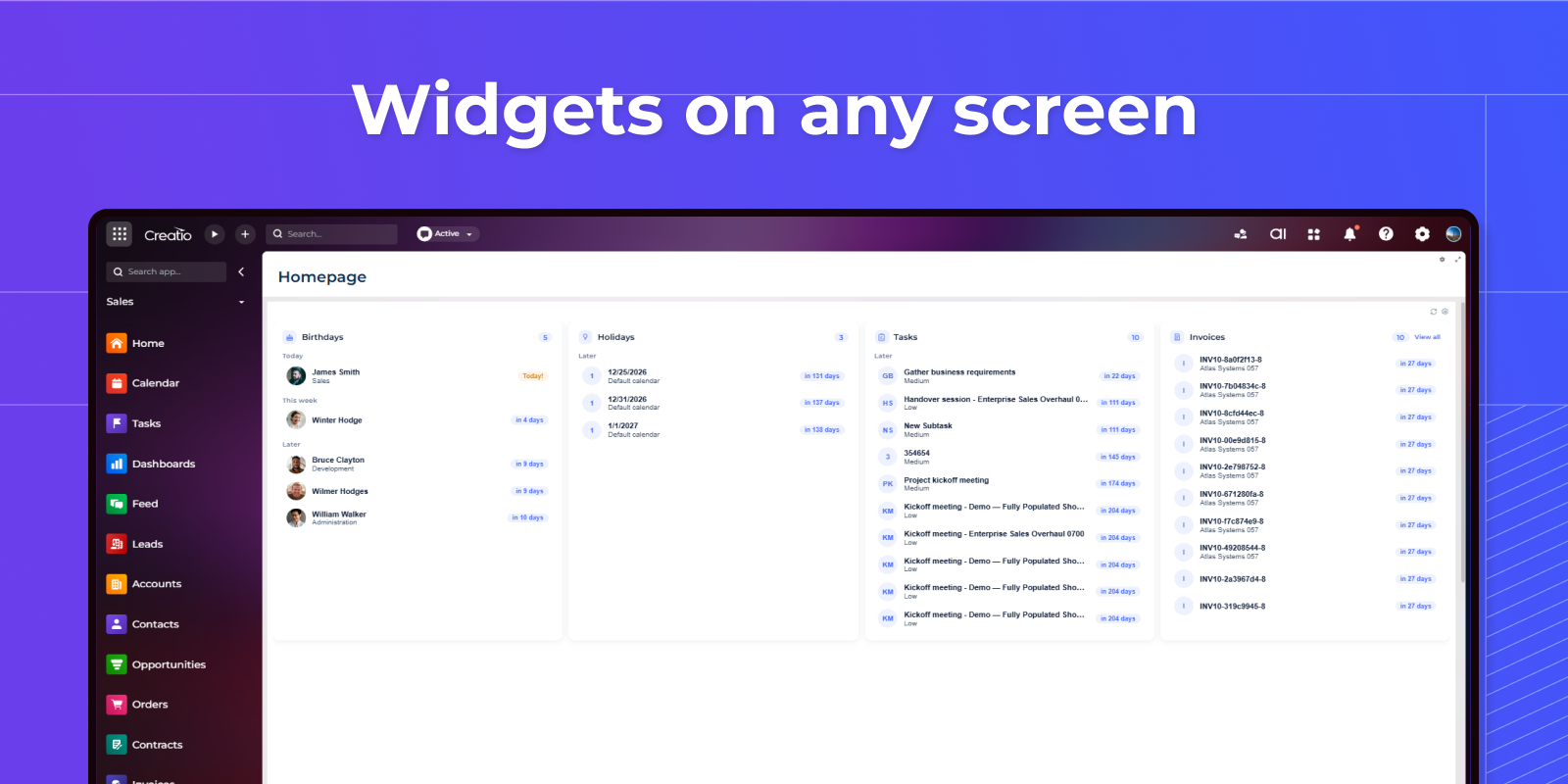
A clean, themeable panel that surfaces upcoming birthdays, work anniversaries, holidays and new hires right on the Homepage. Cards show photos, dates and “days left”, and open the related record in a single click.
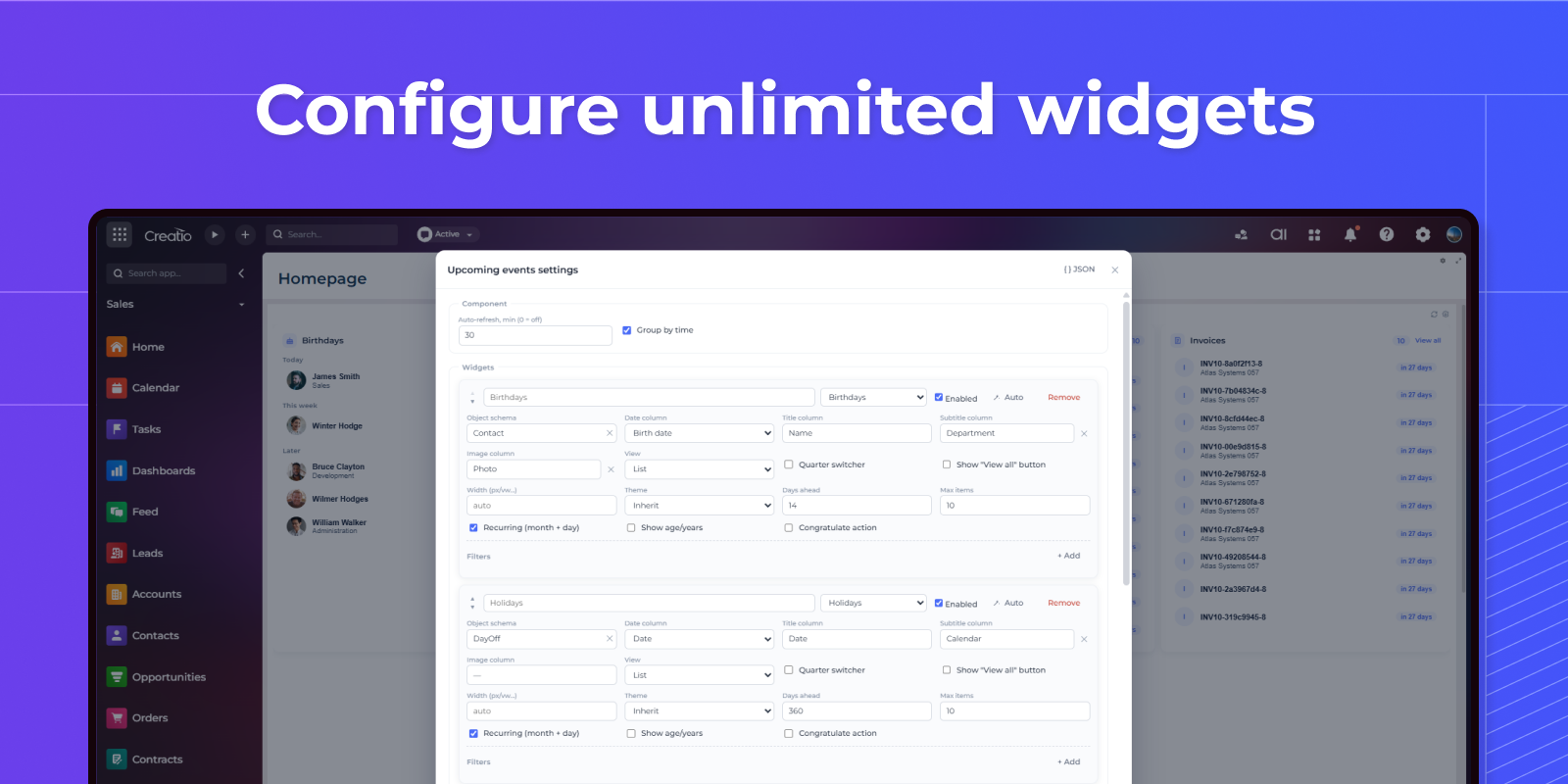
Bind widgets to any Creatio object
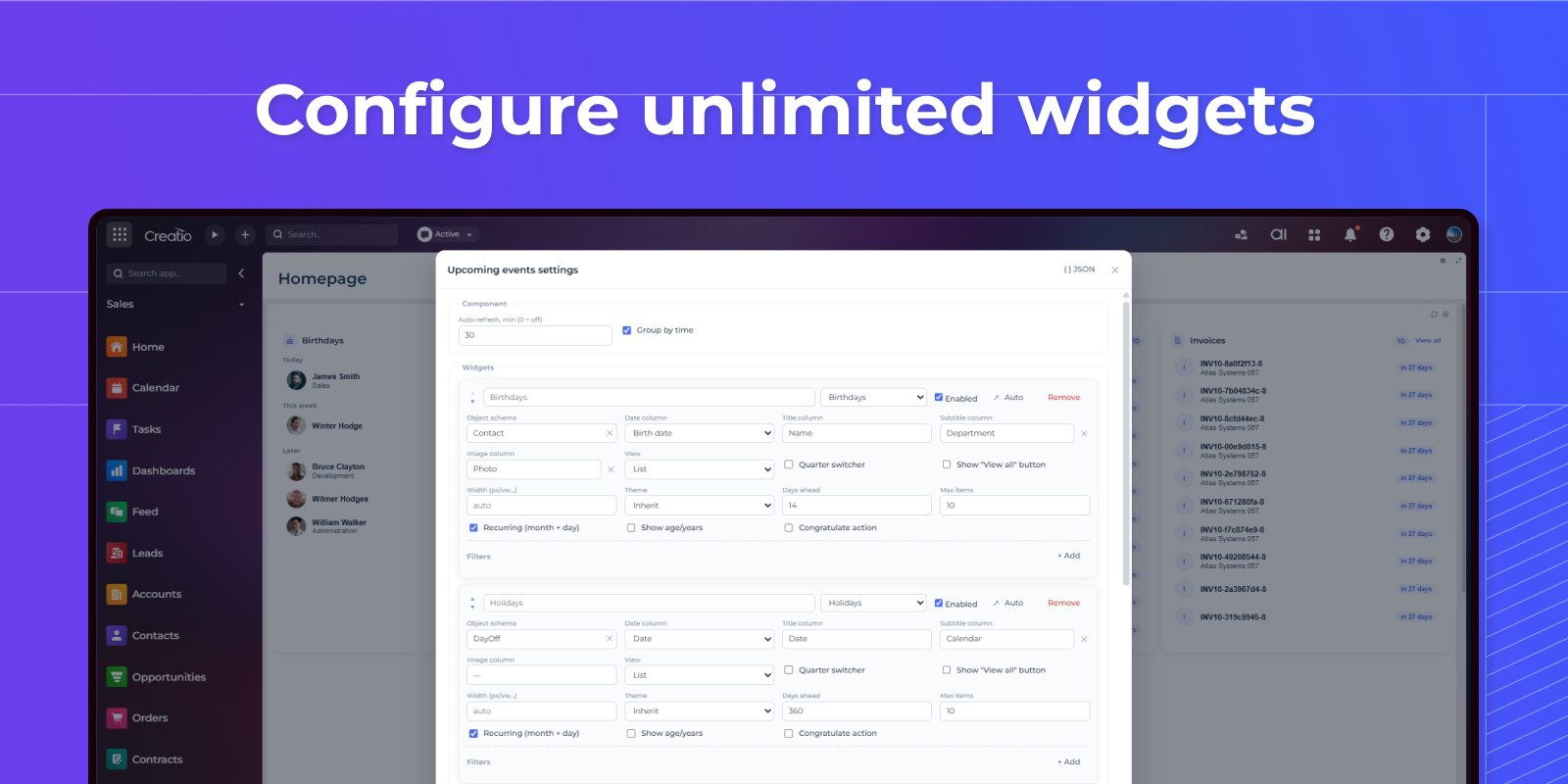
An admin-only settings menu lets you point each widget at any object and columns, choose recurring or date-window logic, add advanced filters, and style it as glass, transparent, fully colored or plain white.
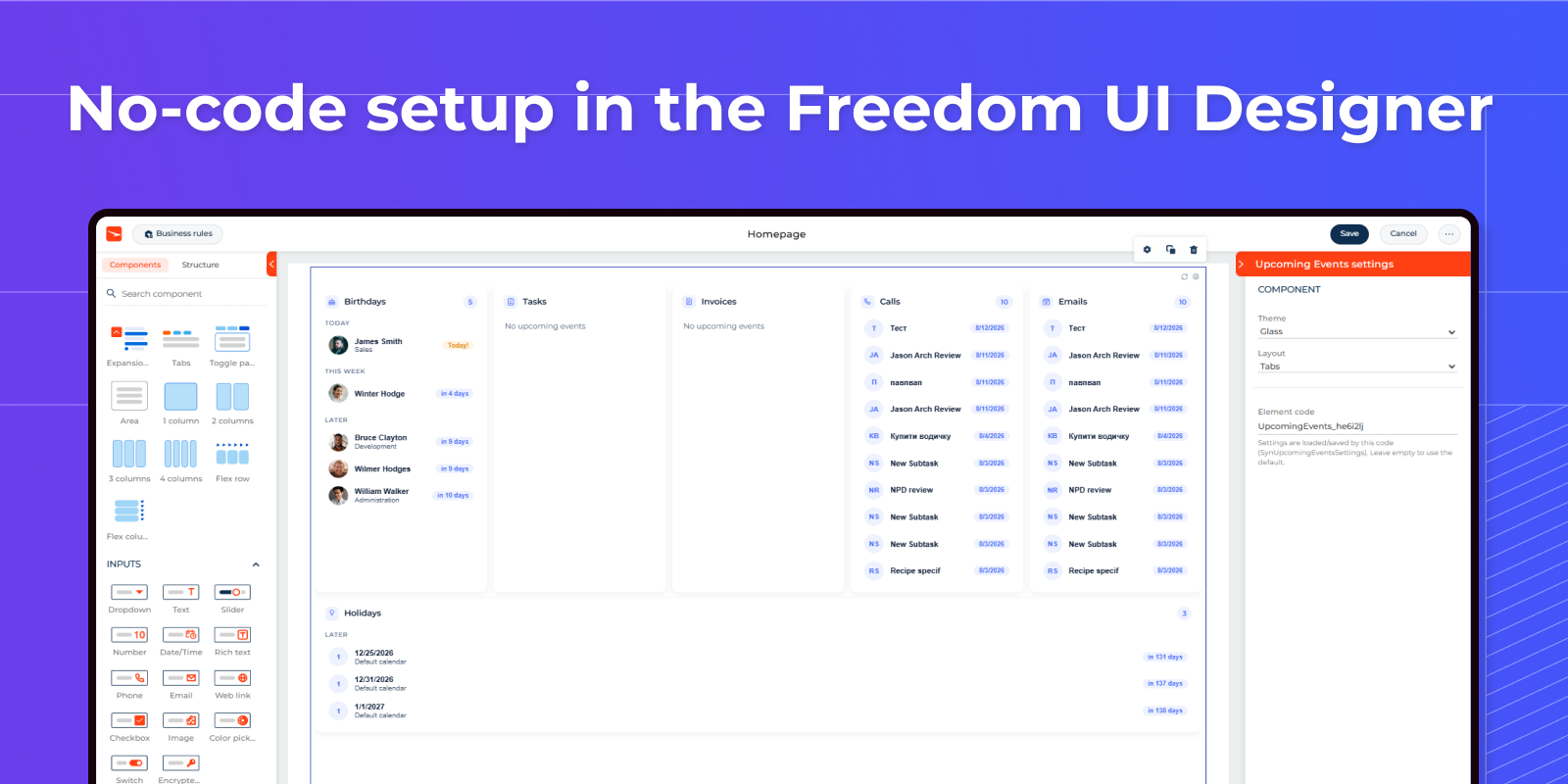
Simple setup
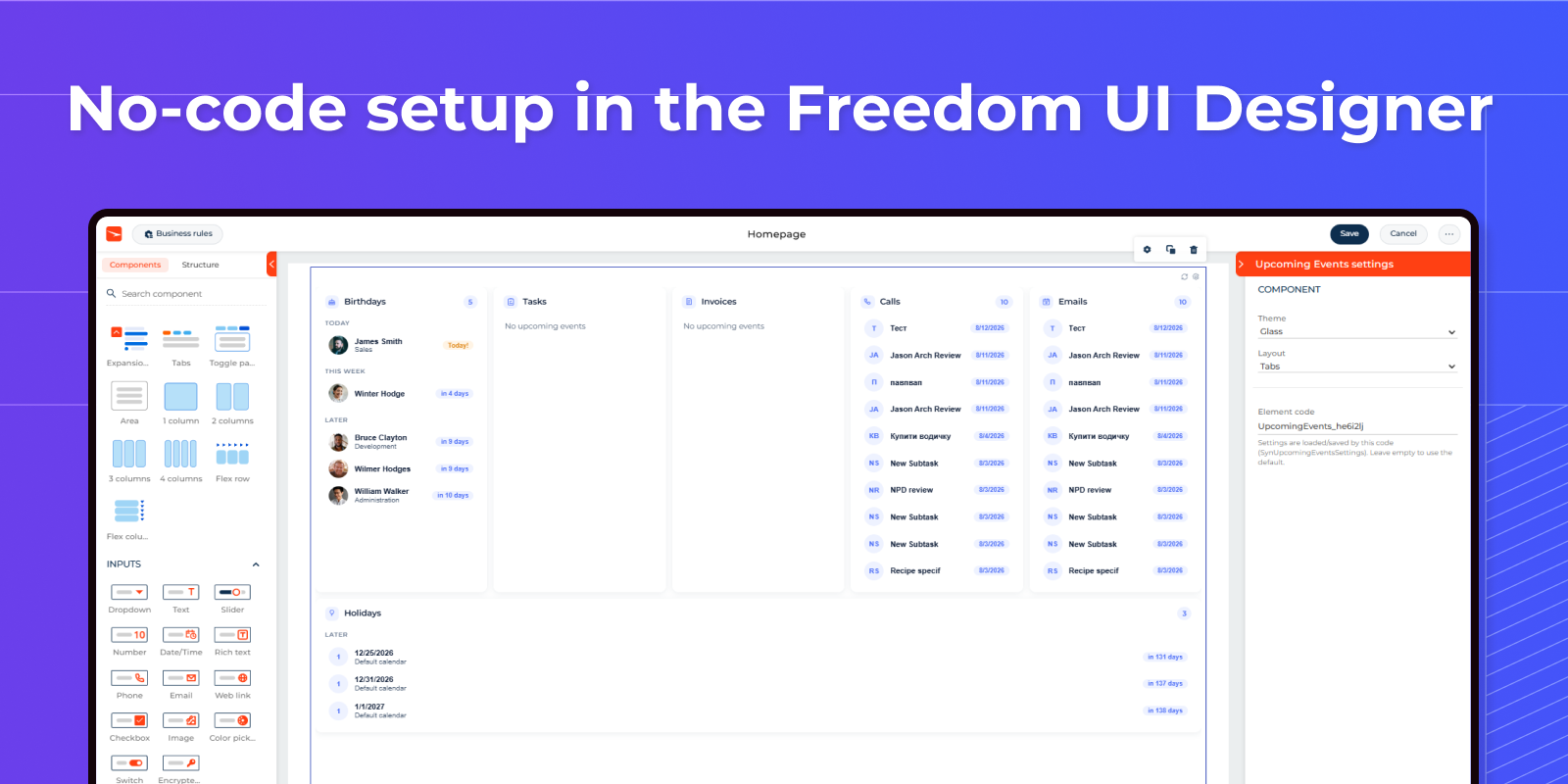
Choose preferred style and layout in Freedom UI designer.
Pricing
Monthly
Annual
Standard
Free
Terms and Conditions
By installing this product you agree to terms and conditions outlined in the license agreement.
Support
Support is available for this application
To keep this listing free of charge, support is provided only by email.
Installation
Resources
Data sharing
- By installing or downloading the App, you confirm that you agree with sharing your account data (name, email, phone, company and country) with the App Developer as their End User.
- The App Developer will process your data under their privacy policy.
Versions
Versions history
Version
Compatibility
Release date
1.0.0
8.3.0 and up
Manual app installation
- Open the needed app → the Packages tab - download the Markeplace app files.
- Click in the top right → Application Hub
- Click New application. This opens a window.
- Select Install from file and click Select in the window that opens.
- Click Select file on the page of the Marketplace App Installation Wizard and specify the app file path.